

 Hemory Team
On this page
MCP configuration is client-specific. A server entry placed in the wrong file or under the wrong key may not load, and setup details for one AI client are not a reliable guide to another. Use the client’s current documentation to find the correct configuration location and format before adding Hemory. Then restart or reload the client and check whether it can reach the server and retrieve relevant Memory.
TL;DR
- Find the MCP setup instructions for your exact client and version; don’t reuse another client’s file path or configuration block.
- Add only the Hemory connection details confirmed by current Hemory setup instructions. The Hemory Features page describes MCP support but does not specify client config paths, keys, transport, or authentication.
- Restart or reload the client as its documentation directs. Distinguish a valid configuration from a connected server and from successful access to Hemory Memory.
- Test retrieval using a discussion you know was captured in Hemory and that the connected client is allowed to access.
1. Identify the exact client and setup environment
Start with the client’s name, version, and how you run it—for example, a desktop application, an editor, or a command-line client. Setup instructions can depend on those details. If you use a managed work installation, check whether your organization provides a separate configuration or restricts MCP connections.
Look in the client’s official, current documentation for its MCP server setup instructions. You need to establish:
| Find out | Why it matters |
|---|---|
| The configuration file or settings page | Determines where the server entry belongs. |
| The expected key or block structure | A valid entry in the wrong section may be ignored. |
| The supported transport and required fields | The entry must match what the server and client support. |
| How the client reloads settings and reports server status | Tells you how to apply and check the change. |
Do not assume the same file, key, or connection method applies to Claude Desktop, Cursor, VS Code, or another client. Confirm the instructions for the specific client you are using.
2. Get the Hemory connection details from current setup instructions
Hemory’s Features page says it provides a standard MCP server and lists some adapted agents, but it does not provide client-specific setup steps. A public integration listing also does not establish that every client’s configuration has been independently tested.
Before editing a file, find current Hemory instructions for the client and connection method you plan to use. Confirm the required server address or command, transport, authentication details, and any environment variables. These values depend on the documented setup; don’t infer them from another MCP server’s example or fill in missing details by guesswork.
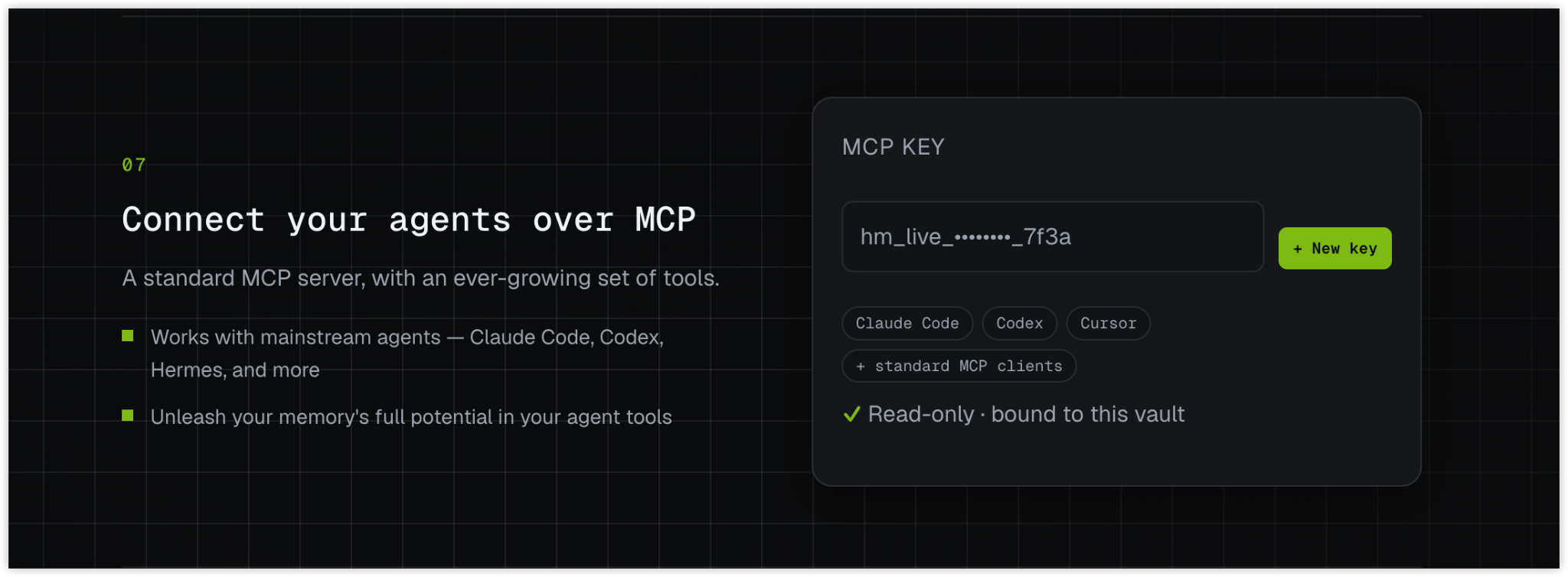
Review MCP connection options and access settings.
If you can’t find current instructions that cover your client, pause before adding an entry. Ask the Hemory team or consult an authoritative setup source rather than trying plausible file paths or credentials. The Features page confirms MCP support, not the specific values needed to configure a client.
3. Add the entry to the documented location
Back up the existing configuration before changing it. Add the Hemory entry under the exact key or block specified by your client’s documentation, using the connection details from Hemory’s current setup instructions. Preserve the file’s required format and existing server entries; don’t replace the whole configuration with a sample from another client.
Check the syntax before saving. For example, in a JSON file, commas, quotation marks, and braces must be valid. Other clients may use a settings interface or a different format, so follow that client’s instructions rather than applying JSON rules universally.
4. Restart or reload the client and check its status
Apply the change using the client’s documented restart or reload process. Then look for the MCP server in the client’s server, integration, or available-tools status—wherever that client reports it. The labels and indicators vary, so use the client’s own documentation to interpret what you see.
Treat these as separate checkpoints:
- The configuration is accepted: the client can parse the file or settings.
- The server connects: the client reports that it can reach the configured server.
- Relevant tools are available: the connected client exposes the Hemory capabilities it can use.
- Retrieval works: a request returns relevant information from accessible Hemory Memory.
Passing one checkpoint does not prove the next. For example, a file can parse even if the server cannot connect.
5. Test retrieval with a known captured discussion
Hemory’s Features page describes its built-in Q&A over a user’s Memory and says that this capability is also available through MCP. To test whether the connection can retrieve useful context, use the connected client to request a specific detail from a conversation you know was previously captured in Hemory and that you have access to.
Keep the test narrow. Ask about a recognizable topic or detail, then judge whether the response is relevant to the captured discussion. This checks retrieval without requiring you to manually prepare a full transcript or summary. It does not prove that every conversation is present, that transcription is perfect, or that the client can access all of your Memory.
If the discussion was never captured or the connected client cannot access it, a failed lookup does not by itself show that the MCP connection is broken. Try a different known, accessible discussion or resolve the missing source through another available record.
6. Troubleshoot by the checkpoint that failed
- The client reports a configuration or parsing error: Recheck the file, key, and syntax against the documentation for your exact client and version. Restore the backup if needed.
- The configuration is accepted, but the server does not connect: Compare the configured transport and required connection details with current Hemory setup instructions. Use the client’s error message to identify the failing part; don’t substitute values from another server example.
- The server connects, but expected tools are missing: Check which tools the client exposes and which capabilities the current Hemory instructions document. A connection alone does not guarantee every client offers identical tools or permissions.
- A retrieval request returns no useful result: Confirm that the discussion was captured and that the connection can access it. Also check whether the request identifies a sufficiently recognizable topic. A missing result does not prove that no such discussion exists.
When you report a problem, include the client and version, the configuration location you used, the exact error text, and which checkpoint failed. Remove credentials and other sensitive values before sharing configuration excerpts.
FAQ
Can I copy an MCP configuration entry from another AI client?
Use it only as a conceptual example. File paths, keys, supported transports, and reload steps can differ. Follow the target client’s documentation and Hemory’s current setup instructions for the actual entry.
Does a successful connection mean the client can retrieve every Hemory conversation?
No. A connection confirms that the client reached the server, not that all Memory is accessible or that every relevant discussion was captured. Test with a known, accessible discussion and interpret the result within those limits.
What if my client connects but does not show a Hemory tool?
Check the client’s tool-status view and current Hemory setup instructions. The available tools and permissions may differ by client. Don’t assume that a connection provides identical capabilities everywhere.
Next step
Once the client reports a connection and a retrieval request returns relevant context from a known captured discussion, use that context for your intended task. Review the result before relying on it, and keep current instructions or details that were never captured in the client’s working context.