

 Hemory Team
On this page
Connecting an AI assistant to an MCP server can make useful tools and information available to it, but the connection does not imply one standard set of permissions. The server defines the tools it offers; the client and its authorization settings affect how those tools can be used. Review both sides before granting access.
TL;DR
- Read the server’s tool list and determine what each tool can read or change. A tool name alone may not explain its full scope.
- Check what the client requests, what it shares with the server, and whether it asks before tool calls or offers per-tool controls. These options vary; do not assume they exist.
- If you cannot establish the connection’s scope or revoke access later, do not connect it to sensitive information or an important account.
Review the server’s tools and their effects
Start with the server’s own documentation. Look for a current list of tools, the information each one can access, and the effects it can have. For every tool, ask:
| Question | What to establish |
|---|---|
| What information can it read? | The records, files, conversations, or other data in scope—and whether access is limited to a particular workspace, account, or Vault. |
| Can it change anything? | Whether it can create, edit, label, delete, or otherwise modify information. |
| Can it act outside the server? | Whether it can trigger actions in another service, or only return information to the assistant. |
| What happens when it is called? | Whether the action is immediate, requires confirmation, or has another documented safeguard. |
Do not infer scope from a tool’s name or from the fact that it is an MCP connection. A search or retrieval tool may expose information the assistant can use in its response; a management tool may alter something. If documentation does not explain an effect, treat it as unresolved—not as proof that the tool is harmless or that it has broad access.
Check the client’s authorization and controls
The assistant client is a separate part of the connection. Review its setup and permission screens as well as the server’s documentation. Before approving, find out:
- What authorization is requested? Identify the account or workspace involved and any access token or other credential the client asks you to grant. Check the stated scope and how access can be removed.
- Can you review or control tools individually? Look for tool lists, enable or disable options, and settings that limit access. If there is no per-tool control, establish whether approving the connection enables every listed tool.
- Will the client ask before using tools? Check whether confirmation is available, what actions trigger it, and whether the setting applies to this server. A prompt in one client does not establish the same behavior in another.
- How do you disconnect and revoke access? Find the removal steps before connecting. Disconnecting a server in the client and revoking an authorization or token may be separate actions; follow the documented steps for the specific connection.
Treat these as questions to verify, not features every MCP client must provide. If the client does not explain its authorization flow or offer a control you need, ask its provider or choose a connection with a scope you can understand and manage.
Match the access to the task
Decide what the assistant needs to do, then grant no more access than that task requires. For a lookup, consider whether the connection exposes only relevant information or also tools that can make changes. For a task involving changes, identify the exact action, affected account, and approval step before enabling it.
If you can control access by tool, enable only what the task needs. If you cannot, weigh the entire tool set—not just the feature you intend to use. Avoid connecting sensitive data or high-impact accounts until you can explain the access and its consequences in plain language.
A small, low-risk test can help you understand the connection if the server and client support one and you can use non-sensitive information. Observe what the assistant can retrieve and whether any action requires confirmation. Do not treat a test as proof that every tool, data path, or future client version behaves the same way.
Apply the checklist to Hemory’s MCP connection
Hemory documents Memory retrieval through MCP and Speaker labeling and management. Its documentation also describes the connection as bound to the current Vault. This means you should not assume the integration is entirely read-only, or infer that it can make arbitrary changes elsewhere. The Hemory Features page describes MCP access to its Memory Q&A and lists supported agent tools, but a listing is not an independent test of each client’s setup or behavior.
Before connecting, check the current Hemory MCP documentation and the specific client’s authorization screen for the available tools, their effects, and any approval or access controls. The available information here does not establish exact per-tool toggles, confirmation prompts, or token scopes. If those details matter to your use case and you cannot verify them, avoid granting access to sensitive material until Hemory and the client clarify them.
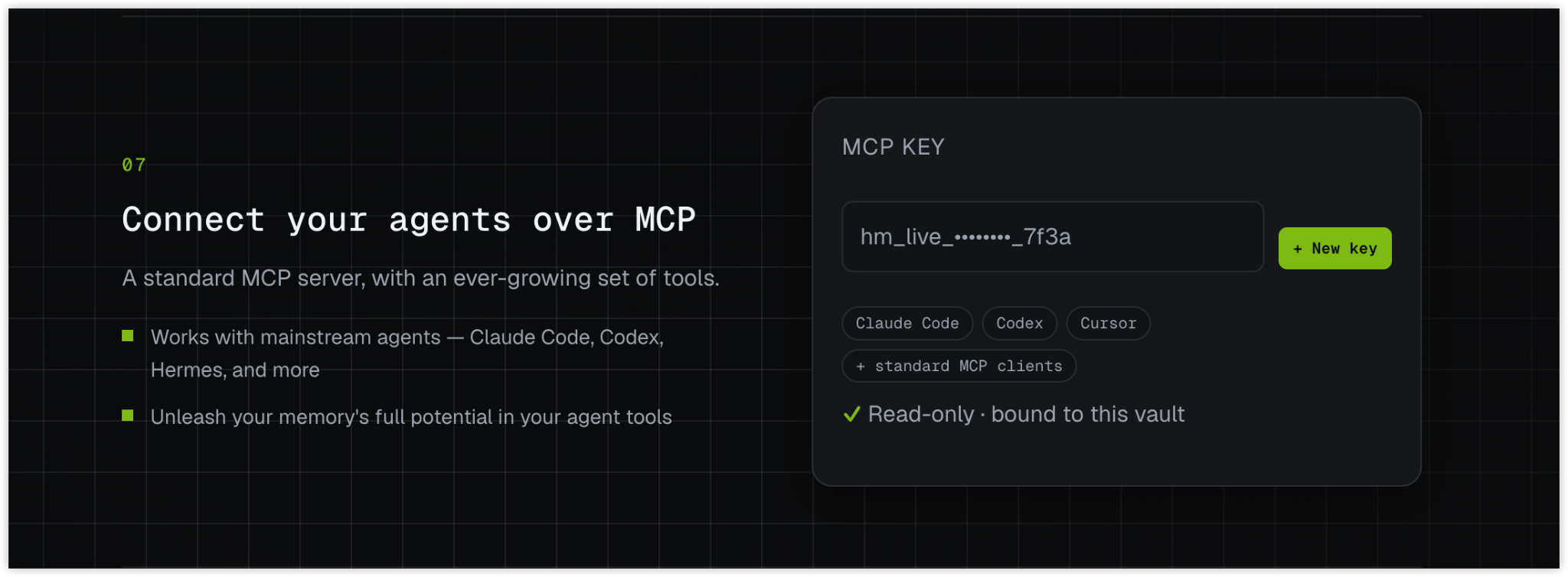
Review MCP connection options and access settings.
When connected, Hemory supplies accessible captured Memory; the external assistant performs its own retrieval, reasoning, and any supported actions. Review the assistant’s output and any proposed action yourself. The connection does not establish that the assistant can access uncaptured conversations, unrelated systems, or every capability offered by the client.
Make the connection decision
Use this rule before approving:
- Connect when the tools, data scope, client authorization, and removal steps are clear and suitable for your task.
- Limit access first when you can disable unneeded tools or narrow the information available.
- Pause or decline when a material permission is unexplained, the requested scope is broader than necessary, or you cannot remove access in a way you trust.
Record the server, client, account or Vault, approved tools, and any important limits in a place you can find later. Recheck them if the server’s tool list, client settings, or your intended task changes. This gives you a practical basis for reviewing the connection again rather than relying on what you remember approving.
FAQ
Does MCP give an AI assistant access to everything on my device?
Not by itself. The assistant’s access depends on the tools exposed by the server, the information those tools can reach, and the client’s authorization. Review the specific connection rather than assuming either universal access or a fixed, narrow scope.
Are MCP connections read-only?
Not necessarily. Some servers may expose tools that manage or change information. Check each server’s documented tools and effects; do not infer read-only access from the protocol or the client’s interface.
What if I cannot find a permission screen or tool-level controls?
Do not assume those controls are available. Check the server and client documentation or ask their providers. If you cannot establish the scope and removal process, avoid connecting sensitive data or accounts.
Is disconnecting the server enough to revoke access?
It depends on the client and authorization method. Follow the documented removal process and check whether you also need to revoke a token or account authorization.