

 Hemory Team
On this page
A memory server appearing in an MCP client list does not tell you whether its setup works the same in your coding tool, which tools the connection exposes, or what those tools can access. Check compatibility for the exact client you use, then verify its connection path and permissions before relying on it for work.
TL;DR
- Treat a public integration listing as a useful lead, not proof that your client has been independently tested.
- Check setup instructions, available tools, and permission scope for your specific client and connection.
- Try a small task using a discussion already captured in the connected memory source; review what the client can retrieve and do.
Use this compatibility checklist
1. Identify the exact client
Write down the client’s name and, when relevant, its edition or version. “MCP support” can refer to different clients and connection routes, so a setup example for an IDE does not establish that a CLI agent or another MCP client uses the same steps.
Check the client’s current documentation for its MCP connection method and requirements. Confirm what configuration it expects and whether your account or environment allows you to add a server. Do not copy configuration details from another client unless the instructions say they apply to yours.
2. Treat listings as evidence of a public connection path, not a test result
A provider’s public integration list helps you find candidate clients. It does not, on its own, establish that each client has been independently tested, that the connection works in every version, or that all clients expose the same behavior.
Hemory’s homepage publicly lists Claude Code, Codex, Gemini, Cursor, VS Code, OpenClaw, Hermes, and general standard MCP clients. Its Features page names Claude Code, Codex, and Hermes. These are public listings, not a claim that every listed client has been independently verified or has identical setup and permissions. Check the current instructions for the particular client you plan to use.
Do not automatically treat ChatGPT as a standard MCP client. Confirm that the specific ChatGPT connection route you intend to use is supported and current before following MCP setup guidance.
3. Confirm what the connection exposes
Once connected, inspect the tools the client actually makes available and read their descriptions. A server’s general MCP compatibility does not tell you which tools a particular client presents, how it presents them, or whether it handles them as expected.
For Hemory, the documented MCP capabilities include Memory retrieval and Speaker labeling and management. That does not establish unrestricted access or permission to modify every Memory, Transcript, or other data—or to take actions in unrelated systems. Check the tools and permissions shown in your own client rather than inferring a broader scope from the word “MCP.”
4. Check the scope and permissions before using real work
Confirm which account or memory space the connection can reach and whether the client asks for permissions beyond the task you have in mind. If a tool can make a change, understand what it changes and whether your approval is required before enabling or using it.
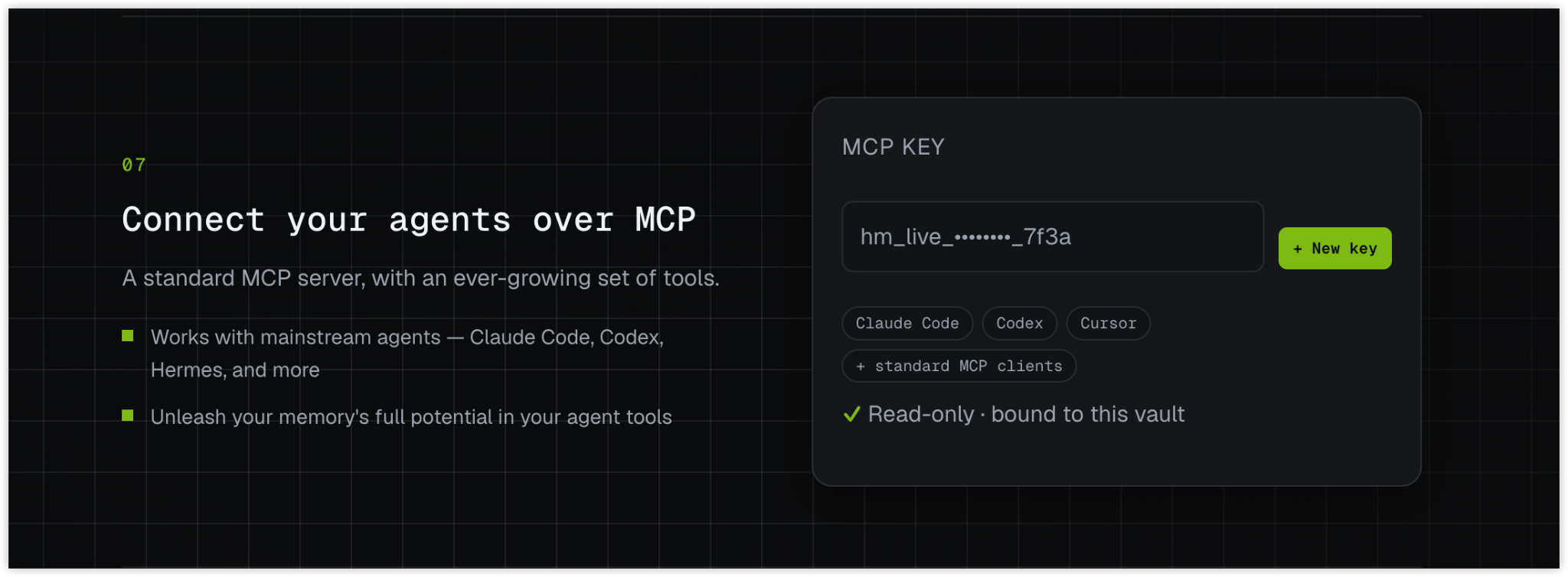
Review MCP connection options and access settings.
Keep the systems’ roles distinct: Hemory captures, organizes, and provides access to relevant recorded context; the connected agent performs its own reasoning or drafting; you review the result. A connection does not imply access to uncaptured conversations, an entire team’s records, or automatic updates to external work systems.
5. Try a bounded task with captured information
Use a low-risk question about a discussion that has already been captured and is within the connection’s accessible scope. For example, ask the connected agent to retrieve the discussion of a specific project decision and summarize the stated condition. Check whether the result reflects the task, whether the source is accessible to you, and whether the agent’s output distinguishes what was agreed from what remains uncertain.
A successful example is useful evidence about that client, connection, and task. It is not proof that every tool, permission, or future session will behave the same way. If the result is unexpected, check the client’s connection settings and current instructions before concluding that the server lacks the information.
Make the decision client by client
Use this checklist to reach a practical conclusion:
| Check | What to establish | What it tells you |
|---|---|---|
| Client identity | Exact client and relevant version or environment | Whether the instructions match your setup |
| Public listing | Whether the server or provider names that client | Whether there is a public connection path to investigate—not whether it was independently tested |
| Connection method | Current setup requirements for that client | Whether you can configure the connection in your environment |
| Exposed tools | Which tools the connected client actually presents | What the agent can request through that connection |
| Permissions and scope | What information is accessible and which actions are allowed | Whether the connection fits your intended use |
| Bounded trial | Whether a small task works with already captured, accessible information | Whether the setup appears useful for that task |
Choose the client only when its setup is documented for your situation and the tools and permissions fit the work. If setup instructions or permissions are unclear, treat compatibility as unresolved and consult current guidance rather than assuming another client’s workflow applies.
FAQ
Does a client on a public integration list mean it has been tested?
No. A listing shows that the provider publicly names the client or integration path. It does not establish independent testing for every version, setup, or permission configuration.
Does MCP compatibility mean every client has the same tools and access?
No. Check the tools and scope available through the specific connection. MCP compatibility alone does not establish identical setup, permissions, or behavior across clients.
Can a memory server retrieve a conversation that was never captured?
No. A connection can provide access only to relevant information that was captured and is accessible through that route. If a detail was not recorded, use another source or ask a focused follow-up.
Is ChatGPT automatically a standard MCP client?
Do not assume so. Check the current status and setup for the specific ChatGPT connection you plan to use; a separately announced connection does not by itself establish that it uses standard MCP.
Next step
Start with the client you actually use. Find its current connection instructions, inspect the tools and permissions after setup, and test a small task against captured information you can access. That gives you a client-specific basis for deciding whether the connection fits your work—without treating a public listing as a guarantee.