

 Hemory Team
On this page
An AI note taker can produce a useful summary and still leave you with the work of copying it into a CRM, shared document, or project record. The important comparison is not simply “integration or no integration.” It is the complete route from a call to the place your team uses the notes—and the steps you still have to do along the way.
TL;DR
- Trace each output from capture to its final destination. A connection may transfer some information but leave review, formatting, or filing to you.
- Compare the same steps for every candidate: setup, export or sync, destination record, updates, and recovery when something fails.
- Confirm the exact apps, plans, permissions, fields, and user actions with the vendor; do not infer them from a broad “integrates with” claim.
- Treat Hemory’s documented MCP connection as a way for supported agents to access Memory and Q&A, not as evidence of native CRM or meeting-platform sync or automatic note filing.
Start with the destination, not the integration label
Write down where each kind of meeting information needs to end up. A transcript may belong in an archive, a concise summary in a shared document, and action items in a task or CRM record. “The notes” may refer to several outputs with different destinations.
Then map the route for each tool:
- Capture: Where does the conversation enter the note taker, and what setup or user action is required?
- Create: Which outputs does it produce, such as a transcript, summary, or action list?
- Transfer: Does information move through a native connection, a file export, copy and paste, or a connected agent?
- File: Does it reach the intended record or folder, or must someone select a location and finish the handoff?
- Maintain: What happens when the notes are corrected, the meeting record changes, or the destination needs an update?
This route makes the real workload visible. A tool can have an integration and still require manual review or filing. An export can be a reasonable choice if it produces the right format and the remaining steps are predictable.
Compare the actual steps side by side
Use one row per output and one column per step. Fill it in using the vendor’s documentation or a demonstration of your intended workflow, not the integration label alone.
| What to compare | Questions to answer | Why it matters |
|---|---|---|
| Destination | Which exact app, workspace, record, or folder receives the output? | A connection to one part of a platform may not place notes where your team works. |
| Information transferred | Does it send a transcript, summary, action items, or selected fields? | A short recap may not satisfy a workflow that needs decisions or source detail. |
| Trigger and user steps | Does transfer happen automatically, after review, or only after someone exports or copies the output? | This determines how much recurring work remains. |
| Format and field mapping | Are headings, timestamps, speakers, and action items preserved in usable fields? | Poorly structured output can create cleanup even when transfer succeeds. |
| Updates and duplicates | Can a corrected note update the existing destination record, or might it create another copy? | The team needs to know which version is current. |
| Access and plan | Which plan, permissions, and account setup are required? | A listed connection may not be available under your organization’s setup. |
| Failure handling | How will you know a transfer failed, and what is the recovery step? | A silent failure can leave the expected record incomplete. |
The last four rows are easy to overlook. “It sends meeting notes to our CRM” is not enough to know whether it creates a usable record, preserves changes, or alerts someone when the handoff fails.
Measure manual effort as a workflow, not a single click
For each candidate, list the actions a person must perform after the call. For example: review the summary, correct a name, choose an account, export a file, rename it, paste action items into a record, and tell a teammate where to find it.
Do not count only clicks. Note the judgment required, too. A person may need to decide which account a call belongs to or whether an action item is ready to share. An integration might remove a transfer step without removing that decision—and that may be the safer workflow.
Compare candidates using the same representative call and destination. Record whether the route works as expected, which actions remain, and where the output needs cleanup. Treat this as a workflow check, not a claim that one tool will perform the same way for every team or account.
Verify the claim with a concrete scenario
Before choosing, ask the vendor to demonstrate the route you actually need. Use a specific example, such as: “After a recurring customer call, how does the summary and its action items reach the existing customer record? What does a user have to do, and what happens if the record already exists?”
Confirm these details:
- The exact destination app and type of record—not only the platform name.
- Whether the connection is native, an export, or an agent-mediated handoff.
- Which outputs and fields transfer, and whether a person can review them first.
- Whether setup, permissions, or a particular plan are required.
- How corrections, duplicate records, and failed transfers are handled.
If you cannot confirm a detail, mark it as unknown rather than assuming the broad integration claim covers it. A short pilot with a representative workflow can reveal practical friction, but it does not establish performance across every meeting type or account configuration.
Keep Hemory’s MCP connection separate from destination integrations
Hemory’s public Features page describes a standard MCP server and says its built-in Q&A capability is available to external agents through MCP. It lists agent connections, but does not describe a native integration that sends meeting notes directly to a CRM, meeting platform, or shared document store. See the Hemory Features page for the published description.
That distinction matters when you compare transfer effort. MCP is a route for a supported external agent to access Hemory Memory and Q&A; it does not by itself confirm that the agent can file notes into your CRM or document store. The agent’s own supported tools, permissions, and actions—and the handoff you need to complete—must be checked separately. Do not treat an MCP connection as automatic sync or writeback.
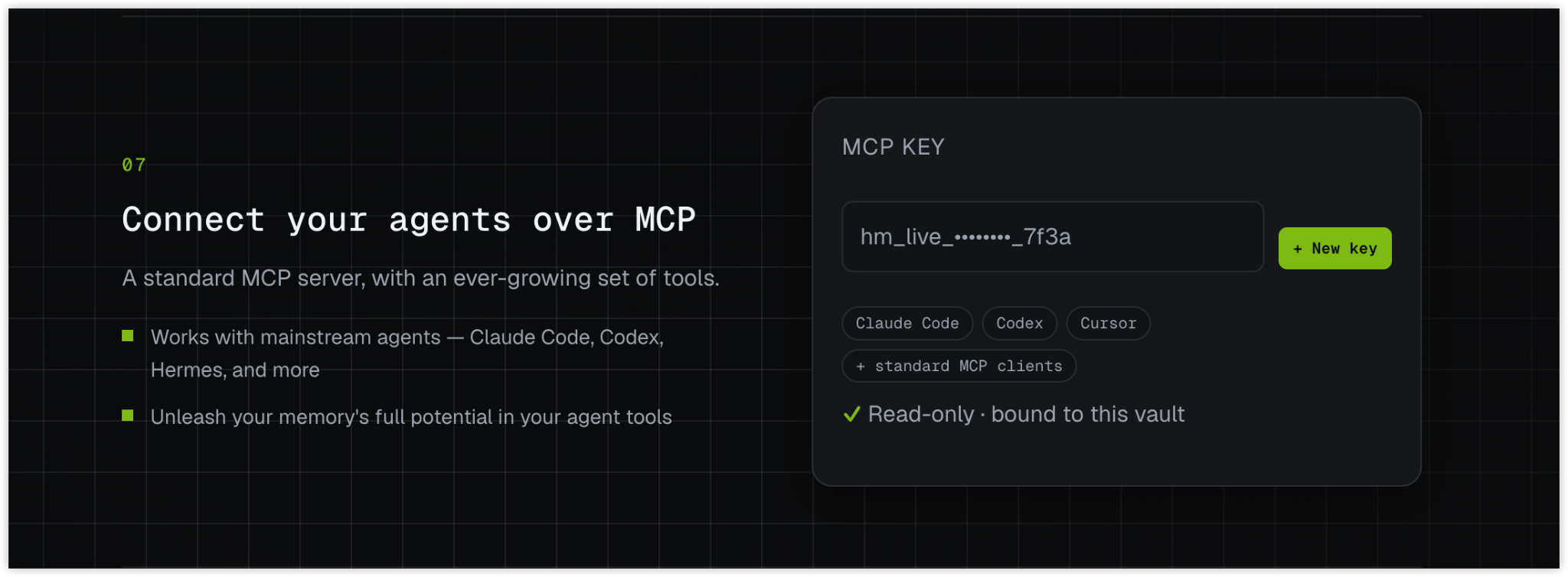
Review MCP connection options and access settings.
If your main requirement is that notes land in a specific existing system without manual transfer, verify that destination workflow directly. Consider Hemory when captured conversation context and later access through a supported agent are relevant to your work, while evaluating destination filing as a separate requirement.
Choose by the work you need to remove
A native integration is a strong fit when it reliably puts the right information into the right record, with acceptable review and update controls. Manual export can be a sensible fit when it is occasional, predictable, and gives you the control your team needs. A connected-agent route may help when the task is to use captured conversation context for later AI work, but it is not automatically a substitute for a destination integration.
Choose based on the route you verified: what reaches the destination, which steps remain, how the team handles errors and revisions, and whether the workflow’s access requirements are acceptable. If the transfer details are still unclear, treat that as an open selection question—not as a feature you can assume is included.
FAQ
Does “integrates with” mean meeting notes are filed automatically?
Not necessarily. Ask which output reaches which record, whether a person must review or trigger the transfer, and how corrections or failures are handled.
Is manual export always more work than an integration?
No. A native connection may still require mapping, review, or filing. An export may be straightforward for a low-volume workflow. Compare the complete steps and the judgment they require.
Is an MCP connection the same as a CRM integration?
No. MCP can connect a supported agent to a service’s capabilities, but that does not establish a native CRM connection or permission to write records. Verify the agent’s tools and the destination handoff separately.
What should I do if the vendor cannot confirm a transfer detail?
Record the detail as unresolved and request documentation or a demonstration before relying on it. If it is essential to the workflow, do not treat the tool as a confirmed fit until you can verify it.