Hemory Team
On this page
You paste a few lines into a client’s settings, restart it, and a new server appears in the list. Nothing looked like a permission prompt, so it feels like adding a bookmark. It is closer to handing the client a new set of actions it can call, sometimes without asking you each time, depending on how the client is set up.
This article explains what that step grants, why the same server can look different in different clients, and what to check before you turn one on, especially a server that can read your project files or your stored conversations.
TL;DR
- Registering a server lets the client ask what tools it offers. Those tools then become callable by the client’s model. The server decides what is offered; the client decides how it is shown and approved.
- Access has three layers: the tools the server defines, the client’s handling of them, and the data scope behind the connection. A change in any layer changes your exposure.
- The tool list is the clearest picture of a connection. Sort each tool by what it can do: read, change stored content, or act somewhere else.
- Do not assume a connection is read-only or fully open. Hemory’s documented MCP capabilities include Memory retrieval and Speaker labeling and management, and no wider write scope is documented. Read the actual tool list in your own client.
- Before enabling a server, name the task, read the tools, check approval controls, confirm scope, and start with one narrow request.
What registering a server actually does
Registration tells the client where a server is and how to reach it. Once the client connects, it asks the server what it offers. For tools, the server answers with a name, a description and the inputs for each one. The client puts those descriptions in front of the model so the model can decide when a tool would help.
MCP servers can also offer other things, such as reference data or prompt templates. This article stays with tools, because they are the part that does things.
Three things follow from registration:
- Discovery. The client learns which tools exist.
- Availability. The model can choose to call them while working on a task.
- Execution. When a call is made, the client forwards it and the server runs it, then returns the result.
Execution happens inside the server, using whatever access the server was given: a folder, an account, a token. What a server can touch is set by that access, not by what you meant to use it for. Registration is the point where you decide whether the client may use it.
Three layers of access
It helps to separate who controls what.
| Layer | Who controls it | What to ask |
|---|---|---|
| Tools the server defines | The server’s author and version | What can each tool do, and with which inputs? |
| The client’s handling | The client and your settings | Which tools reach the model? Does each call need approval? Can you disable single tools? |
| Scope behind the connection | The credentials, account, project or Vault the server is tied to | Which data can a call reach? Whose data is it? |
A server can offer a powerful tool that your client blocks, or a harmless-looking tool that reaches far more data than you expected. Only the three layers together describe your real exposure. Controls such as per-tool disabling or approval modes vary by client, so look for them in the client you are using.
Why tool sets differ between servers and clients
Between servers. Each author decides which tools to build. Two servers that both claim to work with notes may expose different searches, different edits and different limits. The same server can also change over time. Hemory’s Features page says its MCP tools are continuously being enhanced, so a tool list you read last month may not be the one you have now. Check again after updates.
Between clients. A client may support different parts of the protocol, show or hide particular tools, apply its own approval rules, or offer different ways to disable one. Hemory’s public materials list Claude Code, Codex, Gemini, Cursor, VS Code, OpenClaw, Hermes and general standard MCP clients. That is a statement of compatibility, not proof that every client presents identical tools or permissions. Treat each client as its own configuration.
Consider a hypothetical server that exposes a project’s files with four tools: list_files, read_file, write_file and run_tests. One client might ask before every call. Another might let you allow read_file permanently and keep asking for the others. A third might offer only an all-or-nothing switch. The server is the same, but the exposure differs, so the decision to connect is also different.
Read a tool list by what each tool can do
When you inspect the list, sort each tool into one of three groups:
- Reads. It returns information, such as searching or fetching a record.
- Changes stored content. It edits, labels, renames or deletes something that the server keeps.
- Acts elsewhere. It sends, runs, publishes or triggers something outside the server’s own data.
Names can mislead, so read the description and the inputs. A tool that takes only a query is probably a read. A tool that takes an identifier plus new content is probably a change.
Reading is not automatically harmless. Whatever a tool returns becomes part of the conversation the client’s model works with, so the client’s own data handling applies to it. For project files or personal conversations, ask whether you are comfortable with that content entering the session.
Also keep the agent’s own tools separate from the server’s. An agent may have the ability to send email or edit documents through other tools it already has. Adding an MCP server does not create those abilities, and the server’s tool list does not describe them.
Example: what a Hemory connection exposes
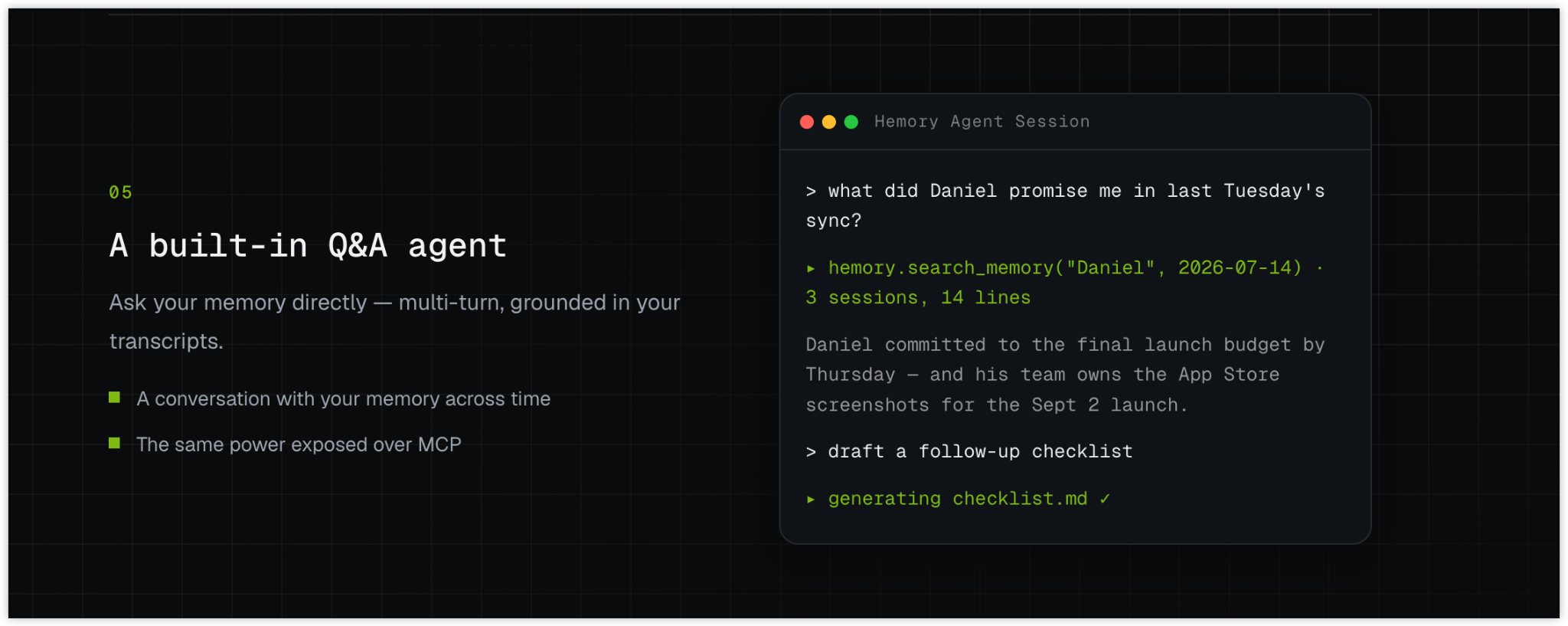
Hemory captures conversations and organizes them as searchable Memory. A supported connected agent can retrieve task-relevant parts of that Memory, including details you did not think to supply, so you do not have to retell a discussion before each task. The agent does its own reasoning and drafting; Hemory supplies captured context.
What the available documentation supports:
- Hemory’s Features page says it provides standard MCP Server capability, and that the built-in Q&A Agent’s ability to answer from transcripts across your memory is also available through MCP.
- The Features page demonstrates Memory retrieval with
search_memory. - The Changelog documents Speaker labeling and management through MCP.
That combination matters for exposure. The connection retrieves from your Memory, and it can also work with Speaker labels, so it should not be described as read-only. The documentation does not say that other Memory content, transcripts or topics can be modified, and it does not describe actions in outside systems. Do not assume either. If something is not in the tool list your client shows, treat it as not available to you.
Two practical points follow:
- Only captured conversations are reachable. A connection does not record anything new and cannot reach a conversation that was never captured.
- Check which Vault the connection is tied to. Hemory’s product description binds the connection to the current Vault. Confirm in your own setup which one that is before you ask an agent to search.
Because the content is real spoken conversation, it can include other people’s words. Speaker labeling changes how those people are identified in your Memory, so review label changes the same way you would review any edit to stored records.
What a connection does not give
- Background activity. A connection makes tools callable when the client runs a task. It does not by itself monitor anything, send alerts or wake an agent.
- Rights in other systems. Access to a server is not access to your email, task tracker or code host. Those depend on separate tools and approvals.
- Complete recall. A retrieval tool returns what it finds in what was captured. It does not guarantee that every relevant detail was captured or found.
- Uniform behavior across clients. A tool set seen in one client does not establish the same set in another.
Check before you enable a server
- Name the task. Decide what you want the agent to do, for example find a past decision or read a project folder. That tells you which kind of tool you actually need.
- Read the tool list after connecting. Use your client’s own view, and read it again after server or client updates.
- Sort each tool. Mark it as read, change stored content, or act elsewhere. Flag any tool whose description you cannot explain.
- Check approval and disable controls. Find out whether calls need your confirmation and whether you can turn off individual tools in this client.
- Confirm the scope. Identify which account, folder or Vault the connection reaches, and whose data that includes.
- Start narrow. Give one small request and look at which tools were called and what came back.
- Disable what you do not need. If a tool does not support the task and you cannot disable it, decide whether the connection is worth keeping.
If you plan to use Hemory with an agent, this check is quick. Open the tool list in your client, confirm the Vault, and begin with a retrieval request about a conversation you already know was captured.
FAQ
Does registering a server let the client see everything the server can access?
No. The client sees the tool descriptions and whatever each call returns. The server may have broader access than it exposes. What matters is which tools exist and which data they reach, so read both the tool list and the scope.
Is a read-only server safe to add?
Read-only reduces the ways a connection can change things, but it does not remove the question of what content enters the session. Also, do not rely on a label. For Hemory, the MCP capability is not described as read-only, because Speaker labeling and management is documented. Check the tool list instead.
Will the same server give me the same tools in Claude Code and Cursor?
Not necessarily. Clients can differ in supported features, approval behavior and per-tool controls. A public list of compatible clients tells you that a connection is possible, not that each client behaves the same way.
Is Hemory’s ChatGPT connection the same thing as an MCP connection?
Do not assume so. It is a separately announced integration path, and its setup and availability should be checked on their own. This article’s points about tool lists, approvals and scope are still a useful way to evaluate it.
Next step
The next time you add a server, treat registration as the moment you decide which tools the client may call and which data they may reach. Read the list, sort the tools, confirm the scope, and begin with a small task. If you use Hemory, make sure the conversations you want the agent to draw on were already captured, then check the connection against the same steps.