Hemory Team
On this page
Setup guides for an MCP connection tell you how to register a server and approve the first prompt. They say much less about what the agent can do once it is connected. For a connection to stored conversations, that gap matters in two ways. The agent can read what people said, and some tools may change records. This article gives you a short review to run before you authorize Hemory’s MCP connection in any client.
TL;DR
- Permissions sit in four places: the tools the server exposes, the data the connection reaches, your client’s approval settings, and the agent’s other tools. Check each one separately.
- Hemory’s documented MCP capabilities include Memory retrieval and Speaker labeling and management. The connection is not read-only, but changes to Memory, transcripts or topics beyond Speaker management, and external actions, are not documented.
- Sort every tool in your client’s tool list into read or change. If a tool does not match the documentation, treat it as able to change data until you have clarified it.
- Approval prompts depend on the client, and Hemory’s public documentation does not describe them per client. Set them yourself where your client allows.
- Make your first request a retrieval, and watch which tool the agent calls.
What permissions cover in an MCP connection
MCP (Model Context Protocol) lets an agent call tools that a server exposes. “Permission” is not one switch. It is the combined effect of four layers.
| Layer | Question to answer | Where to look |
|---|---|---|
| Server tools | Which operations can the agent invoke? | The tool list your client shows after you register the server; Hemory’s Changelog and Features page |
| Data reach | Which conversations can those tools read? | The account and Vault the connection is bound to, and what has actually been captured |
| Client approval | Which calls wait for your confirmation? | Your client’s tool permission settings |
| The agent’s other tools | What else can this agent do with what it reads? | The agent’s other connected tools, such as a shell, email or a project system |
The review matters because of what the connection is for. Hemory captures conversations and organizes them as searchable Memory. A connected agent can then retrieve background you did not think to paste in, which saves you from retelling a discussion each time. That convenience works best when you have already decided what the agent may bring in and what it may change.
Step 1: Identify the exact connection
Write down four details before you authorize anything.
- Client. Hemory’s site lists clients such as Claude Code, Codex, Hermes, Cursor and VS Code, plus general MCP clients. A listing does not mean every client shows the same tools or prompts, so treat each client as its own case.
- Account and Vault. Know which Hemory account the connection authenticates as. Hemory’s Features example describes the connection as bound to your current Vault.
- Plan. The Features page lists MCP connection on every plan, from Free Trial to Max, and shows no difference in MCP permissions between plans.
- Where the registration lives. If your client stores the server in a shared project configuration, work out who else will run an agent with that connection.
The conversations also have to exist. The connection can only retrieve what Hemory has already captured, so a discussion that was never recorded will not appear, however the permissions are set.
Step 2: Sort the tools into read and change
After you register the server, open your client’s tool list. Compare it with what Hemory documents.
| Capability | Type | Basis |
|---|---|---|
| Memory retrieval across sessions and transcript lines | Read | The Features page shows search_memory examples |
| Transcript-grounded, multi-turn Q&A through MCP | Read-type: it answers from your Memory | Features page; it names no tools or scope |
| Speaker labeling and management | Change | Changelog entry dated 2026-09-17 |
| Edits to other Memory, transcript or topic data | Not documented | Do not assume either way |
| External actions such as sending email or updating a project system | Not documented | Not part of the documented Hemory connection |
This is why “read-only” is the wrong label for the connection. It is not wholly open either. The documented change capability is Speaker management, and the other rows stay unconfirmed in both directions.
Two rules make the sorting practical:
- Mark each listed tool as read or change. A tool whose name or description you cannot match to the documentation goes in the change column until you have clarified it.
- Recheck after Hemory updates. The Features page says the MCP tools keep being enhanced, so a list that was accurate at setup can grow.
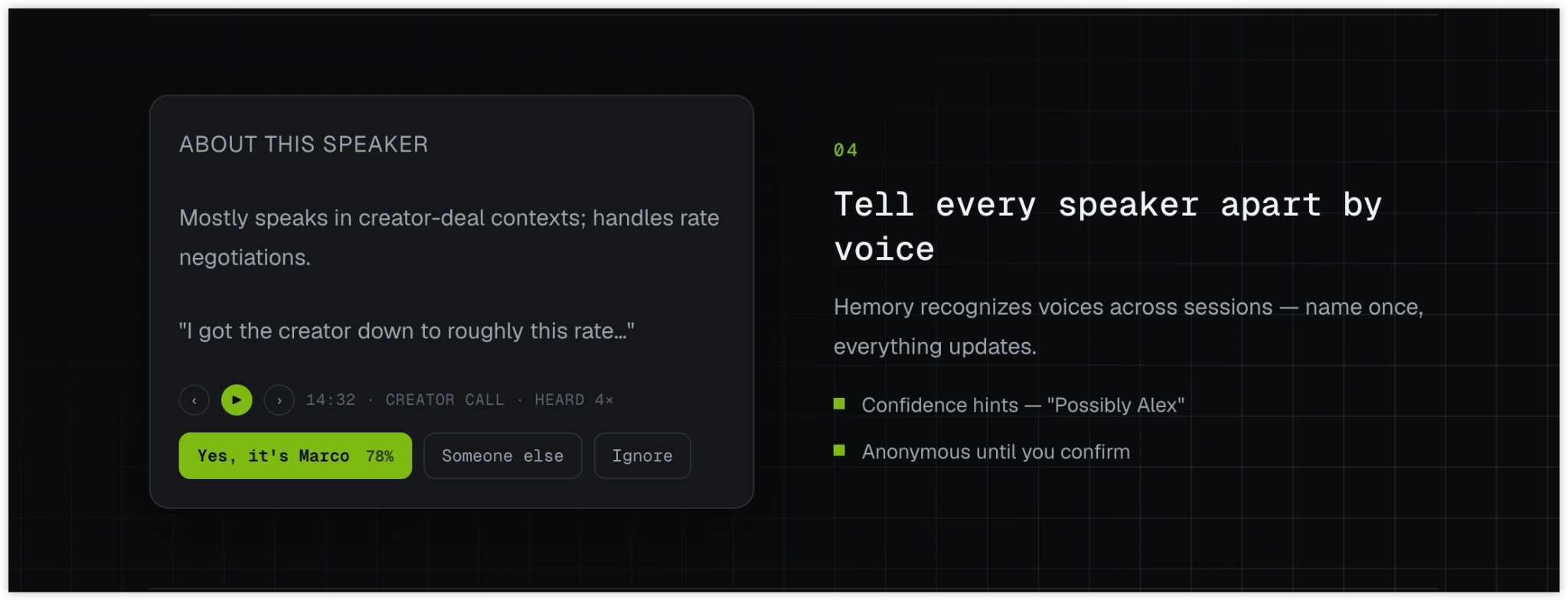
It also helps to know what a Speaker change touches. Hemory describes naming a speaker once and having related sessions update, and it says unconfirmed speakers stay anonymous. A speaker label an agent sets may therefore appear in more than one conversation. It may also change how later retrievals attribute lines to people. Hemory shows confidence hints such as “Possibly Alex”, and a hint is not a confirmed identity. So an agent should not turn a hint into a confirmed name without your review.
Step 3: Check what data the connection reaches
Read tools matter as much as change tools, because retrieved passages leave Hemory and enter the agent’s session.
- Confirm the Vault and account from Step 1. Finer limits, such as restricting the agent to certain conversations, are not described in Hemory’s public documentation, so do not assume they exist.
- Remember what the transcripts hold: other people’s words, names and sometimes sensitive discussion. Decide whether this agent, and the provider behind it, is an appropriate place for them.
- Keep tasks narrow. A request that names a project and a time frame retrieves less than an open-ended request to look through everything.
The built-in Q&A Agent and an external client are different surfaces. Do not assume they share the same archive scope, tools or permissions.
Step 4: Check your client’s approval settings
Approval behavior belongs to the client, not to Hemory. Look for these settings:
- Whether each tool call asks for confirmation, or whether the client can allow a tool for the whole session or permanently.
- Whether you can set approval per tool, so retrieval runs smoothly while Speaker management always asks.
- Whether an “always allow” choice from one task carries over to later tasks.
Where your client allows it, a sensible starting point is to let retrieval tools run and require confirmation for anything in your change column. If you can only set one policy for the whole server, choose the stricter one until you have used the connection for a while.
Step 5: Review the agent’s other abilities
The Hemory connection documents retrieval and Speaker management. It does not document sending email, editing a repository or updating a project tracker. If an agent can do those things, they come from its other tools and its own settings. Hemory provides captured context. The agent does its own reasoning, drafting and actions.
The practical question is what the agent could do with retrieved content. A coding agent with shell access and a document-drafting agent with no outside access carry very different risk, even over the same Hemory connection. Review the agent’s whole tool set, not only the new server.
Step 6: Start with a read request
After you authorize the connection, make the first request a plain retrieval. For example, ask for what was said about one named topic in one past meeting, and ask the agent to quote the passages it used. Then check three things:
- Which tool was called. It should be a retrieval tool, and your client should show the call.
- Whether any approval prompt appeared, and whether it matched the policy you set in Step 4.
- Whether the passages come from the conversations you expected.
If the agent calls something you cannot place, stop and go back to Step 2.
A filled-in permission sheet
Keep a short record per connection. This is one way to fill it in for a connection you are about to authorize.
| Field | Example entry |
|---|---|
| Client | The agent client you chose, with the date you reviewed it |
| Account and Vault | The Hemory account and its current Vault |
| Read tools | Memory retrieval; transcript-grounded Q&A. Approval: allow after the first successful check |
| Change tools | Speaker labeling and management. Approval: ask every time. Before approving, compare the proposed name with the transcript, and treat a “Possibly” hint as unconfirmed |
| Not documented | Other Memory edits; external actions. If these appear in the tool list, hold off and clarify |
| Agent’s other tools | List them, and note which could send or write outside Hemory |
| Recheck when | Hemory adds tools, or you change client or Vault |
The sheet is short on purpose. Its value is that every tool has a type and an approval decision before the first real task.
Where to go next
Open your client’s tool list for the connection you are setting up and fill in the sheet. Then run one retrieval request. With the boundary settled, you can give the agent the task and the goal, and let it retrieve the background from conversations Hemory has already captured. You will not have to paste every discussion into the chat. You still supply current information and review what the agent produces.
FAQ
Is Hemory’s MCP connection read-only?
No. It documents Memory retrieval, and the Changelog documents Speaker labeling and management, which changes data. The connection is not described as open to arbitrary edits or external actions either, so check the tool list in your own client.
Do different plans give an agent different permissions?
The Features page lists MCP connection on every plan and shows no permission differences between them. Plans differ in listening hours, not in what the connection is documented to do.
Will my client ask for approval before each call?
That depends on the client and its settings. Hemory’s public documentation does not describe approval prompts for each client, so look at your client’s tool permission settings, and test with a read request first.
Can the agent read conversations Hemory never captured?
No. The agent can only retrieve what has already been captured and is accessible through the connection. A conversation that was never recorded is not there to find.
Can the connection send emails or update my project tracker?
Hemory does not document either. If your agent can do those things, they come from its other tools, so review those separately in Step 5.