

 Hemory Team
On this page
An MCP client may support the same standard as another client without using the same setup steps or presenting the same tools and permission controls. That makes a vendor’s integration list a useful starting point, not proof that your particular client is configured or has the access you expect.
TL;DR
- Check the specific client’s current MCP support and connection instructions; don’t assume another client’s setup applies.
- Confirm which tools the client makes available and what each can access or change.
- Hemory publicly lists several clients, but a listing is not independent verification of every client’s setup, tools, or permissions.
How to assess a specific MCP client
1. Check whether your client is publicly listed
Start with the memory server’s current integration information. Hemory’s public listing names Claude Code, Codex, Gemini, Cursor, VS Code, OpenClaw, Hermes, and general standard MCP clients.
Treat a listing as an indication that the integration is publicly presented—not as proof that every client version has been independently tested or that setup is identical across clients. If your exact client is not named, check whether its documentation describes MCP server connections and whether the server documents a supported connection path. Don’t infer compatibility from a similar product or another client in the same family.
2. Follow that client’s connection instructions
Check the current instructions for the client you actually use. Look for its required MCP connection method, where the server is configured, any account or authentication requirements, and whether the connection needs to be enabled or approved in the client.
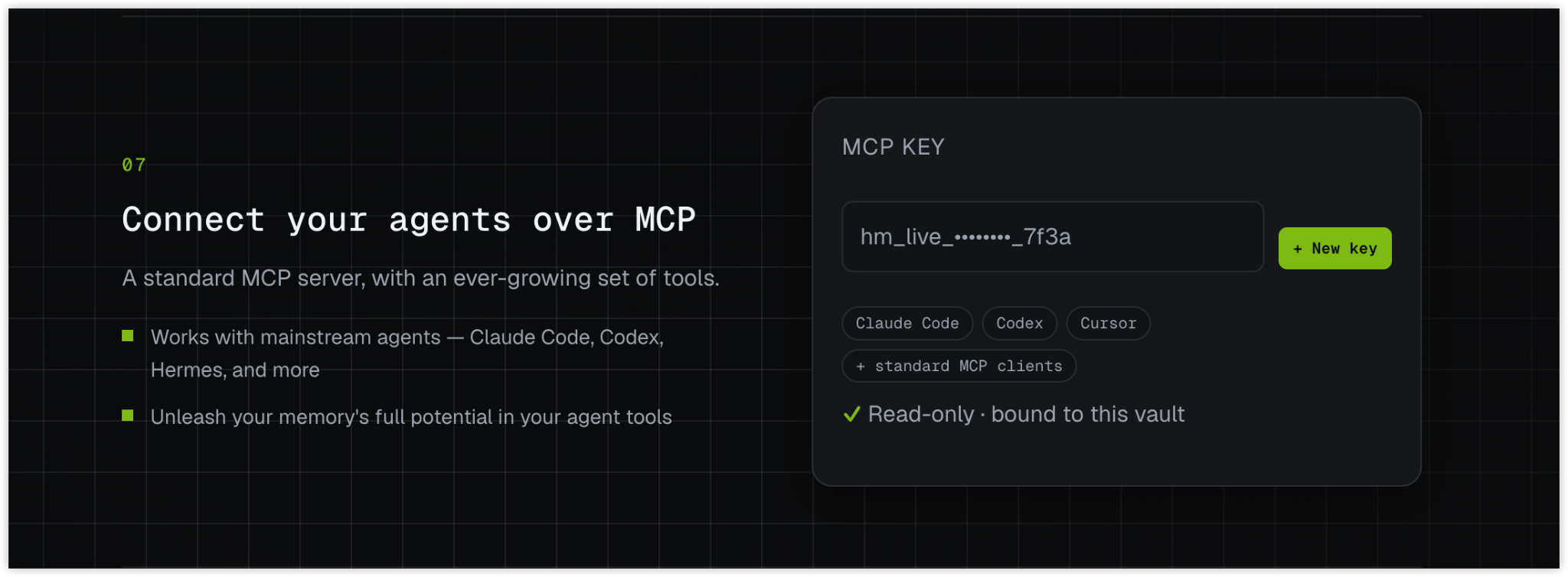
Review MCP connection options and access settings.
These details are client-specific. A setup example for one coding assistant does not establish the right configuration for an IDE agent or a general MCP client. If the client’s documentation or interface does not clarify a requirement, treat it as an open question rather than filling in a guessed step.
3. Inspect the tools and their scope
A successful connection does not tell you, by itself, which server tools the client exposes or what permissions they have. Review the tools shown for that connection, their descriptions, the data scope they can reach, and any approval behavior the client provides. Pay particular attention to whether a tool retrieves information, changes something, or can take an external action.
Hemory documents Memory retrieval and Speaker labeling and management through MCP. That does not establish that every client exposes the same tools, or that MCP grants arbitrary permission to edit Memory or act in other services. Check the specific tools and scope available in your client rather than assuming access is unrestricted or entirely read-only.
4. Confirm that the connection works for your task
If you proceed, test with a small, low-risk request involving a conversation you know was captured and is accessible through the connection. Check whether the client can use the expected information and whether its reported access matches the tool descriptions. A connected client cannot retrieve a discussion that was never captured, and a successful lookup does not guarantee that every relevant detail will be found.
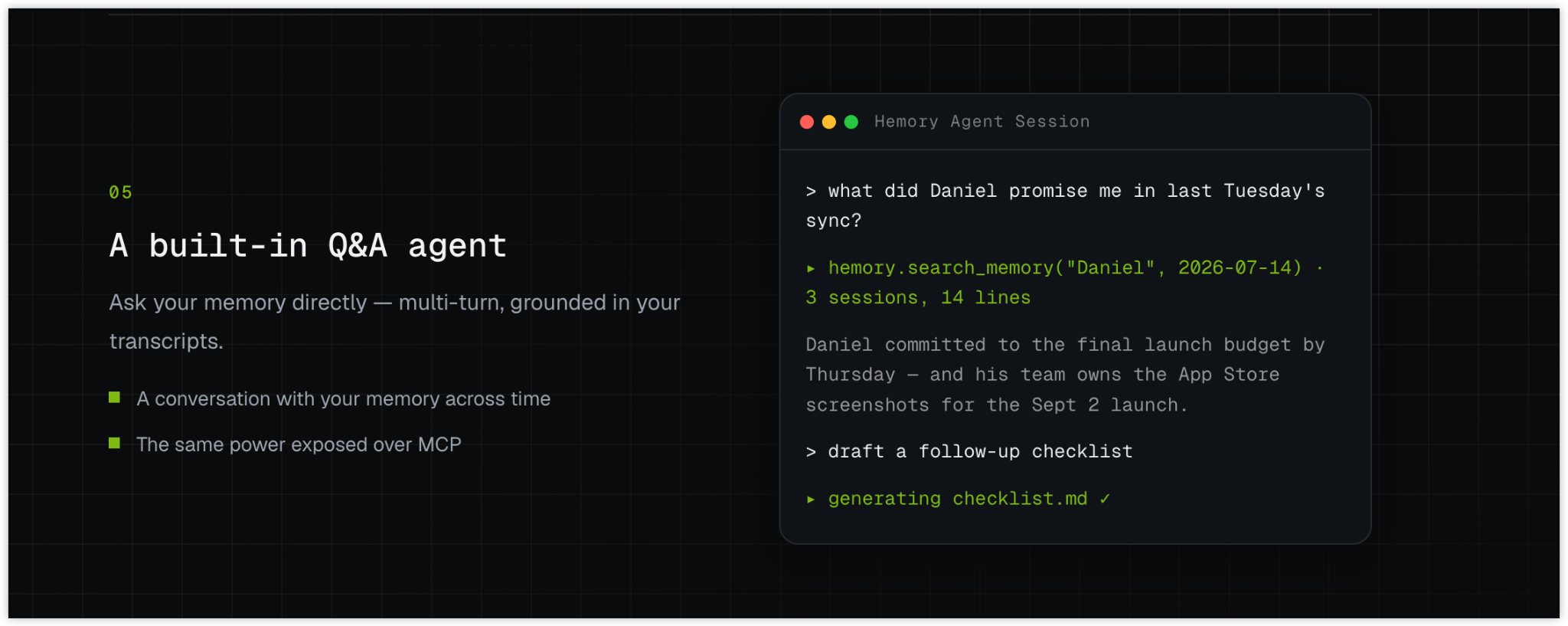
Retrieve past commitments and draft follow-up tasks.
For a Hemory-based task, retrieval can reduce the work of searching for and retelling details from captured conversations. The connected agent performs its own reasoning or drafting; you provide the current goal and any new information, then review the result before using it.
How to decide whether the connection is a fit
Treat compatibility as established for your use only when you can confirm a connection path for your client, see the tools and scope it actually provides, and determine that those permissions suit your task. If a vendor names your client but the setup or access details remain unclear, mark compatibility as unconfirmed and seek client-specific documentation or clarification before relying on it.
FAQ
Does a public integration listing mean the client has been tested?
No. It shows that the integration is publicly listed; it does not, on its own, verify every client version, connection path, or permission setting.
Is ChatGPT automatically a standard MCP client?
No. A separately announced ChatGPT connection does not establish that a particular ChatGPT surface uses standard MCP. Check the current connection path and availability for the exact ChatGPT entry point you intend to use.
Next step
Identify the exact client and version you plan to use, then check its current MCP setup instructions and the tools and permissions it presents for the memory server. For Hemory, verify those details in your client rather than relying on the public listing alone.