

 Hemory Team
On this page
A Gemini integration listing does not tell you which Gemini client to open or which settings to enter. Gemini-based products can have different connection options, and the available information does not establish a tested, step-by-step MCP setup for a particular one.
The reliable approach is to identify your exact client, check its current MCP instructions, and confirm the matching Hemory connection details before configuring anything. This guide separates what is documented from what you still need to verify.
TL;DR
- Hemory publicly lists Gemini as an integration and describes a standard MCP server. That listing is not proof that a particular Gemini client’s setup has been tested.
- Confirm that your exact Gemini client supports MCP, then get the current connection instructions, server details, authentication requirements, and permission scope from the relevant documentation.
- A connection can only provide context from conversations captured in Hemory and accessible through that connection. Gemini performs its own reasoning and drafting; review its output before using it.
First identify which Gemini client you mean
“Gemini” can refer to an assistant or model used through different products and environments. The setup question is about the specific client you use, not just the model name. Check that client’s current documentation for an MCP connection entry point. Do not assume that instructions for another assistant, an editor, or a development environment apply to it.
Hemory’s product information publicly lists Gemini among its integrations and describes a standard MCP server. That confirms the integration is listed; it does not provide client-specific steps or establish that every Gemini interface supports the connection. The Hemory Features page describes MCP generally, but does not supply a Gemini setup procedure.
What to confirm before configuring the connection
Use current documentation from both Hemory and your chosen Gemini client. Before entering settings, confirm these points:
| Check | What you need to establish |
|---|---|
| Client support | The exact Gemini client has an MCP connection option and supports the type of server connection Hemory documents. |
| Connection details | Hemory’s current instructions provide the server address and any required configuration for that client. Do not copy values from another client’s guide. |
| Authentication | Confirm whether credentials or another authorization step are required, and follow the current instructions. |
| Access and permissions | Check what Memory the connection can retrieve and whether any documented write capability applies. Do not infer permissions from the fact that a connection succeeds. |
| Current requirements | Check the client’s and Hemory’s latest setup guidance for prerequisites or changes. |
If either set of instructions does not cover your client, pause and consult current Hemory support or documentation rather than guessing a server address, command, configuration format, or tool name.
Configure only from Gemini-specific instructions
Once you have confirmed that your client supports the connection and have the current instructions for that client, follow those instructions to add Hemory’s MCP server. The precise settings and sequence are not established here, so steps written for Claude Code, Cursor, VS Code, or another client should not be substituted.
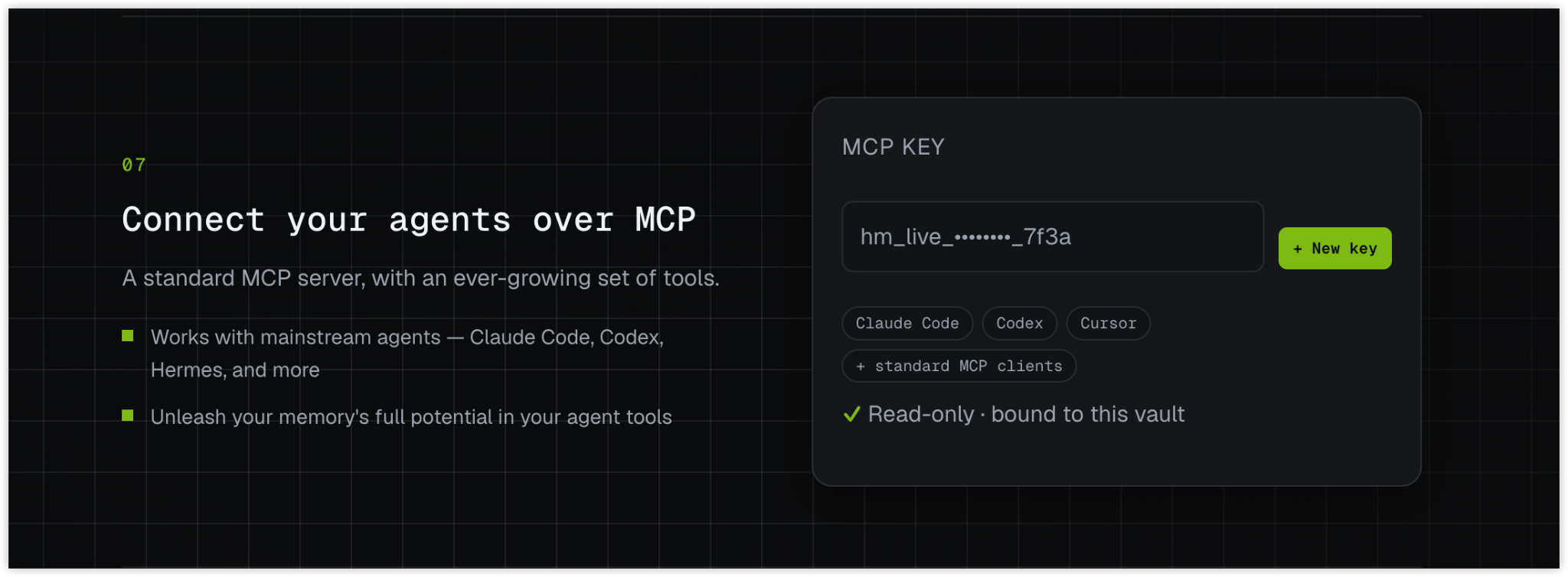
Review MCP connection options and access settings.
Treat the connection as access to relevant Hemory Memory, not as a promise of complete archive access. It can only supply conversation context that was previously captured and is accessible through the supported connection. If a key discussion was never recorded, or the relevant detail is unavailable, use another source or provide the missing information directly.
Check retrieval with a small, known task
After configuration, try a limited request about a detail from a conversation you know was captured in Hemory. For example, ask the client to find the earlier discussion of a specific project constraint and summarize what it found. Check whether the response reflects the right conversation and preserves important qualifications.
This is a practical check, not proof that all relevant Memory is accessible or that retrieval will find every detail. If the client exposes connection or tool-use information, use it to understand what happened; do not assume a particular interface or log exists. For a detail that changes a decision, compare the response with an available transcript or current record.
Hemory provides captured and organized Memory and retrieval through documented capabilities. The connected Gemini client performs its own reasoning and drafting. You decide whether its response is accurate and suitable for the task; a successful connection does not approve or carry out actions in other systems.
If the connection does not work
Check the client and Hemory instructions again for a mismatch in supported connection method, configuration, authentication, or permissions. Confirm you are using the intended Gemini client and that the conversation you are trying to retrieve was captured in Hemory. If the required Gemini-specific details are not documented, ask Hemory support for the correct current route rather than adapting another client’s setup.
FAQ
Does Hemory list Gemini as an integration?
Yes. Hemory’s product information publicly lists Gemini. A listing does not confirm exact setup steps, behavior, or permissions for every Gemini client.
Can I use instructions for another MCP client?
Not as a substitute for Gemini-specific guidance. The connection settings and entry point may differ, so confirm the current requirements for the exact client you use.
Will Gemini be able to search every conversation in Hemory?
Do not assume that. The connection can only provide Memory that is captured and accessible through its supported tools and permissions. The available information does not establish universal archive access for every Gemini client.
Does connecting Hemory let Gemini change my other work systems?
The connection alone does not establish that. Hemory provides Memory access; Gemini performs its own reasoning or drafting. Any external action depends on the client and other tools separately configured, and you should review work before using it.
Next step
Start with the MCP instructions for your exact Gemini client and the current Hemory connection documentation. Once the route and permissions are clear, test retrieval using a known captured discussion before relying on the connection for a larger task.