

 Hemory Team
On this page
A packed calendar makes it easy to miss the moment when listening needs to start again: one conversation ends, another begins, and you may be focused on the next call rather than the recording control. A reliable routine depends on whether your day is predictable or changeable—and on checking that listening is ready for the next conversation.
TL;DR
- Choose Manual Mode when your schedule changes often and you want to start and stop listening deliberately.
- Choose Schedule Mode when your listening windows are predictable. It sends reminders with one-tap start and stop actions; it does not silently start listening.
- After a call, check that listening is active for the next conversation. This confirms the control state, not that a phone call was recorded or that no details were missed.
Choose a mode that fits your day
Use Manual Mode if calls move around, you have long gaps, or you only want to capture specific conversations. Start listening when you are ready to capture a discussion, and stop when that window is over. The trade-off is that each start and stop depends on you remembering to act.
Use Schedule Mode if you have regular listening windows, such as a consistent workday. Set the times that fit your routine, then respond to the reminders with the one-tap start or stop action. The schedule provides a cue; it does not open the microphone or begin listening without your action.
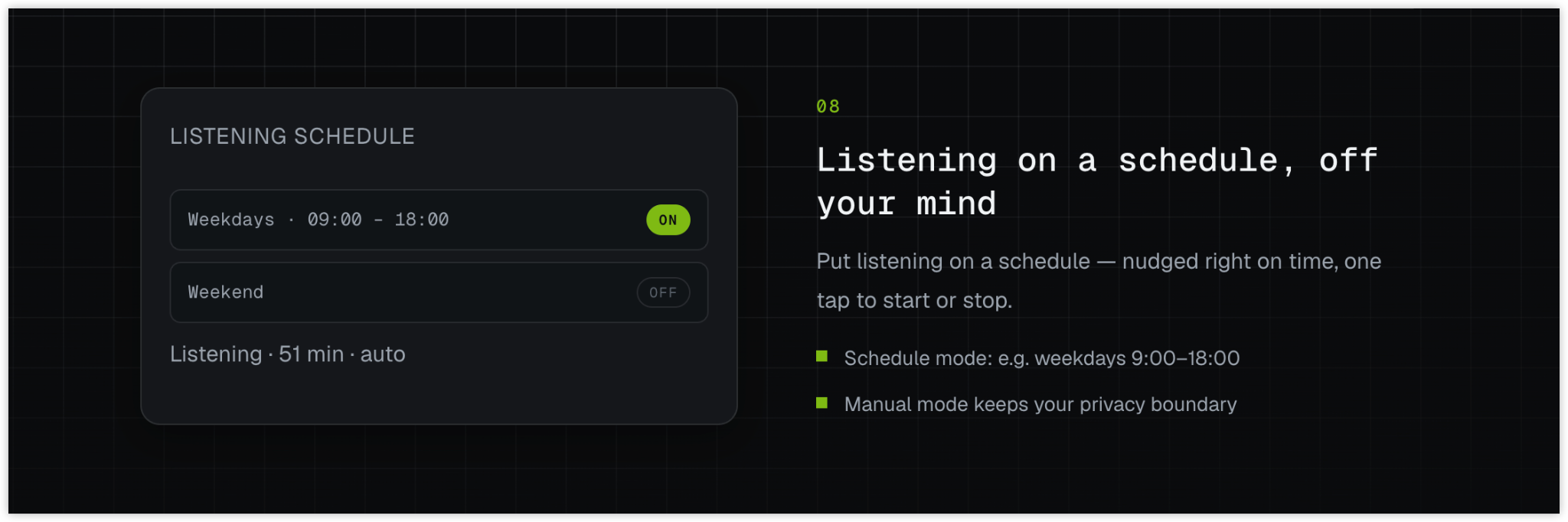
Set listening times for weekdays and weekends.
| Your day | A practical choice |
|---|---|
| Calls shift frequently or have unpredictable gaps | Manual Mode, with a deliberate start before the conversation you want to capture |
| Listening windows are fairly consistent | Schedule Mode, with reminders aligned to those windows |
| The day mixes predictable blocks and changing meetings | Use scheduled reminders for the regular blocks, and check the listening state when the day changes |
Choose based on the routine you can follow, not on an assumption that either mode will capture every conversation automatically.
Build a call-day routine
1. Pick the conversations you want to capture
Before the day begins, identify the conversations where a record would be useful. You do not need to capture every call just because it is on the calendar. Include in-person discussions or other planned listening periods if they matter to your work.
This routine concerns when Hemory listens around your schedule. Do not assume that a phone or video call itself will be captured; recording behavior depends on the device and setup.
2. Set start and stop cues
For a predictable day, set Schedule Mode around the listening windows you expect to use. For a variable day, use Manual Mode and make starting listening part of your pre-conversation routine. Stop listening when the intended window ends or when you no longer want it to continue.
The purpose of a cue is to make the next action easy to notice. It is not a guarantee that listening will begin on its own.
3. Add a brief check after each call
When a call ends, pause before moving straight to the next task. Check whether listening is active for the next conversation. If it is not, use the relevant start action before the next discussion begins. If you intended to stop listening, confirm that instead.
On Apple Watch, Hemory’s Features page describes listening pausing during incoming calls and resuming after the call ends. That behavior is documented for Apple Watch; do not assume it works the same way on every device. A quick check after a call is a useful safeguard when the device or listening state may have changed.
4. Review the day without treating the check as proof of completeness
At a natural break or at the end of the day, look over the listening sessions that were captured and consider whether the conversations you planned to preserve are represented. Hemory produces timestamped transcripts for listening sessions, which can help you review what was captured.
A missing session does not tell you by itself why it is missing, and a post-call control check cannot establish that a conversation was recorded. If an important detail was not captured, use another available record or ask a focused follow-up rather than assuming Hemory can reconstruct an unrecorded exchange.
Keep the routine lightweight
A useful routine needs only a few repeatable cues: choose the mode, act on the start or stop reminder, and check the listening state after calls when it may have changed. You do not need to pause between every calendar event to create a detailed log of what happened.
When listening is active during a discussion, you can focus on participating instead of deciding in real time which details might matter later. The captured sessions can then support review and reuse. The routine still depends on your actions and the device behavior documented for your setup.
FAQ
Does Schedule Mode start listening automatically?
No. Schedule Mode sets listening times and sends reminders with one-tap start and stop actions. You still need to act on the reminder.
Does Hemory record my phone calls?
Do not assume that it does. The documented Apple Watch behavior is that listening pauses during incoming calls and resumes afterward; that does not establish that the call itself is recorded.
What should I do if I forget to start listening?
Start listening when you are ready for the next conversation. For details from a discussion that has already passed, use another available record or ask a focused follow-up. Hemory cannot reconstruct a conversation that was never captured.
Make the next conversation easier to capture
Choose Manual Mode for a changing day or Schedule Mode for predictable listening windows, then use a quick post-call check to prepare for what comes next. The goal is a routine you can follow while staying present in the conversation—not a promise that every call or detail will be captured.