

 Hemory Team
On this page
If you have recurring meetings or customer calls, remembering to start capture each time can be easy to miss. Hemory’s Schedule Mode can remind you at set listening times, but you still choose when to start and stop. Use scheduled windows for conversations you can anticipate; use Manual Mode when a useful conversation comes up unexpectedly.
TL;DR
- Set Schedule Mode for regular conversation windows, such as recurring meetings on workdays.
- When the reminder arrives, start listening with one tap; stop it when you are finished. The reminder does not start capture by itself.
- For an unplanned conversation outside your schedule, use Manual Mode and start and stop listening yourself.
When should you use Schedule Mode?
Choose Schedule Mode when you can predict roughly when conversations will happen—for example, a recurring block of customer calls or a regular meeting window. Set the listening times around those parts of your day. Hemory’s example is a weekday schedule from 9:00 a.m. to 6:00 p.m.; you can use a narrower window if that better matches your routine.
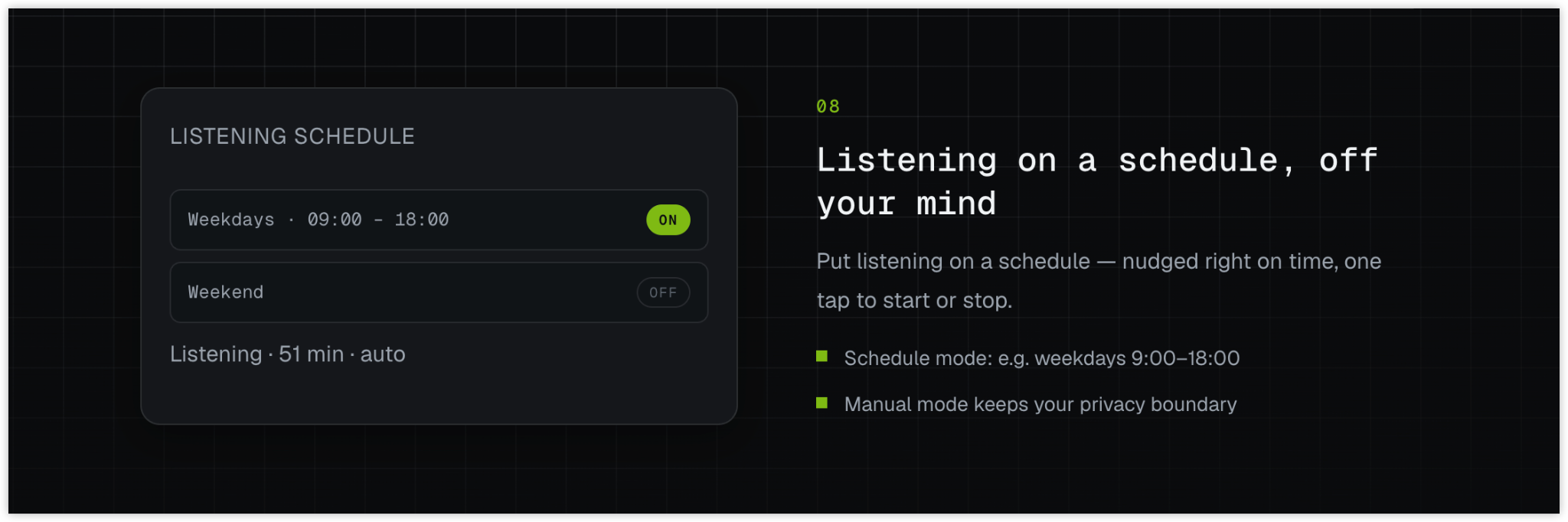
Set listening times for weekdays and weekends.
A schedule is most useful when it puts the reminder near the time you expect to need capture. It is not a commitment to record every moment in that window: you decide whether to start listening when the reminder arrives.
How to use a scheduled listening window
- Choose the times when you regularly expect conversations worth capturing. Keep the schedule aligned with your actual routine rather than assuming every work hour will be useful.
- At the scheduled time, respond to the reminder and use the one-tap action to start listening when you are ready.
- When the conversation is over, use the one-tap stop action. If you do not want to capture that particular conversation, do not start.
This gives you a prompt at the right time without requiring you to remember the start action in advance. As with any conversation capture, follow the consent and workplace rules that apply to your situation.
When is Manual Mode a better fit?
Use Manual Mode for a conversation you did not plan for, such as an impromptu customer exchange or a colleague stopping by. Start listening yourself when you decide to capture it, then stop when the conversation ends. This keeps the decision in your hands instead of relying on a scheduled reminder that may not match the moment.
If your day includes both recurring and unpredictable conversations, you do not have to treat the modes as an either-or choice: schedule the regular windows and use Manual Mode for occasional conversations outside them.
What if a call interrupts listening?
On Apple Watch, listening pauses when a call comes in and resumes after the call ends. This behavior is documented for Apple Watch; do not assume the same call handling on other devices. If you use a different device, rely on its available controls and the reminder rather than assuming a call will be handled the same way.
FAQ
Does Schedule Mode start recording automatically?
No. It sends a reminder at the listening time, and you use the one-tap action to start. You also choose when to stop listening.
Should I schedule the whole workday?
Only if conversations you want to capture are likely throughout that period. Otherwise, choose the recurring windows that fit your schedule and use Manual Mode for unplanned moments.
What should I use for a conversation that was not on my calendar?
Use Manual Mode if you decide the conversation should be captured. Start listening yourself, then stop it when you are done.
For a predictable day, set reminders around the conversations you expect; for the moments you could not plan, keep manual capture as your fallback. That way, the schedule serves as a prompt—not an automatic recording decision.