

 Hemory Team
On this page
A useful idea can disappear while you unlock your phone, find the right app, and work out how to start recording. For an Apple Watch voice recorder, “one tap” is not enough to judge the experience: the start point, actions, and call behavior matter too. Use the checklist below to compare the complete capture path on the devices and screens you rely on, then choose based on what you can confirm.
TL;DR
- Test the actual start route on your intended watch and phone. Count the actions and note whether capture begins from the screen or app you expect.
- Check stop controls, call behavior, and what the recording produces afterward; a fast start is only useful if the rest of the workflow fits.
- Hemory documents independent Apple Watch capture and upload, plus call pausing and resuming on Apple Watch. Its published information does not specify the exact start steps or whether Schedule Mode’s one-tap reminder controls appear on the watch.
Compare the full capture path
A start-time claim can hide important differences. One app may start from a complication, another from a notification, and another only after you open its app. Compare the actions on the exact device and screen you expect to use, rather than relying on a listing or a demonstration on a different setup.
| What to compare | What to record | Why it matters |
|---|---|---|
| Start point | Watch face, notification, app, phone lock screen, or another surface | Reveals whether capture is available where the idea occurs, or requires a detour. |
| Actions to start | Each tap or other deliberate action, from the starting screen to recording | Makes “one tap” claims comparable. Include unlocking, opening an app, and confirming a prompt if those are required. |
| Time to capture | Time from deciding to record until the app indicates it is listening | Helps distinguish a short interaction from a quick button press followed by a delay. |
| Stop control | How recording ends, and whether you can stop from the same device | A convenient start can still leave you searching for a way to stop. |
| Call behavior | What happens during incoming and outgoing calls, and what happens after the call | Important if you expect to capture around calls. Do not assume behavior is the same across devices. |
| After capture | Whether you get a recording, transcript, summary, or another usable result, and where it can be reviewed | Confirms that a quick start leads to something you can actually use. |
Test on the device and screen you will use
Try the same simple scenario with each candidate: start from the screen you would normally be looking at, say a short note, and stop recording. Write down the required actions and elapsed time. Repeat from another relevant surface—such as the phone lock screen—only if you expect to use it. Keep the device, permissions, and starting state consistent when comparing options.
Do not count a prompt to grant permission or sign in as an ordinary start action if it happens only during setup. Do count recurring confirmations or navigation steps. If an app is advertised as starting from the watch face, confirm that the action is available on your watch model and configuration; a watch app or independent capture capability alone does not establish that.
Check start and stop as a pair
Ask whether you can start and stop from the same device, whether stopping requires another screen or confirmation, and whether a short accidental start is easy to cancel. Also check what indicates that recording has begun or ended. A visible or audible confirmation can help prevent uncertainty, but consider whether it is appropriate in the setting where you will use the recorder.
For recurring capture windows, scheduled reminders may suit you better than opening an app whenever you remember. Still, a reminder is not the same as automatic recording: check what action is required when it appears and where that action is available.
Check calls and the result after recording
If you might take a call while recording, ask what happens during the call and whether listening resumes afterward. Test the behavior on the device you plan to use; do not infer phone behavior from a watch-specific feature or vice versa. If capture stops, pauses, or requires you to restart, decide whether that interruption is acceptable for your use.
Then review a short recording. Check whether the app produces only audio or also provides a transcript, timestamps, speaker labels, or a summary. Consider whether the result is easy to find and review on the device you need. A transcript can make a note easier to scan, but it should not be assumed to be complete or error-free. If a particular phrase matters, listen to the relevant audio when it is available.
What Hemory’s published features establish
Hemory’s Features page describes Apple Watch as able to capture and upload listening content independently. It also says listening pauses during calls and resumes afterward on Apple Watch. Separately, Schedule Mode provides reminders with one-tap start and stop actions. The published information does not establish the exact number of steps for starting Manual Mode, whether recording can start directly from the watch face or lock screen, or whether Schedule Mode’s one-tap actions are available on the watch. Those details matter to this comparison, so confirm them on the setup you would use rather than treating independent capture as proof of a particular start shortcut. (Hemory Features)
Hemory also describes each listening session as producing a timestamped transcript with speaker labels and AI cleanup. That gives you an output to consider alongside start friction: whether a searchable text record is useful for the ideas or conversations you want to revisit. It does not, by itself, establish that every spoken detail will be captured correctly.
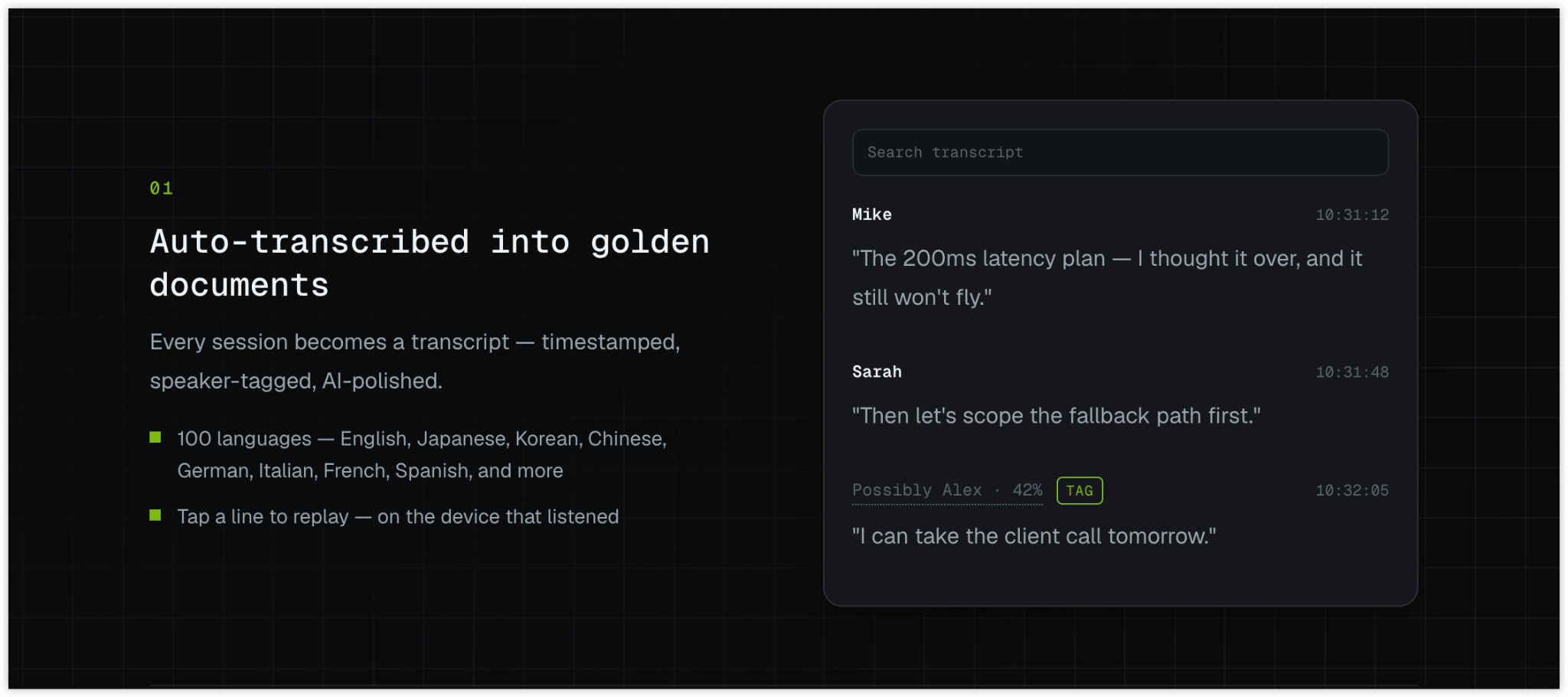
Find individual statements in a searchable transcript.
Choose based on your actual situation
Use your checklist to decide which trade-offs matter most:
- For ideas that arrive while you are moving: prioritize a start route available from your usual watch screen, then confirm that recording begins promptly and can be stopped just as easily.
- For planned work periods: consider a scheduled reminder if you are comfortable starting and stopping when prompted. Confirm which device receives the reminder and where its controls work.
- For capture around calls: favor behavior you have confirmed on the intended device, including what happens when the call ends.
- For notes you need to reuse: weigh the post-capture result—such as a recording or transcript—along with the number of actions needed to start.
Before committing, ask the provider or verify in the current app: Can I start from the watch face or lock screen? How many actions does it take on my watch model? Where do the start and stop controls appear? What happens during a call? What will I be able to review afterward? If a reply does not answer the device and surface you care about, treat that point as unconfirmed.
FAQ
Does independent Apple Watch capture mean I can start recording from the watch face?
No. Independent capture means the watch can capture and upload without relying on the phone; it does not establish a watch-face shortcut or a specific number of start steps. Confirm the actual control on your setup.
Is a one-tap start always the best choice?
Not necessarily. Count the steps you need in the situation where you will record, and check that stopping is equally straightforward. A reminder-based start may work well for a planned routine but be less suitable for an unexpected idea.
Should I choose the fastest app if it has no transcript?
Only if audio alone meets your needs. If you want to scan or revisit spoken details, compare the output as well as start speed, and review an example recording before deciding.
Next step
Run the checklist on the watch and phone you actually plan to use. Choose the tool whose start and stop controls fit your routine and whose output is useful afterward. If you are considering Hemory, verify its exact Apple Watch start route and Schedule Mode controls on your setup; its published independent capture, call behavior, and transcript features can then be weighed against your priorities.