

 Hemory Team
On this page
Introduction
Before a customer call or working session, decide when you want a record to begin and end. Hemory gives you two ways to control listening: start and stop it yourself in Manual Mode, or set listening times and use the reminders in Schedule Mode. Choose the approach that fits the conversation, then make sure you take the action that starts or ends capture.
TL;DR
- Use Manual Mode when you want to start and stop listening at your own discretion.
- Schedule Mode sends reminders at set times, with one-tap start and stop actions. A reminder does not silently open the microphone.
- On Apple Watch, listening pauses when a phone call comes in and resumes after it ends. Do not assume that call behavior applies to other devices.
Choose a listening mode
Use Manual Mode when you want to decide separately for each conversation. Use Schedule Mode when you have recurring listening times and want a reminder to start or stop at those times.
| Mode | How you control listening | Useful when |
|---|---|---|
| Manual Mode | Start listening when you are ready, then stop it when you are done. | You have separate meetings or calls and want to choose which ones to capture. |
| Schedule Mode | Set listening times and use the reminder’s one-tap start or stop action. | You want reminders around a regular schedule, such as a workday. |
Schedule Mode is not silent background recording: Hemory sends a reminder with an action to start or stop listening. If you do not want listening to begin, do not tap the start action.
Start and stop listening with Manual Mode
- Before the conversation, choose Manual Mode. Use the listening controls on your device; exact screen layout can vary.
- Start when you are ready to capture the discussion. Take a moment to make sure you intended to begin before continuing with the conversation.
- Stop when the conversation or the part you want captured is over. If you are moving from a customer call to a separate working session, stop after the call and start again only when you want the next session captured.
- If you are unsure whether listening is active, pause to check the app’s current controls before continuing. Do not rely on your memory of starting or stopping earlier.
Manual control can help you avoid capturing unrelated parts of the day. It also means you need to make the start and stop decisions yourself; a manual session will not begin just because a meeting is on your calendar.
Use Schedule Mode for planned listening times
For a recurring schedule, set the listening times that fit your routine. When a scheduled time arrives, Hemory sends a reminder with a one-tap option to start listening; a reminder also provides a one-tap option to stop. For example, you might schedule reminders around your usual workday, then use the start and stop actions according to whether you want to capture a particular conversation.
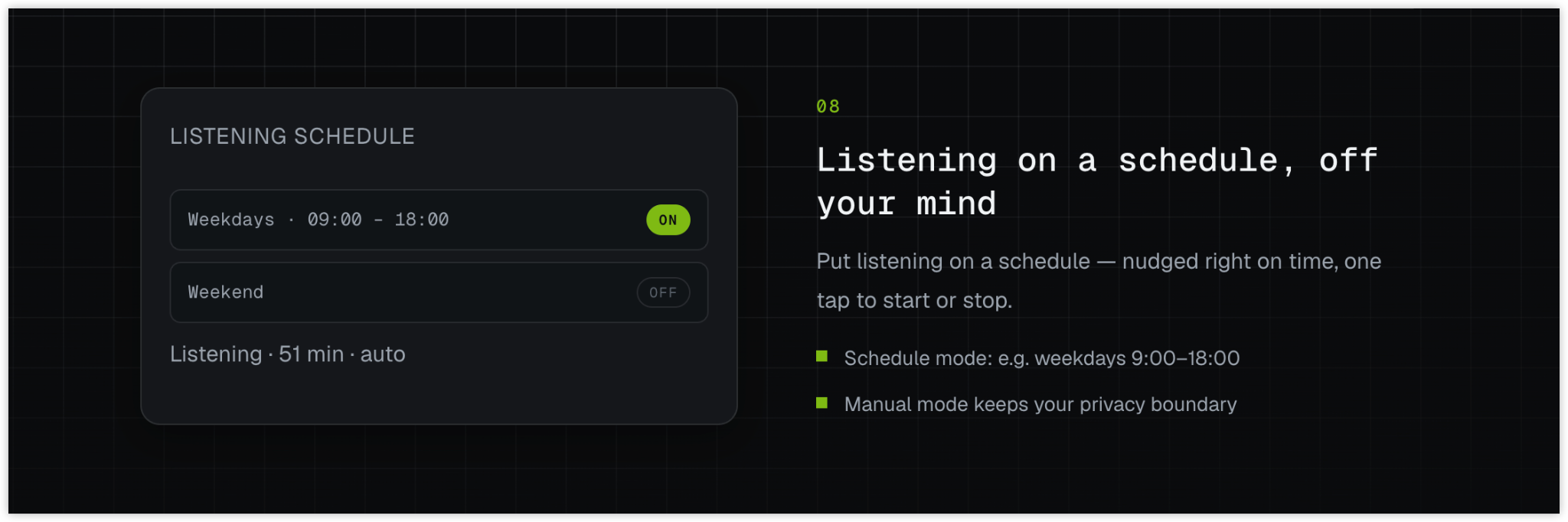
Set listening times for weekdays and weekends.
Treat the reminder as a prompt to make a choice, not as confirmation that listening has already begun or ended. If the timing does not fit a particular meeting or call, use the available start or stop action according to your intent rather than assuming the schedule knows which conversations matter.
Handle calls without assuming the same behavior on every device
On Apple Watch, Hemory automatically pauses listening when a phone call comes in and resumes after the call ends. That behavior is documented for Apple Watch; do not assume it applies to listening on another device.
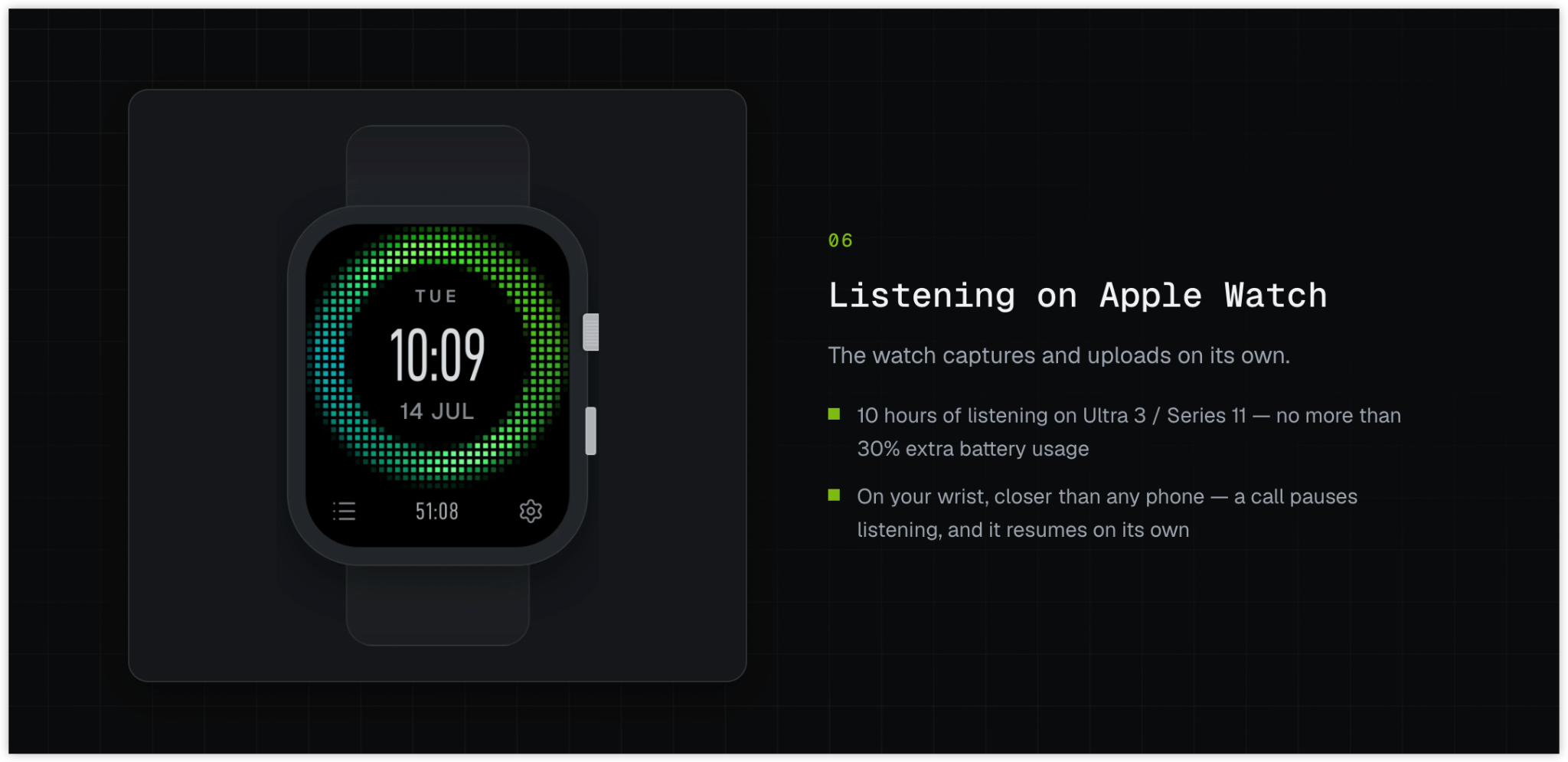
Hemory listening interface shown on Apple Watch.
If you are using another device and do not want the call captured, stop listening before the call when practical, then start again only if you want to capture what follows. If the device’s behavior is unclear, check its current listening controls rather than relying on an assumed automatic pause.
A simple routine for two conversations
For a customer call followed by a working session, Manual Mode offers a straightforward sequence: start before the call when you are ready, stop when it ends, and start again only when you want the working session captured. With Schedule Mode, use the reminder’s start and stop actions deliberately; the schedule is a reminder, not an instruction to record every event in that time window.
The goal is to make the capture boundary match your intention. When the listening session is preserved, Hemory can organize its transcript and related Memory for later review. You can stay focused on the discussion instead of trying to write down every potentially useful detail, while still deciding when listening should run.
FAQ
Does Schedule Mode start listening automatically?
No. It sends a reminder with a one-tap start action. Use that action when you want listening to begin; the reminder does not silently open the microphone.
What happens when a phone call comes in?
On Apple Watch, listening pauses when a call comes in and resumes after it ends. Do not assume the same behavior on other devices; use their listening controls if you need to stop capture around a call.
Which platforms can I use for listening controls?
The Features page lists iOS and Apple Watch as available and lists macOS, Windows/Linux, the Web app, and self-hosting as coming soon. Check current availability for your device before relying on a particular setup.
Next step
Before your next meeting or call, choose Manual Mode for conversation-by-conversation control or set a Schedule Mode reminder for a recurring time. Start only when you intend to capture, and stop when you are finished. That deliberate boundary lets Hemory preserve the discussion you want to revisit without requiring you to take notes throughout it.