

 Hemory Team
On this page
If your meetings follow a regular rhythm, you may want listening available during those hours without having to remember to start it each time. Schedule Mode is designed around set listening times and reminders—but the reminder is not an automatic recording.
TL;DR
- Choose a listening window that fits a regular part of your routine.
- When a reminder arrives, use the one-tap action to start listening; use the stop action when you’re done.
- The documented example is a workday window. Weekly repeats, multiple windows, and platform-specific setup details are not specified, so don’t assume those controls are available.
1. Choose a listening window that fits your routine
Start with the meetings you want to cover. For example, if your recurring meetings take place during a regular work block, decide whether you want listening available for that block or only for a narrower period.
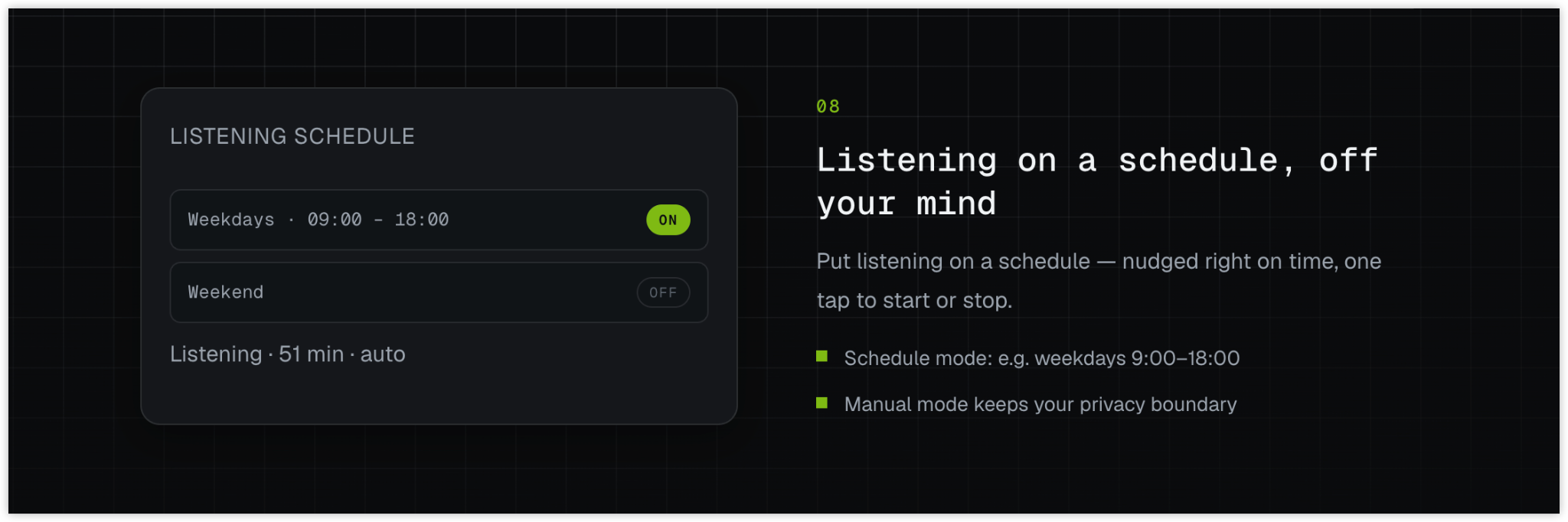
Set listening times for weekdays and weekends.
The Hemory Features page gives a workday schedule of 9:00–18:00 as an example. Treat that as an illustration of a listening window, not confirmation that Schedule Mode supports a particular weekly repeat rule or multiple separate windows. The documentation does not give an exact setup path or name the relevant controls.
2. Use the reminder to start listening
When the scheduled time arrives, Schedule Mode provides a reminder with a one-tap start action. Tap to start listening when you’re ready. The documented flow requires your action; it does not describe listening starting automatically when the scheduled time arrives.
If the reminder comes while you’re not ready, decide whether to start then or skip that listening session. The supplied documentation does not specify what happens when a reminder is ignored, so don’t rely on a particular default behavior.
3. Stop listening when the session is over
Use the one-tap stop action when you’re finished. This keeps the action with you rather than assuming a scheduled end time will stop listening without your input.
If you prefer to decide each time instead of following set listening times, Manual Mode is the documented alternative. Hemory presents it as a way to keep a privacy boundary around listening; the choice between modes depends on whether a scheduled reminder or a manual start better fits the situation.
What to confirm before relying on a recurring schedule
The public guidance describes Schedule Mode’s reminder and one-tap start and stop actions, but does not specify whether you can set weekly repeats, create multiple listening windows, or configure the schedule on every supported device. It also does not provide platform-specific setup steps.
The Features page lists iOS and Apple Watch as available platforms, but does not say which device provides the Schedule Mode controls or receives its reminders. Check the available controls on your device before planning around a particular schedule. If the documented options don’t match your routine, use Manual Mode rather than assuming an unsupported scheduling feature.
Try it with one regular block
Start with one recurring part of your week. If the available Schedule Mode controls fit that block, set the listening time, then use the reminder to decide when to start and stop. You can judge whether the flow suits your routine without assuming that the app records automatically or supports scheduling options that aren’t documented.
FAQ
Does Schedule Mode start recording automatically?
No automatic start is described. The documented flow is a reminder followed by your one-tap start action.
Can I set Schedule Mode to repeat every week?
The supplied public guidance does not specify weekly repeat controls. Confirm what the available settings support before relying on a recurring schedule.
Can I set several listening windows in one day?
The documentation gives one workday-window example but does not say whether multiple windows are supported.
Where do I set the schedule on iOS or Apple Watch?
The public guidance does not provide a device-specific setup path or say which device handles schedule settings and reminders. Check the available controls on your device rather than relying on unverified menu steps.