

 Hemory Team
On this page
If you need to start listening in the middle of a meeting or while walking, navigating menus can interrupt the conversation. Hemory documents two ways to control listening: Manual Mode for user-started sessions, and Schedule Mode for planned listening times with reminders and one-tap start and stop actions. The exact control placement is not specified, so use the current app on your device rather than assuming every platform has the same screen.
TL;DR
- Choose Manual Mode when you want to start and stop listening yourself.
- Choose Schedule Mode when your listening window is predictable and a reminder with one-tap start and stop actions suits it.
- A schedule is not silent or automatic recording: follow the user actions in the reminder flow.
- Check the controls on the device you plan to use. The documented descriptions do not establish identical controls across platforms.
Choose the mode that fits the moment
Use Manual Mode for an unplanned conversation
Manual Mode lets you start and stop listening yourself. It fits a meeting that begins unexpectedly, a conversation that runs beyond its planned time, or a walk when you decide to capture a discussion as it happens.
The available description does not name a particular button or explain where it appears. Open the listening controls in your current Hemory app and use its start and stop actions; don’t rely on instructions for a different device or assume a specific screen layout.
Use Schedule Mode for a predictable listening window
If you regularly want listening available during a known period, set that time in Schedule Mode. Hemory documents reminders at the scheduled time and one-tap actions to start and end listening. For example, you might schedule a regular workday window, then use the start action when the reminder arrives and the end action when you are done.
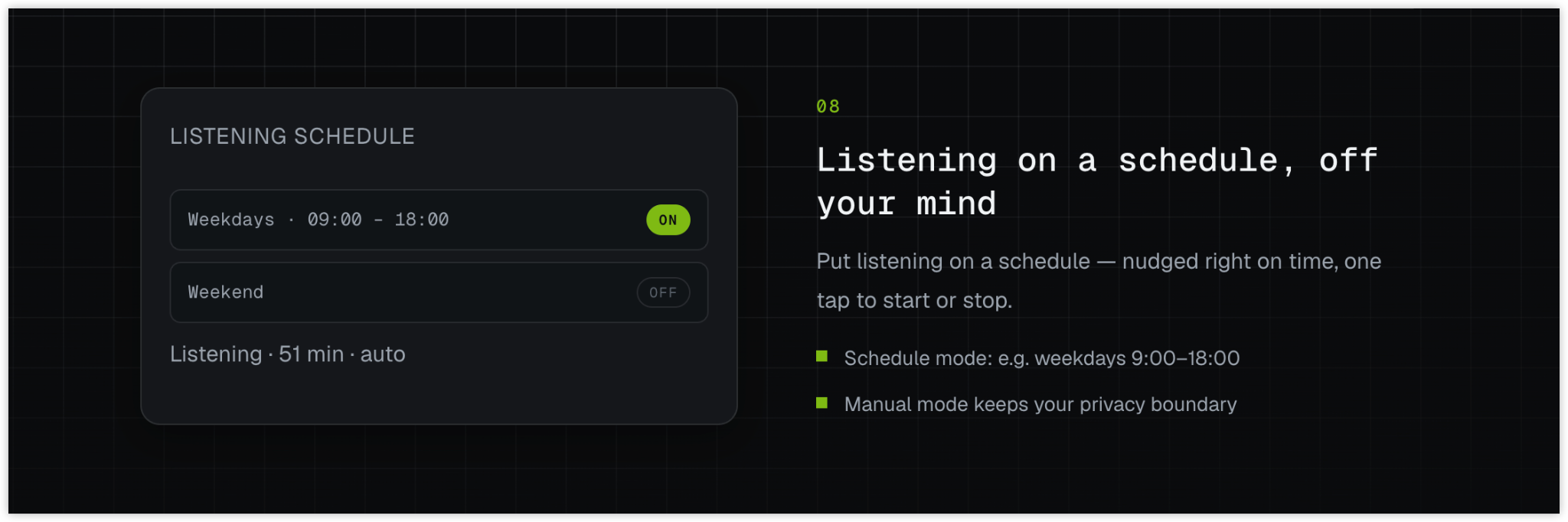
Set listening times for weekdays and weekends.
The schedule helps you avoid finding the controls from scratch each time. It does not mean the microphone starts silently or that listening begins without your action. Follow the reminder and make the start or stop choice yourself.
Check your device before relying on a quick control
The Features page describes listening on iOS and Apple Watch, but it does not establish that the start and stop controls are identical on both. Check the current app on the device you plan to use before a meeting or walk, especially if you expect to use a reminder-based action.
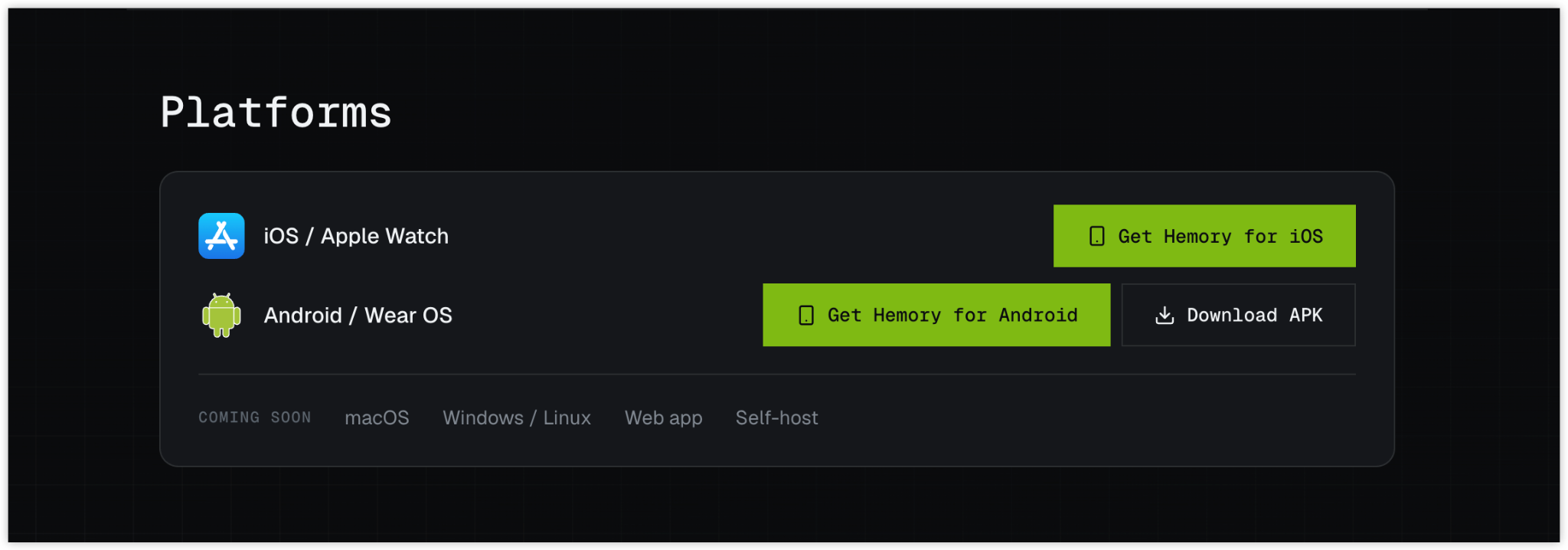
See the mobile and wearable platforms listed on the site.
Apple Watch is described as able to capture and upload listening independently. That does not confirm that its controls match the phone’s or that every quick action is available in the same way. The Features page marks macOS, Windows/Linux, web, and self-hosting as coming soon; don’t plan around those platforms as if they were currently available.
A quick choice
| Situation | Mode to consider | What to expect |
|---|---|---|
| An unplanned conversation | Manual Mode | You start and stop listening yourself. The exact control location is not documented here. |
| A recurring, predictable listening period | Schedule Mode | Set the time, then use the reminder’s one-tap start and end actions. |
| A device you have not used before | Check its current app first | Do not assume the controls match another platform. |
Before you need to capture something important, try locating the listening controls on the device you will use. Then choose Manual Mode for direct control or Schedule Mode for a planned window. That small check can help you begin or end a session with less distraction, without assuming the app will start listening for you.
FAQ
Does Schedule Mode start listening automatically?
No. The documented flow includes a reminder and one-tap start and end actions. Treat those as actions you take; do not assume a schedule silently turns on listening.
Are the one-tap controls the same on iPhone and Apple Watch?
That is not established in the available feature description. Check the current controls on the device you will use rather than assuming platform parity.