

 Hemory Team
On this page
A memory server appearing on an integration list does not tell you exactly how it will work in your coding or agent client. The connection steps, tools available, and permissions can vary by client—and a public listing is not the same as independent verification.
Use this checklist to assess a specific client before relying on it. It helps you confirm what is listed, what to check in the client’s own setup, and how to judge whether the connection provides the access your task needs.
TL;DR
- Treat a public integration listing as a sign to investigate, not proof that every client version has been tested.
- Check the exact client and version, connection method, exposed tools, and granted permissions separately.
- Try a low-risk task using a conversation already captured in Hemory. Review what the agent retrieves before relying on it for consequential work.
What does MCP client compatibility mean?
A client is compatible with a memory server when it can establish the relevant MCP connection and use the server’s available tools for the task you have in mind. That does not mean every client has identical setup steps or can access the same tools and data.
Check compatibility at three levels:
| Level | What to establish | Why it matters |
|---|---|---|
| Listed support | Is your client named in the provider’s current integration information? | A listing identifies a candidate, but does not establish that your specific setup has been tested. |
| Connection | Does your client support the connection method and configuration the server requires? | Clients can have different setup paths, versions, and configuration requirements. |
| Effective access | Which tools can the client actually use, and what permissions do they have? | A successful connection alone does not prove the tools or access needed for your task are available. |
For Hemory, the public integration information lists Claude Code, Codex, Gemini, Cursor, VS Code, OpenClaw, Hermes, and standard MCP clients. That is a public listing, not a claim that every client, version, setup path, tool, or permission has been independently verified.
A checklist for evaluating a specific client
1. Match the listing to your actual client
Look for the exact client, not just a related product family or a generic statement that the server supports MCP. Note the version and environment you intend to use; a desktop app, IDE extension, and command-line client may have different connection paths.
If the client is not named, do not assume it is incompatible or supported. Check whether it supports the MCP connection method described by the server, then confirm the details in both products’ current documentation. Do not treat ChatGPT as a standard MCP client unless its particular connection path is confirmed.
2. Confirm the connection method and setup requirements
Use instructions for the client you actually run. Check where its MCP configuration belongs, what server address or connection details it needs, how authentication works, and whether the connection must be enabled or restarted before the client can use it.
A generic MCP setup example may help explain the concepts, but it is not a substitute for client-specific instructions. If the provider does not document a detail for your client, treat it as unresolved rather than copying steps from a different client and assuming they apply.
3. Find out which tools are available
A connection can succeed while still lacking a tool your task needs. Check the tools exposed by the server and the tools the client makes available to the agent. The client may also affect how those tools are presented or invoked.
Hemory’s MCP documentation describes Memory retrieval and Speaker management. Do not infer that every client exposes every documented capability, or that the connection grants arbitrary changes to Memory or actions in external systems. Confirm the available tools for your client and the task you plan to perform.
4. Check permissions and the scope of accessible information
Ask what information the connection can access and what actions its tools are allowed to take. A connection should not be described as unrestricted simply because it works. Nor should you assume it is entirely read-only: Hemory’s documented MCP scope includes Speaker management, while that does not establish general write access to Memory or permission to take actions in another application.
Check the authorization shown during setup and the client’s current documentation. If the permission boundary is unclear, avoid using the connection for sensitive or consequential work until you can establish what the client can access and do.
5. Try a task that lets you assess the result
Use a low-risk request tied to a conversation already captured in Hemory and accessible through the configured connection. For example, ask the agent to find a previously discussed customer concern and summarize the relevant context. Then review whether the result answers the request, whether important conditions are preserved, and whether the agent makes clear what it could not retrieve.
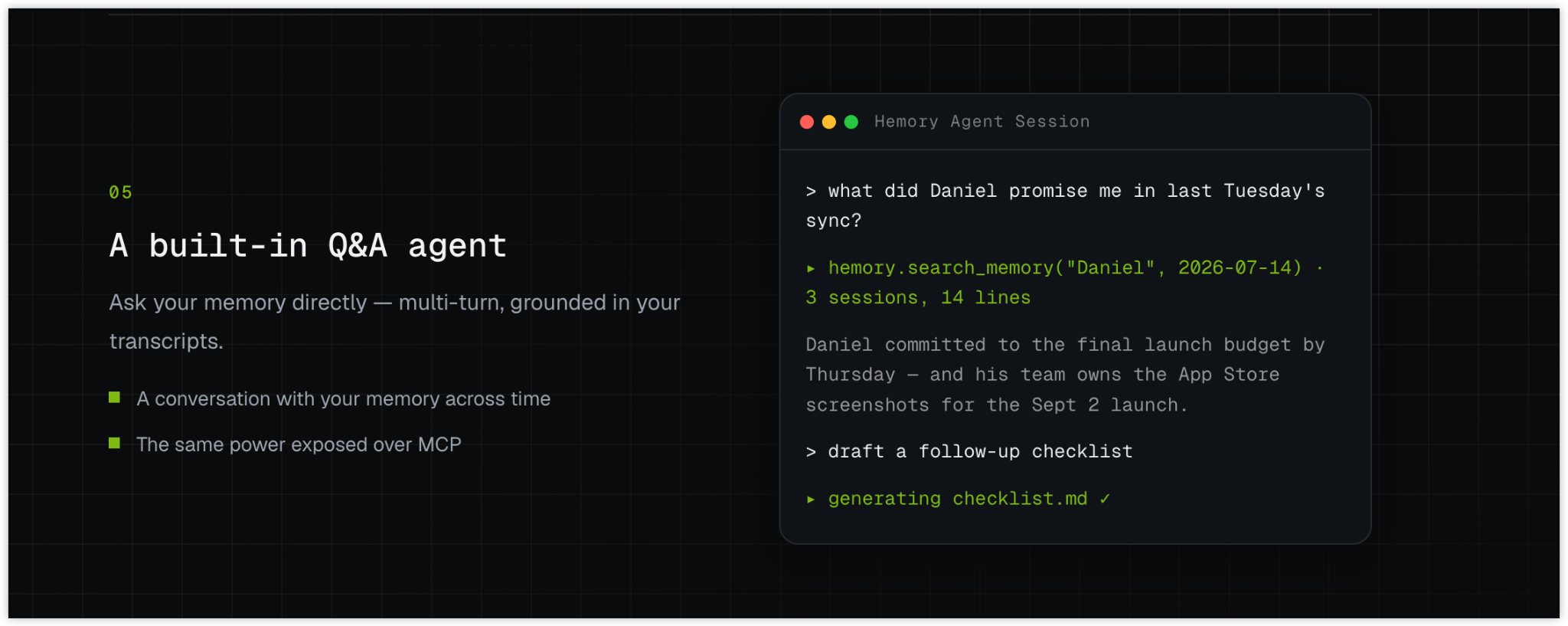
Retrieve past commitments and draft follow-up tasks.
This is a practical check of your setup, not proof of complete recall or identical behavior in other clients. If the information was never captured or is unavailable through the connection, the agent cannot retrieve it from Hemory. For a consequential decision, use the relevant source material and your own judgment to assess the answer.
How Hemory fits into the evaluation
If your work depends on context from real conversations, consider whether the connection can help the agent retrieve relevant material you would otherwise have to search for and retell. Hemory captures and organizes conversations; a supported connected agent can use accessible context through its own MCP integration. The agent performs its own reasoning and drafting, and you review the result.
This is useful only when the connection fits your actual client and task. If your client cannot use the required tools or permissions are unclear, a public listing alone is not enough to rely on it. You can still use another suitable source or provide relevant material to an assistant manually.
Make the decision based on your use case
Treat a client as a candidate when it is listed or its MCP support is otherwise documented. Before depending on it, confirm its setup, available tools, and permissions, then try a task that reflects your intended use. If one of those points remains unclear, keep that uncertainty in the decision rather than assuming the client works like another one.
The useful outcome is not simply a successful connection. It is knowing whether your chosen client can retrieve the conversation context your work requires—and what limits to keep in mind when using the result.
FAQ
Does a public integration listing mean the client has been tested?
No. A listing indicates that the integration is publicly presented as supported or compatible; it does not establish independent testing of every client, version, setup path, or permission.
Will setup be the same in every MCP client?
No. Follow the instructions for your exact client and version. A general MCP example does not establish that another client uses the same configuration or connection steps.
Does a successful connection mean the agent can access everything?
No. Confirm which tools the client exposes and what information and actions its permissions allow. A working connection does not imply unrestricted access.
What if my client is not listed?
Check whether that client supports the connection method the server requires and consult its current documentation. Until the setup and effective access are clear, treat compatibility as unconfirmed rather than assuming either support or incompatibility.