

 Hemory Team
On this page
Before a confidential call, the key question is whether listening could start or resume when you do not intend it to. Hemory offers Manual Mode and scheduled listening controls, while its call-pausing description is specific to Apple Watch. Here’s what each means—and what to check on your own device before the conversation.
TL;DR
- In Manual Mode, you start and stop listening yourself.
- Schedule Mode provides reminders and one-tap start and stop actions. It is not described as silent recording.
- Hemory’s Features page says incoming calls pause listening and listening resumes afterward on Apple Watch. Don’t assume this applies to every device, call, or app.
- For a sensitive conversation, stop listening before it begins if you do not want it captured, and verify the setup on your device.
What do the listening controls do?
Manual Mode puts starting and stopping in your hands. Start listening when you choose to capture a conversation, then stop it when you are done. Do not assume that the exact controls or behavior are identical on every supported device; check the app you use.
Schedule Mode is a reminder-based control, not a stated silent-recording mode. Hemory’s Features page describes setting listening times, receiving reminders, and using one-tap start and stop actions. For example, a schedule might be set for weekday working hours. The page does not describe the schedule silently opening the microphone and recording without user action. If the screen or prompt on your device differs from that description, do not rely on assumptions—check the control before your call.
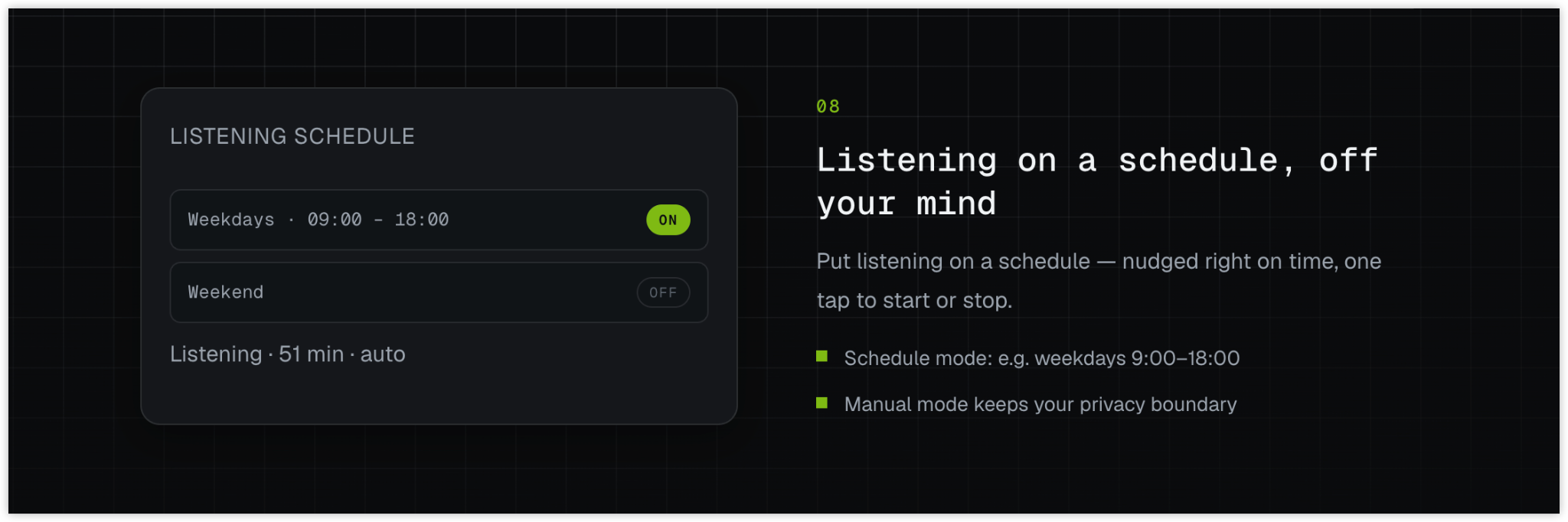
Set listening times for weekdays and weekends.
What happens when a call comes in?
Hemory’s Features page describes incoming calls automatically pausing listening and listening resuming after the call ends on Apple Watch. That behavior is a useful safeguard, but it is not a reason to leave listening on during a confidential call: the page does not establish call detection for every device, app, or type of call. Nor should you assume that pausing will remain in effect after the call ends.
If you are using Apple Watch and do not want any part of the conversation captured, stop listening before the call rather than relying on automatic pausing. If you use another device, treat call pausing as unconfirmed unless you have checked how that setup behaves.
Check your setup before the conversation
- Identify the device you will use. The call-pausing description is specifically for Apple Watch. Do not extend it to another device or app without checking.
- Choose the control deliberately. Use Manual Mode when you want to decide when listening starts and stops. If you use Schedule Mode, read the reminder and use the one-tap controls as described; do not assume a scheduled time means listening has already started.
- For a call you do not want recorded, stop listening first. This avoids depending on call detection or on a pause that may end with the call.
- Check the device’s current state. Confirm that listening is stopped before you begin. If you need to understand what will happen when you start or stop it, test the controls outside the confidential conversation.
- Follow the applicable consent and workplace rules. A device control does not decide whether recording is appropriate or authorized.
If a necessary detail is missing from your setup, use another available way to confirm it or leave listening off for the call. Hemory cannot recover a conversation that was not captured, but that is preferable to relying on an unverified control for sensitive material.
Frequently asked questions
Does Schedule Mode start recording automatically at the scheduled time?
Hemory’s Features page describes reminders and one-tap start and stop actions, not silent recording. Check the reminder and controls on your own device rather than assuming the schedule has started listening.
Will Hemory pause for every call?
That behavior is not established for every device or call. The Features page describes automatic pausing for incoming calls on Apple Watch only. Verify your own setup, and stop listening beforehand if you do not want the call captured.
What should I do if I’m unsure whether listening is on?
Check the listening state on your device before the conversation. If you cannot confirm it, stop listening or leave it off, then verify the control outside the confidential call.
Before your next sensitive call, choose the mode you intend to use and confirm its state on the device. That simple check is more reliable than assuming a schedule or call-pause feature covers every situation.