

 Hemory Team
On this page
A memory server can appear to support your coding client and still require a different connection route or expose a different set of tools there. Before connecting Hemory to an IDE or agent client, check whether that exact client is listed, how it connects, and what access the connection gives it.
TL;DR
- Treat a public integration listing as evidence that a client is listed, not as proof that its setup has been independently tested.
- Check the connection method, the tools the client exposes, and the permissions attached to those tools for your specific client.
- Don’t infer unrestricted access—or read-only access—from the fact that a client supports MCP. Confirm the actual scope before using it.
1. Check whether your exact client is publicly listed
Start with the server’s current integration information and look for the exact client name. Hemory publicly lists Claude Code, Codex, Gemini, Cursor, VS Code, OpenClaw, Hermes, and general standard MCP clients.
A listing is a useful compatibility signal, but it is not the same as independent verification that every version, configuration, or workflow has been tested. If your client is listed, confirm that the listing applies to the client and version you use. If it isn’t listed, check whether the client supports the relevant MCP connection method and whether Hemory documents a route for it. Don’t assume that an unlisted client works just because it supports MCP in general.
2. Confirm the connection route for that client
MCP support does not make setup steps interchangeable. Before following instructions, confirm they are written for your specific IDE or agent client. Check what connection method it requires, what configuration the client expects, and what server details or authentication it needs. Use the current instructions for that client rather than copying a setup from another integration.
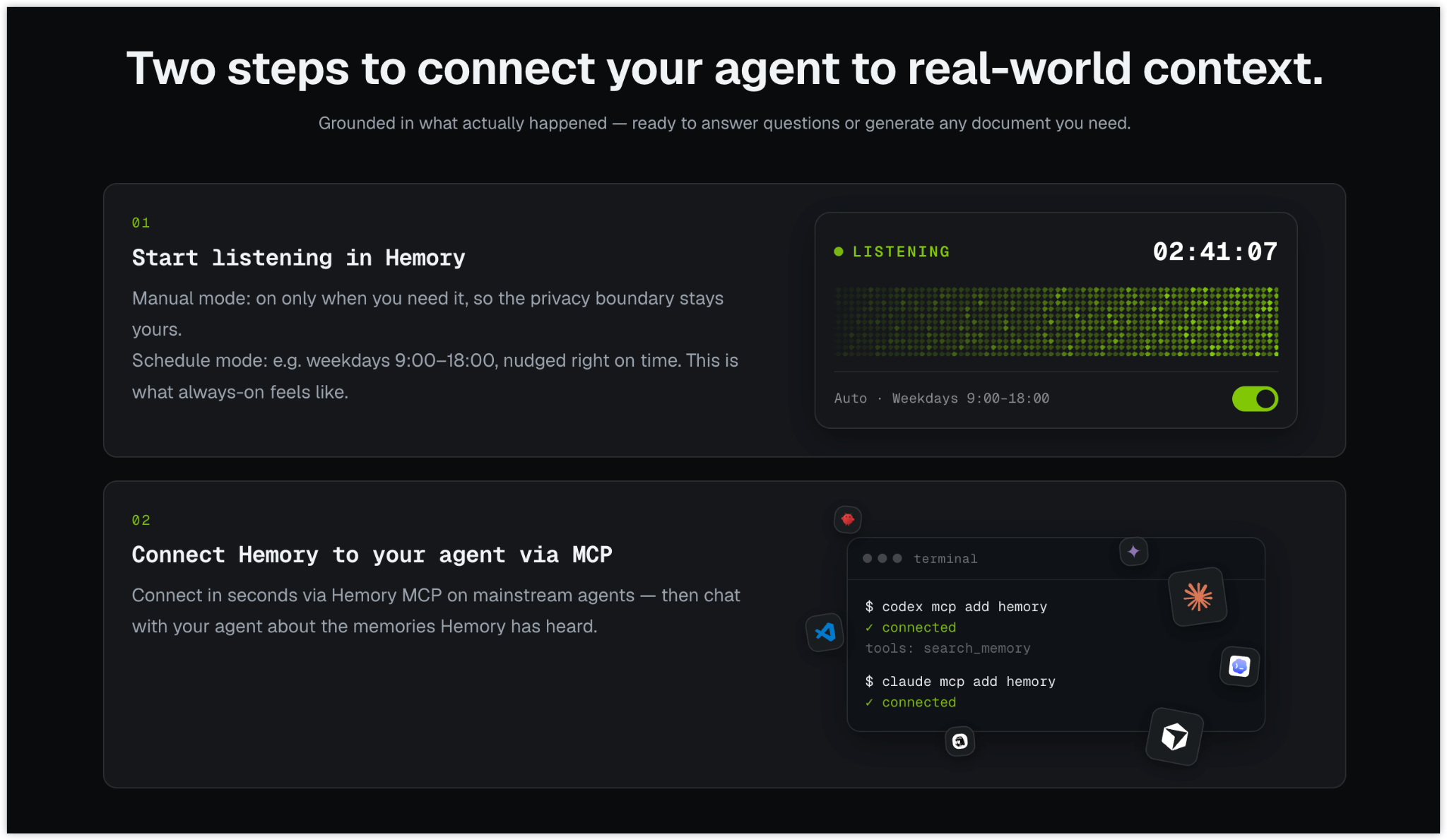
Connect an AI agent to Hemory through MCP.
If you can’t find client-specific instructions, treat the setup as unresolved. A general MCP-compatible label doesn’t establish that the client can connect to this server through its available configuration options.
3. Inspect the tools and their permissions
Before allowing the connection, identify which Hemory tools the client makes available and what each can do. Check whether the agent can retrieve Memory, manage speaker information, or perform another documented action. Then confirm the scope of the information each tool can access and whether it can change anything.
Hemory’s product information describes Memory retrieval through MCP and also documents Speaker labeling and management. That does not establish that every client exposes the same tools or that the connection can edit arbitrary Memory, access every record, or take actions in other systems. Don’t treat MCP as automatically read-only or unrestricted; check the actual tools and permission details for the client you’re connecting.
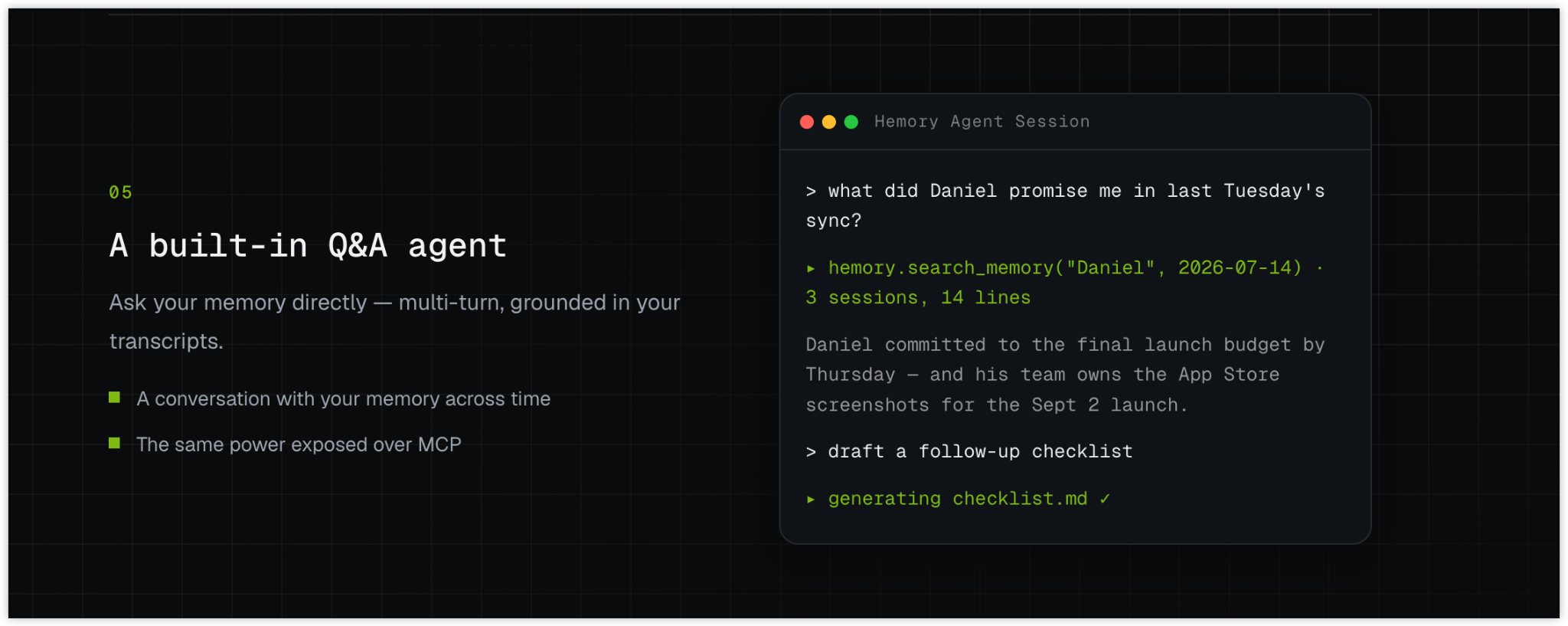
Retrieve past commitments and draft follow-up tasks.
| What to check | What the answer tells you |
|---|---|
| Is this exact client publicly listed? | Whether Hemory presents it as a supported integration, not whether your precise setup has been independently tested. |
| Does Hemory provide instructions for this client? | Whether you have a client-specific route to follow rather than steps borrowed from another client. |
| Which tools does the client expose? | What actions the connected agent can request through the server. |
| What data and changes do those tools permit? | The access scope and whether a tool can do more than retrieve information. |
| Who reviews the agent’s output or actions? | Where your own judgment and approval remain necessary. |
4. Make a connection decision based on the evidence
Connect when the client is listed or its compatibility is otherwise clearly documented, you have an applicable setup route, and you understand the tools and permission scope. If one of those points is unclear, pause and confirm it before connecting rather than treating the listing as a guarantee.
Once connected, use Hemory to make relevant captured conversation context available through the supported connection. The external agent performs its own retrieval and reasoning; you provide the current task and review what it produces. A connection does not make uncaptured conversations available or approve external actions on your behalf.
If you need exact installation steps for a particular IDE, follow that client’s current instructions and Hemory’s corresponding setup guidance. Compatibility, setup, tools, and permissions are all client-specific checks—not a single universal MCP recipe.
FAQ
Does a public listing mean Hemory has tested every version of my IDE?
No. A public listing identifies an integration, but does not prove that every client version or configuration has been independently tested. Check the current instructions for the version you use.
What if my coding client supports MCP but isn’t listed?
MCP support alone does not confirm compatibility with Hemory. Check whether Hemory documents a connection route for that client and whether its configuration supports the required connection method. If that remains unclear, don’t assume it will work.
Does connecting through MCP mean the agent has read-only access?
Not necessarily. Check the tools and permissions available through your specific client. Hemory documents both Memory retrieval and Speaker management via MCP; that does not establish arbitrary write access or identical permissions across clients.
Before connecting, verify the exact client’s route and access scope. That gives you a practical basis for deciding whether Hemory’s captured conversation context fits the way you work in your IDE.