

 Hemory Team
On this page
Starting a conversation capture on Apple Watch should be simple: choose how you want to begin listening, stop when the conversation is over, and review the result afterward. Hemory supports Manual Mode and Schedule Mode reminders on Apple Watch. Its feature description confirms the capture-to-transcript flow, but does not specify exact watch screen names or how long a result takes to appear.
TL;DR
- Choose Manual Mode to start and stop listening yourself, or Schedule Mode for planned listening times with reminders and one-tap start and stop.
- Hemory turns listening sessions into timestamped transcripts with Speaker labels and automatically classifies activity.
- Transcript lines can be played on the Apple Watch that captured them. Transcription and speaker labels are not guaranteed to be perfect.
1. Choose how you want to start listening
Hemory offers two listening modes. Use Manual Mode when you want to control when listening starts and stops. For a planned listening period, Schedule Mode lets you set listening times and receive reminders; the reminder provides one-tap start and stop actions.
Choose based on the situation: Manual Mode suits a conversation you decide to capture as it begins, while Schedule Mode can help when you already know when you want to listen. A reminder does not mean listening starts on its own; you still take the start action.
2. Start listening on Apple Watch, then stop when finished
Apple Watch can independently capture and upload listening content. You do not need to keep your phone with you for the watch to perform that capture.
With Manual Mode, start listening when you are ready and stop when the conversation ends. With Schedule Mode, use the reminder to start listening and end it with the one-tap action. The available product description does not name the watch screens or controls, so this guide cannot give reliable button-by-button instructions.
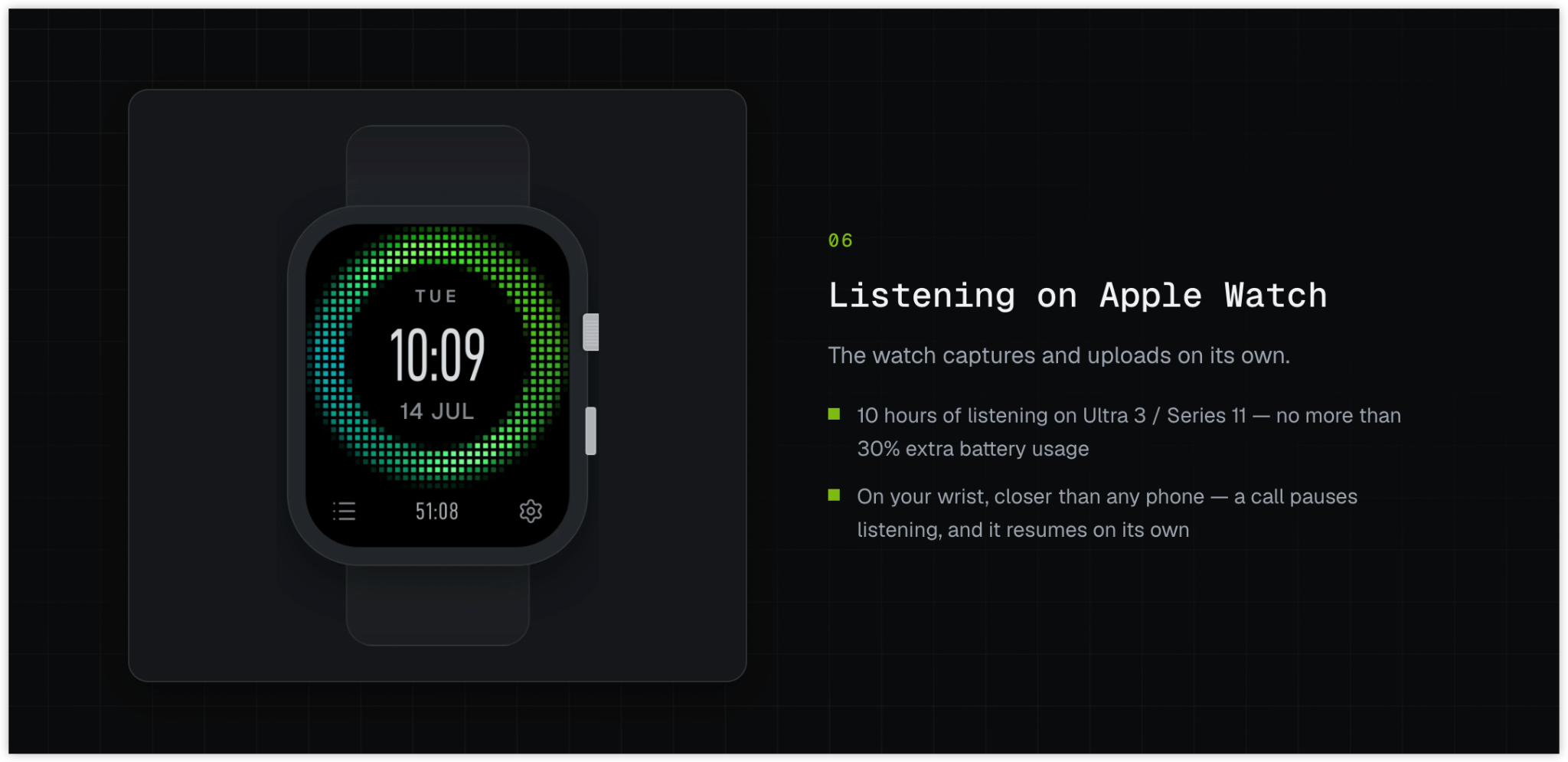
Hemory listening interface shown on Apple Watch.
If a phone call comes in, listening on Apple Watch pauses and resumes after the call ends. If the conversation continues around that interruption, remember that the documented behavior does not establish what was captured during the pause.
3. Review the session result
Hemory produces a timestamped transcript with Speaker labels for each listening session. It also automatically classifies activity into types such as Meeting, Work, Meal, Social, Learning, and Chit-chat. The summary style varies with the activity: meetings can have structured notes, while lighter activities receive briefer summaries.
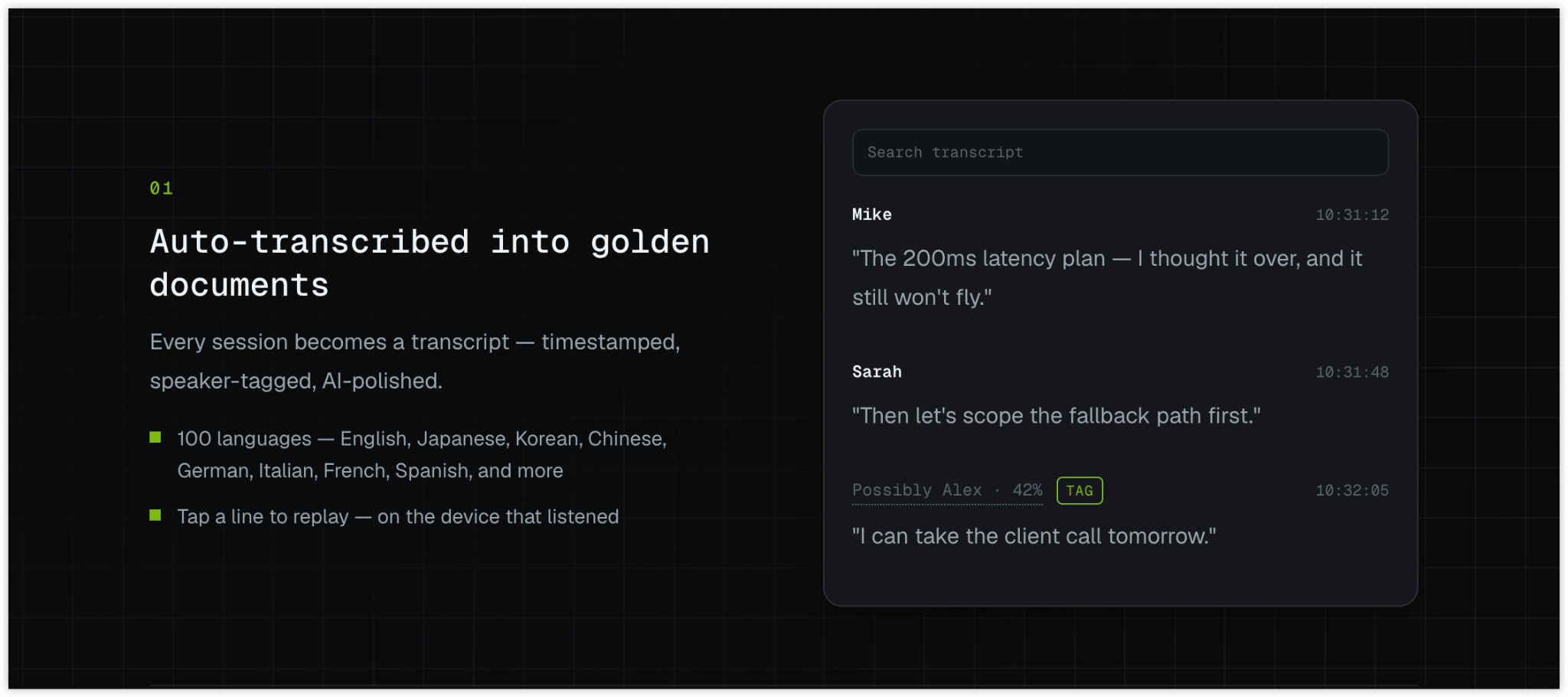
Find individual statements in a searchable transcript.
Look for the available result in Hemory after the session. The supplied feature description does not specify the exact place to find it or how long upload and processing take, so it does not support a promise that the transcript will appear immediately or in a particular screen.
Treat the transcript and speaker labels as a useful record, not a guarantee of perfect transcription or identification. If a line matters, transcript-line playback is available on the device that captured it—in this case, the Apple Watch.
What to expect from the basic flow
The routine is: choose Manual Mode or Schedule Mode, start listening on the watch, stop when finished, then review the timestamped transcript and activity result when available. Hemory handles the transcript and activity classification, so you can stay with the conversation instead of trying to write down every detail. Use the transcript as a reference, and listen to a relevant line on the watch when hearing the captured audio would help.
FAQ
Does Apple Watch need to stay connected to my phone while it listens?
Hemory describes Apple Watch as able to capture and upload listening content independently. This does not specify any initial setup requirements.
Does Schedule Mode start recording automatically?
No. Schedule Mode provides reminders and one-tap start and stop actions; the reminder is not silent, automatic recording.
Can I play a transcript line on my phone?
The documented feature is line-by-line playback on the device that captured the session. For a session captured on Apple Watch, use that watch for transcript-line playback.
How soon will the transcript appear?
The available feature description does not state upload or processing timing. It confirms that a session produces a timestamped transcript, but does not promise when it will become available to review.
To get started, choose the mode that fits your next conversation and stop listening when it ends. Then review the available transcript and activity summary; use the watch’s line playback when you want to revisit a specific passage.