

 Hemory Team
On this page
If your team works in a CRM or shared document space, an AI-generated meeting summary is useful only if it reaches the right place in a usable form. A tool may sync notes automatically, offer an export, connect through an agent, or leave you to copy and paste. Those routes create different amounts of work—and different risks of missing context.
Before choosing, trace a representative note from the meeting to the record your team actually uses. This guide gives you a practical way to compare that path without assuming a particular vendor supports it.
TL;DR
- Ask where a finished note appears, not just which apps a vendor says it “integrates” with.
- Separate native synchronization from export, agent access, and manual transfer. Each requires different actions and may move different information.
- Test the complete path with a representative meeting, including edits, ownership, and what happens when the transfer fails.
- Treat Hemory’s documented MCP connection as a way for supported agents to access Memory—not as proof of native meeting-platform, CRM, or document-store synchronization.
Start with the destination and the work it needs to support
Name the specific place where the note should end up: for example, a CRM record for a customer call, a shared project document, or a meeting entry in a team workspace. Then identify what people need to do there. They might need to read decisions, follow up on action items, or update an account history.
This matters because “send meeting notes to our tools” can describe different outcomes. A note might be attached to a calendar event, saved as a document, added to a customer record, or made available to an AI assistant. Access to information is not the same as writing it into a destination, and a link to a note is not necessarily a copy of its contents.
Write down the destination and the minimum useful result before comparing vendors. For a customer-call record, that might be a readable summary, decisions, and follow-up actions linked to the correct account. Do not assume that every field needs to be populated automatically.
Identify how each tool moves notes
Ask the vendor which path applies to your workflow. The word “integration” alone does not tell you who starts the transfer or what arrives at the other end.
| Transfer path | What to establish | Work that may remain |
|---|---|---|
| Native synchronization | Which destination is supported, what triggers the sync, and what note content and metadata are sent | Confirming the record is linked correctly, handling errors, or reviewing the result |
| Export and import | Which formats are available and whether the destination can accept them | Exporting, choosing a destination, importing, and checking the resulting record |
| Connected agent | What information the agent can retrieve, which tools it can use, and whether it can take the required destination action | Setting up the connection, providing current instructions, reviewing the output, and carrying out any unsupported action |
| Manual copy and paste | Whether the note can be accessed and copied in a suitable format | Finding the note, transferring it, formatting it, and selecting the right record |
These are different capabilities. A tool may support one without supporting the others. In particular, an agent’s ability to retrieve information does not by itself establish that it can write to your CRM or document store.
Check what arrives, not just whether a connection exists
For the path you plan to use, ask what gets transferred. A short summary may omit a qualification that affects a decision. An action item may need an owner or due date that was never agreed in the meeting. A transcript, structured meeting notes, and a link to a source record are not interchangeable.
Check these details with the vendor or in the product workflow:
- Content: Does the destination receive the summary, transcript, decisions, action items, or only a link?
- Context: Are the meeting date, participants, account or project, and source record associated with the note?
- Timing: Does transfer happen automatically, after a user action, or only after an export?
- Edits: If someone revises the note, does the destination update, create another copy, or keep the earlier version?
- Matching: How does the tool decide which event, account, document, or project should receive the note?
- Failures: How will you notice a missed transfer, a duplicate, or a note attached to the wrong record?
- Access: Who can open the destination record, and does a shared link grant access or merely point to a source that remains private?
If a detail is not documented, treat it as a question to resolve—not as a feature the tool definitely has or lacks.
Test the complete path before committing
A short trial can reveal more than an integration directory. Use a representative meeting and follow the note all the way to its intended destination. Record each action you take, including any setup, export, copying, field selection, or correction.
For example, if your team needs customer-call notes in its CRM, check that the note is associated with the intended account and includes the decisions and follow-ups your team uses. If an action item has no confirmed owner or deadline, the test should not treat one as agreed. If you need a project document instead, test that destination and its own review process; success in one workflow does not establish success in another.
Then check whether a colleague who normally uses the destination can find and understand the result. Look for missing context, duplicated records, unclear status, and steps that depend on one person’s account or permissions. A path that works only when someone remembers to perform several hidden manual steps may not fit a recurring workflow.
Use your observations to compare options. Count the actions that your team must repeat, note which errors would change the next step, and decide whether the remaining work is acceptable. This is a workflow test, not a claim that one vendor performs better in general.
Treat Hemory’s MCP path as a separate question
Hemory’s documented product information describes a built-in Q&A Agent that can answer questions about a user’s Memory and supports multi-turn transcript-based Q&A. It also describes exposing that capability through MCP, a standard connection route for supported external agents. The Features page lists the MCP capability and names several agents, but does not establish that meeting notes automatically sync into a particular CRM, meeting platform, or shared document store.
That distinction matters when you compare destinations. Hemory’s MCP route concerns an agent accessing Memory; it is not, by itself, evidence of a native integration that writes meeting notes to your existing tools. The public information also does not specify a complete set of MCP tools, permissions, or destination-system actions. Check the actual connection and agent capabilities for the workflow you want, and do not assume retrieval access includes write access.
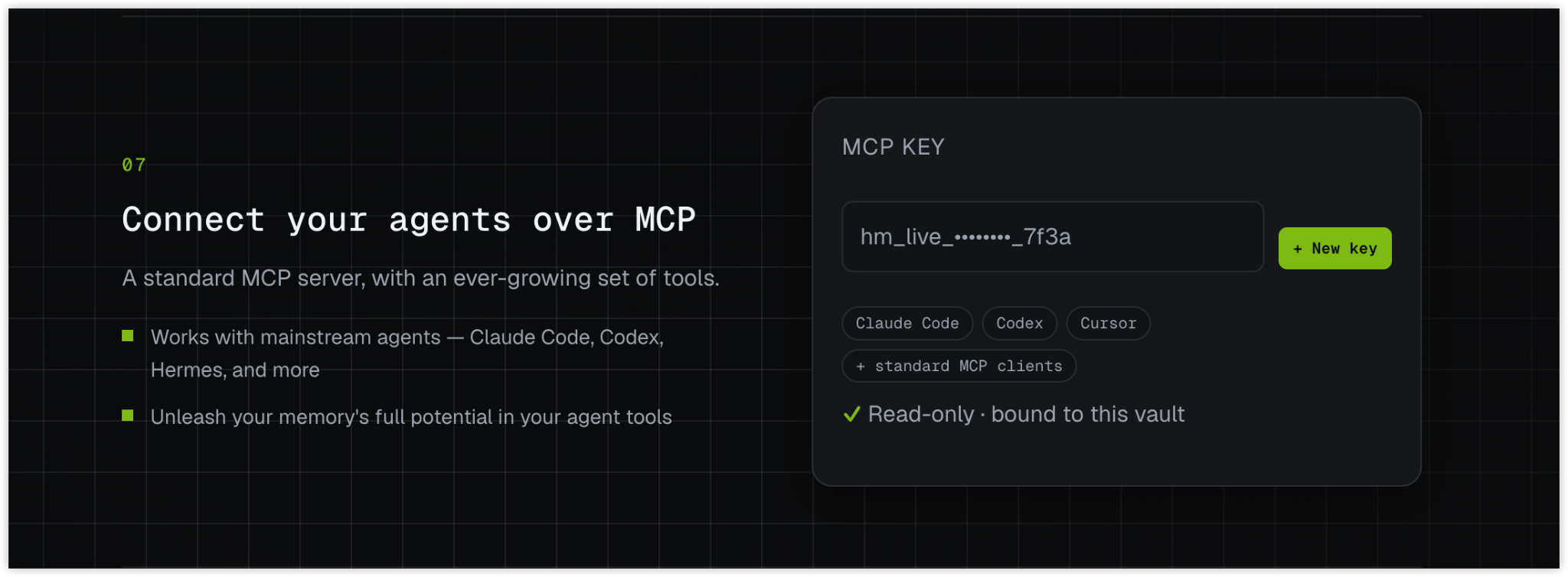
Review MCP connection options and access settings.
If your goal is to use captured conversations as context for an agent’s work, assess whether the supported connection can provide the relevant Memory and whether the agent can produce the output you need. You remain responsible for reviewing the result and placing it in the right work system when that action is not supported. If your requirement is automatic delivery into a CRM or document store, ask specifically about that destination and transfer path before treating Hemory—or any other tool—as a fit.
Choose based on the work left to your team
A useful comparison ends with the path that meets your destination and content needs with an acceptable amount of effort—not the longest list of logos or integrations. Prefer a route that reliably puts the right information where people use it, makes its manual steps visible, and fits your access and review requirements.
Before deciding, get a clear answer for the exact destination, transferred content, trigger, editing behavior, and failure handling. If the vendor cannot confirm an important detail, keep it unresolved in your selection and plan a trial or follow-up question. This prevents an “integration” label from becoming an assumption about automatic, complete, or correctly routed notes.
FAQ
Does “integrates with” mean meeting notes sync automatically?
Not necessarily. It may refer to an export, a connection an administrator must configure, agent access, or a manual workflow. Ask what triggers the transfer and where the note appears afterward.
Is an AI agent connection the same as sending notes to a CRM?
No. An agent may be able to retrieve context without having the tools or permissions to create or update a CRM record. Confirm retrieval and destination write actions separately.
What should I use if there is no direct integration?
Compare the available export, import, or manual-copy route against your team’s needs. Check what content survives the transfer and how people will associate the note with the correct meeting or record.
Can Hemory automatically put meeting notes into my existing tools?
The documented Hemory MCP path provides Memory access for supported agents, but the supplied product information does not confirm automatic sync to a particular meeting platform, CRM, or shared document store. Verify the specific destination and action you need rather than treating MCP support as native synchronization.