

 Hemory Team
On this page
When a day includes a client call, lunch, and a learning session, a flat list of recordings can make it hard to spot the conversation you want. Hemory automatically arranges captured daily content by activity type on a timeline, giving you a visual way to distinguish different situations.
TL;DR
- Hemory groups daily recordings into six types: Meeting, Work, Meal, Social, Learning, and Chit-chat.
- The activity is classified automatically from conversation content; the documented workflow does not ask you to choose a type manually.
- Summaries vary by type. Meetings may have structured notes with agenda items, decisions, and action items; Meal and Chit-chat entries receive a lighter paragraph summary.
- The timeline gives you a way to orient yourself by situation, but the published feature description does not specify an activity-type filter or editable labels.
What are the six activity types?
Hemory divides a day’s captured content into six activity types and lays them out on a timeline:
| Activity type | What the label signals |
|---|---|
| Meeting | A meeting-type conversation, which may receive structured notes. |
| Work | A work-related activity. The published description does not specify a unique summary format for this type. |
| Meal | A meal-time activity, with a lightweight paragraph summary. |
| Social | A social activity. The published description does not specify a unique summary format for this type. |
| Learning | A learning activity. The published description does not specify a unique summary format for this type. |
| Chit-chat | Casual conversation, with a lightweight paragraph summary. |
These are activity groupings, not six kinds of formal meeting. In particular, a Meal or Chit-chat entry should not be treated as meeting minutes, and a Work, Social, or Learning entry should not be assumed to contain a particular set of fields.
How does activity grouping help you find a recording?
The timeline adds situation-based organization to the day’s captured conversations. If you remember that an exchange happened over lunch rather than during a client call, the activity labels can help you scan the relevant part of the day instead of treating every recording as the same kind of event.
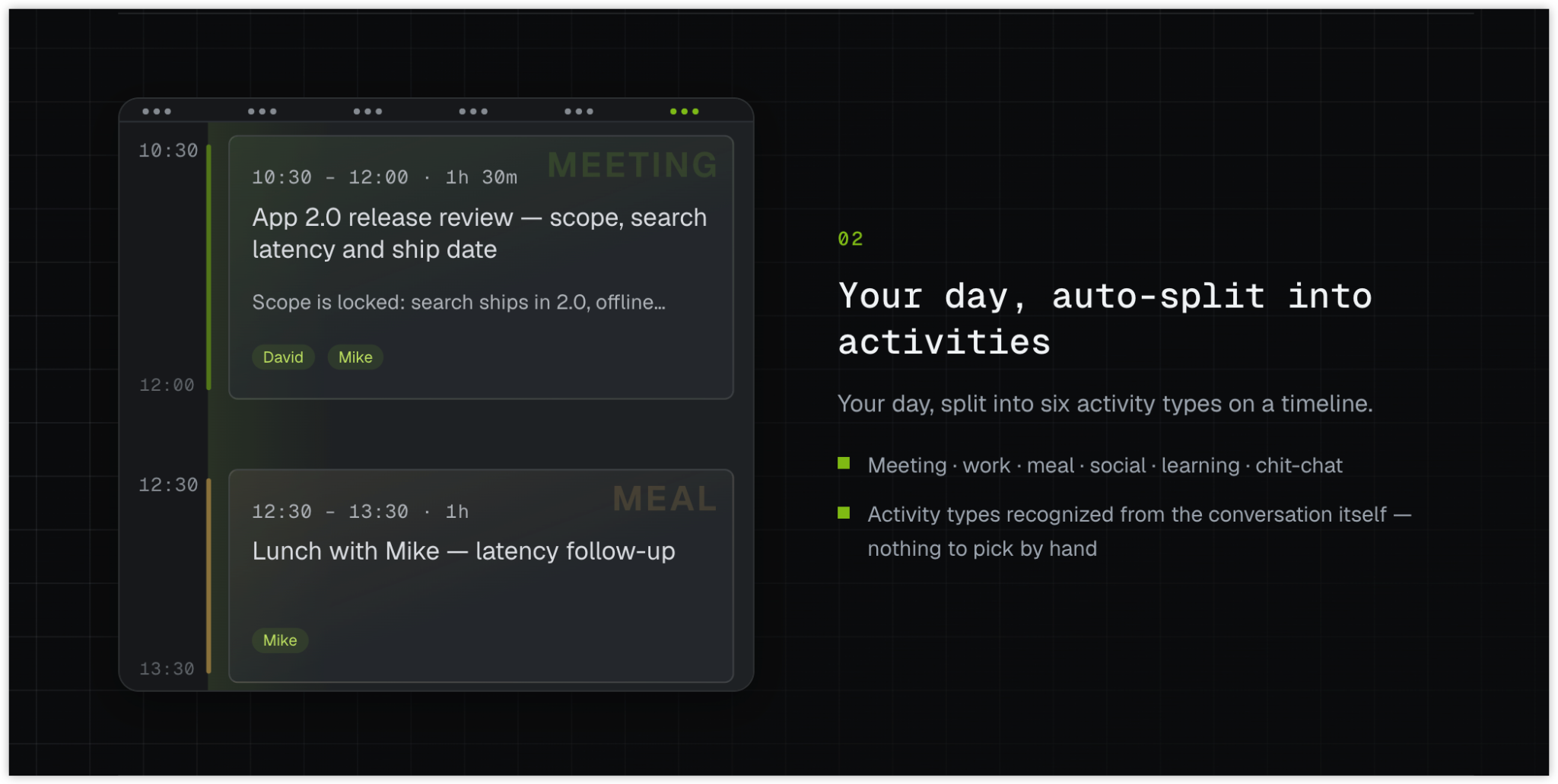
Revisit daily conversations in an activity timeline.
For example, if you want to revisit a lunch conversation, look for the Meal grouping; if you are looking for a formal discussion, look for Meeting. The grouping is a visual guide to the context of a recording, not proof that the label is always right or that every detail is captured.
The documented feature description establishes activity groups on a timeline, but does not specify a dedicated filter or search control for activity type. It also does not describe whether users can edit or override labels. So treat the timeline as the documented way to orient yourself by situation; don’t assume a filter or editable category is available.
Why do summaries differ by activity?
A short summary can suit a casual exchange, while a meeting may need a record of what was discussed and what followed. Hemory varies its summaries by activity rather than presenting every conversation as formal minutes.
For Meeting activities, Hemory may produce structured notes with agenda items, decisions, and action items. Meal and Chit-chat activities receive a lightweight paragraph summary. The published description confirms that summaries vary across activity types, but does not specify a distinct format for Work, Social, or Learning. Avoid assuming those entries have meeting-style fields.
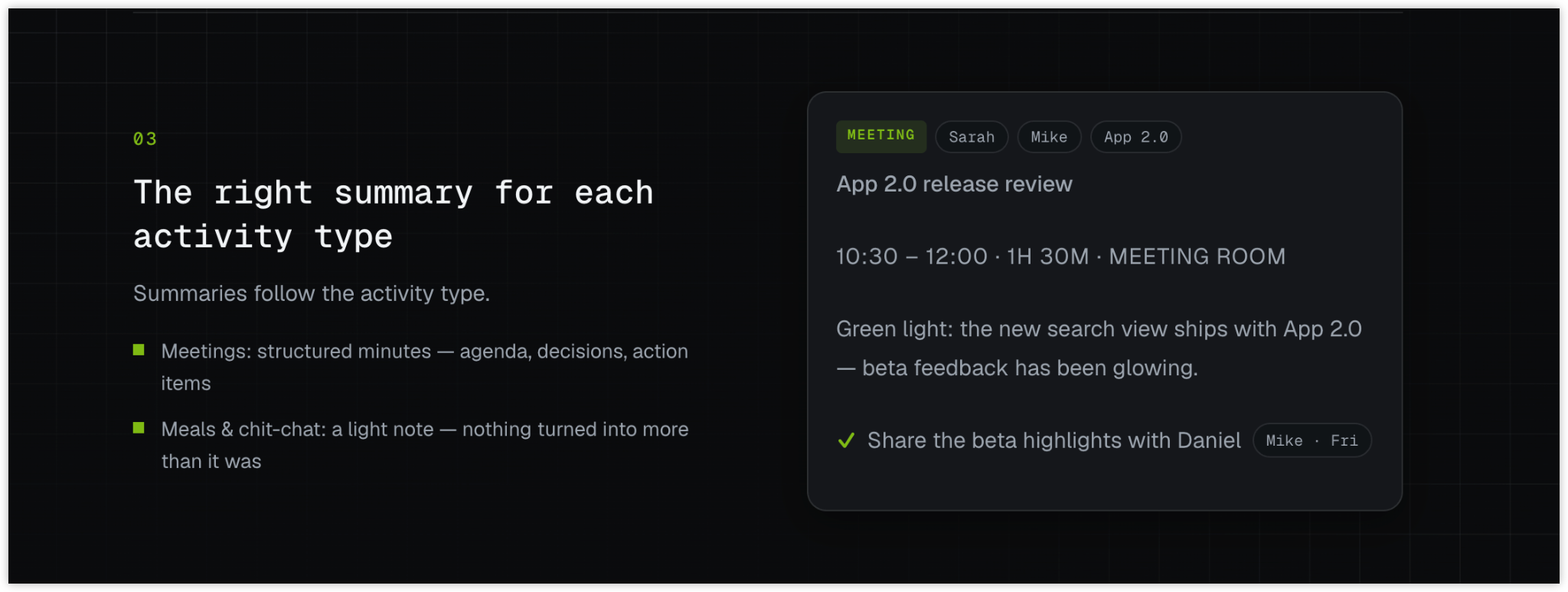
See how a meeting summary highlights decisions and follow-ups.
A summary is a quick way to revisit the record, not a guarantee that every important detail is present. When exact wording matters, Hemory’s listening sessions also produce timestamped transcripts with speaker labels and AI cleanup; transcript lines can be played back on the listening device.
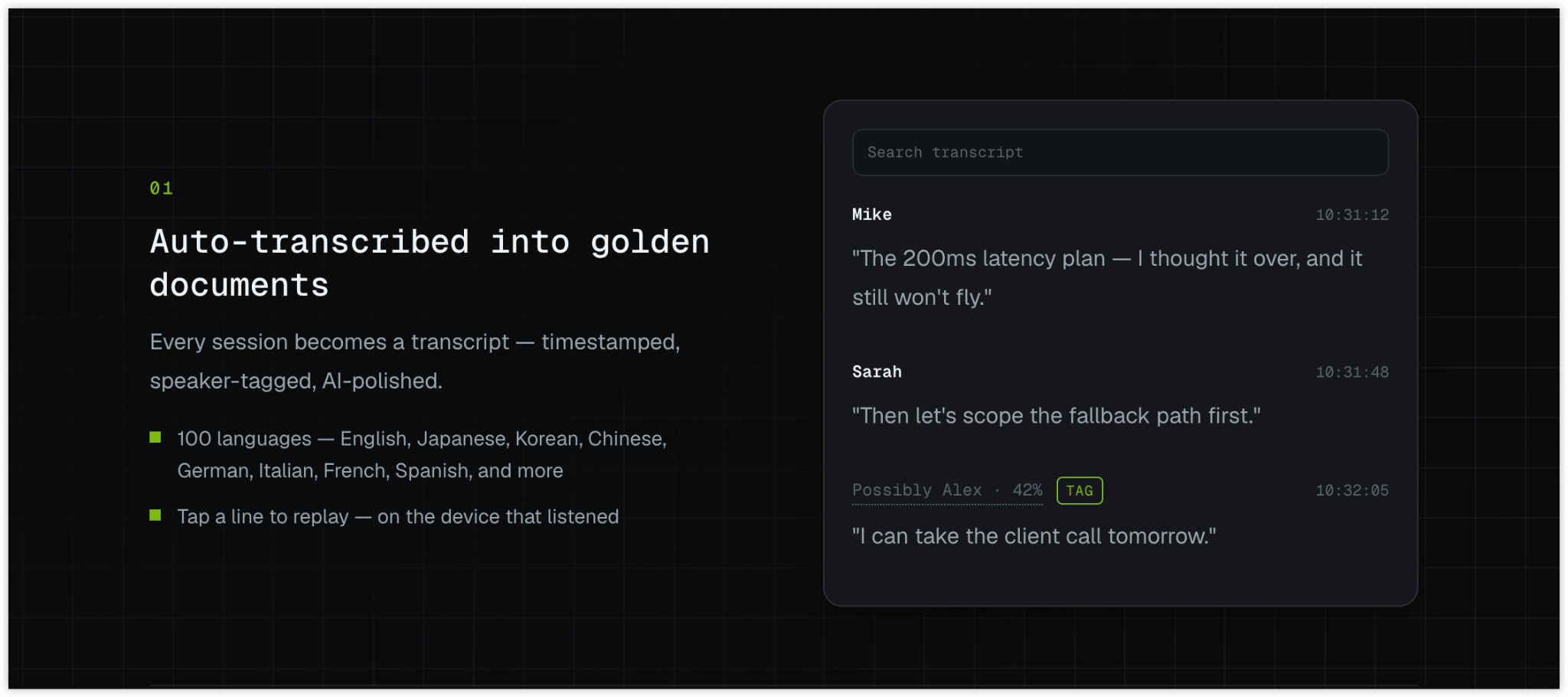
Find individual statements in a searchable transcript.
What to keep in mind
Activity types help make a day’s captured conversations easier to distinguish by situation. They do not establish that a conversation was a formal meeting, that the classification is correct in every case, or that the recording contains everything said. Use the label as a starting point, then consult the available summary or transcript when the details matter.
Can I choose or change an activity type?
The documented workflow says Hemory classifies activities automatically from conversation content, without requiring manual selection. It does not specify whether users can later edit or override a label.
Does every activity get meeting notes?
No. Meeting activities may receive structured notes with agenda items, decisions, and action items. Meal and Chit-chat activities receive lighter paragraph summaries; the published description does not say that every other type gets meeting-style notes.
Can I filter recordings by activity type?
The documented feature description says daily activities appear on a timeline, but it does not specify a dedicated activity-type filter. Use the timeline as the described visual guide, and consult the available summary or transcript for details.