

 Hemory Team
On this page
When one day includes a standup, lunch conversation, lecture, and errands, finding the work discussion can mean opening recordings one by one. Automatic activity tagging gives captured sessions a type and places them on a daily timeline, so you have a useful first clue before opening each item.
TL;DR
- Hemory automatically classifies captured sessions as Meeting, Work, Meal, Social, Learning, or Chit-chat and shows them on a daily timeline.
- For a work search, start with sessions labeled Work. Consider Meeting sessions too if the discussion you need happened in a meeting.
- Summaries vary by activity: Meetings get structured notes, while Meals and Chit-chat get lightweight summaries. The available description does not specify the summary detail for every other type.
- Treat a label as a navigation clue, not a guarantee. A dedicated activity filter and perfect classification are not established.
What is automatic activity tagging?
Automatic activity tagging is the process of assigning a type to a captured session based on its conversation content. In Hemory, the six listed types are Meeting, Work, Meal, Social, Learning, and Chit-chat. The activity labels appear on a daily timeline, and the type is assigned automatically rather than selected manually.
The labels describe different kinds of activity; they do not turn every conversation into a formal meeting. Meeting and Work are separate types, as are Meal, Social, Learning, and Chit-chat.
How can activity labels help you find work discussions?
Use the timeline as a first-pass scan of the sessions captured that day. If you are looking for a work conversation, begin with items labeled Work. If the discussion took place in a meeting, include Meeting sessions as candidates too. This distinction matters: a meeting is an activity type, not a promise that every work-related conversation will receive that label.
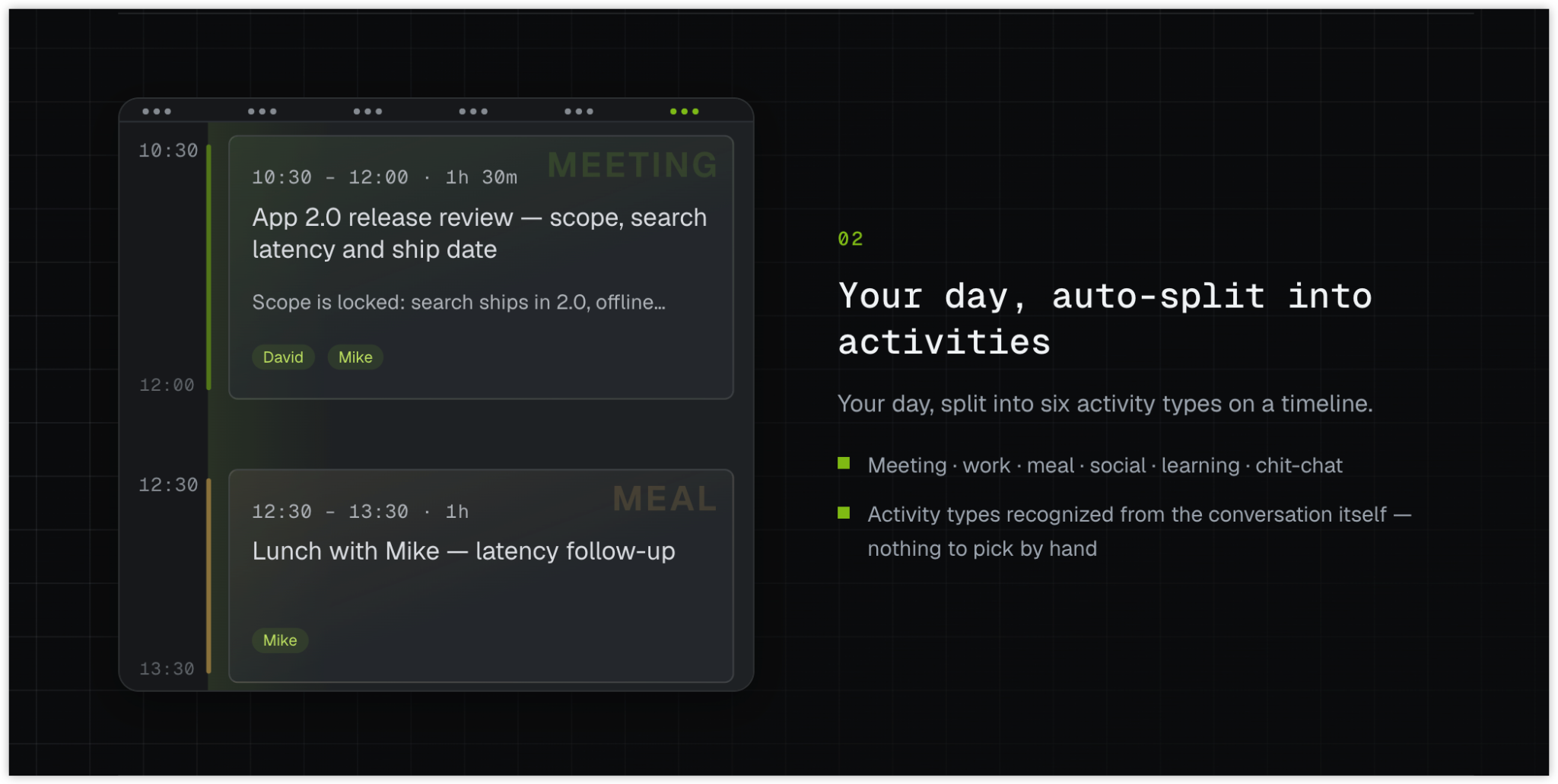
Revisit daily conversations in an activity timeline.
Then open the summary for a likely session. If it does not give enough context, review the transcript. This lets you use the activity label and summary to narrow your attention before reading through every recording.
The public product description establishes activity labels on a timeline, but does not establish a dedicated filter that displays only one type. Treat the labels as a way to scan and prioritize, not as a guaranteed one-click search. Only conversations captured in Hemory can be organized this way; it cannot classify a discussion that was never recorded there.
How much detail does each activity type get?
Hemory varies summaries by activity. The available product description specifies the following levels of detail:
| Activity type | Summary detail described |
|---|---|
| Meeting | Structured notes covering the agenda, decisions, and action items. |
| Work | The summary format is not specified in the available description. |
| Meal | A lightweight summary. |
| Social | The summary format is not specified in the available description. |
| Learning | The summary format is not specified in the available description. |
| Chit-chat | A lightweight summary. |
This difference helps set expectations: a Meeting summary is intended to be more structured than a lightweight Meal or Chit-chat recap. Do not assume that Work, Social, or Learning receives a particular format or level of detail unless Hemory’s current product information specifies it.
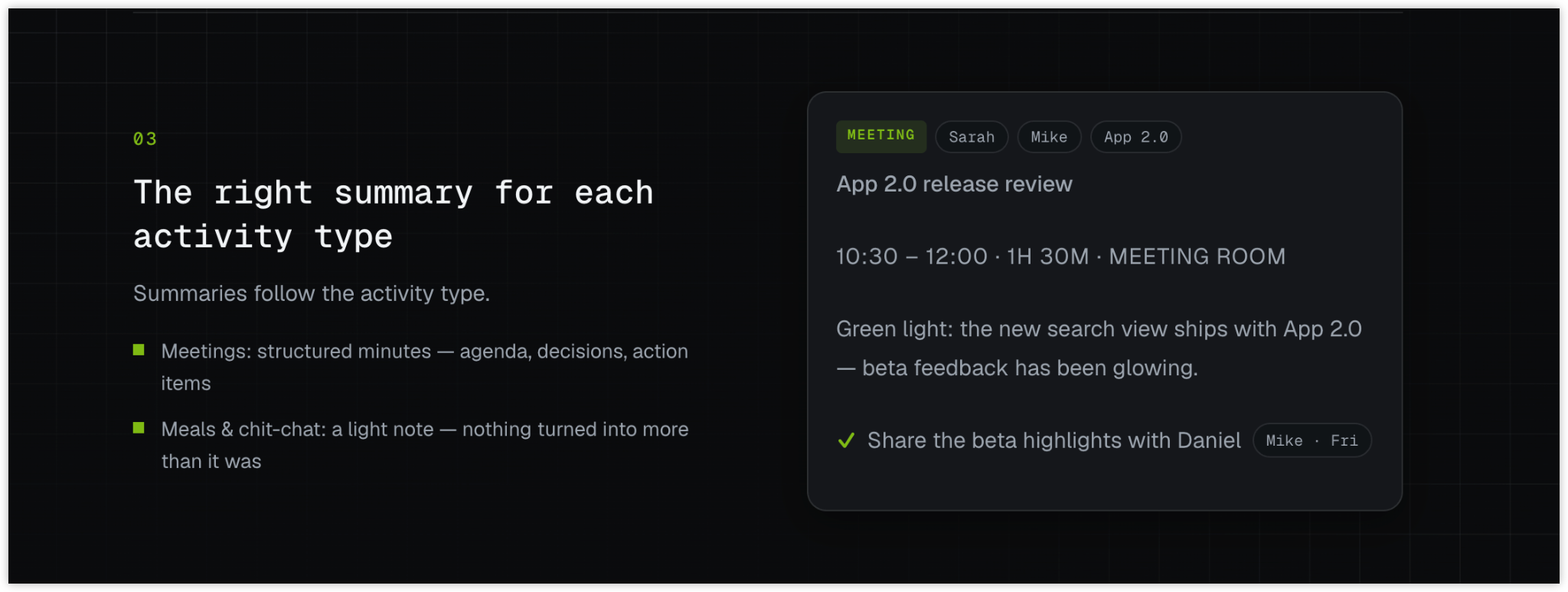
See how a meeting summary highlights decisions and follow-ups.
What activity tagging can—and cannot—tell you
An activity label is a useful clue about what a session contains, not proof that the classification is correct or that the session includes a particular decision. If a likely work session matters, open its summary and review the transcript when you need more context. A transcript records captured speech; it is not a guarantee that every exchange was recorded or transcribed perfectly.
To make later retrieval possible, capture the discussion while it happens. That leaves you freer to take part in the conversation instead of trying to write down every detail that might matter. Hemory can organize captured sessions afterward, but it cannot reconstruct uncaptured talk.
FAQ
Does activity tagging mean every work conversation is labeled Work?
Not necessarily. Work and Meeting are distinct activity types, and perfect classification is not promised. If the discussion you need happened in a meeting, include Meeting sessions in your scan.
Can I filter the timeline to show only Work?
A dedicated activity filter is not established by the available product description. It confirms that activity types appear on a daily timeline, which you can use to scan for likely sessions.
Are all activity summaries equally detailed?
No. Hemory describes structured notes for Meetings and lightweight summaries for Meals and Chit-chat. The summary detail for Work, Social, and Learning is not specified in the available description.
Start with the day you need to review
When you are looking for a captured work discussion, scan the day’s activity labels, start with Work, and include relevant Meeting sessions. Use the summary to identify likely candidates, then open the transcript if the details matter. Activity tagging helps organize what was captured; your review determines whether a session contains the information you need.