

 Hemory Team
On this page
If you’ve just started using Hemory on Apple Watch, the basic flow is to choose how you want to start listening, begin and end the session, then review the resulting record in Hemory. The published feature details explain what the record contains and where transcript lines can be played, but do not name the exact screen where the transcript appears or say how long upload takes.
TL;DR
- Manual Mode lets you start and stop listening yourself. Schedule Mode lets you set listening times and receive reminders with one-tap start and stop actions.
- Hemory describes Apple Watch as able to capture and upload listening content independently.
- A session produces a timestamped transcript with Speaker labels. Hemory also classifies activities by type; meeting records may have structured notes, while lighter activities receive lighter summaries.
- Transcript-line playback is available on the device that captured the session. The published feature details don’t specify the exact transcript screen or upload timing.
Start and stop a listening session
Hemory describes two listening modes. In Manual Mode, you start listening when you want and stop it when you’re done. In Schedule Mode, you set listening times and receive reminders, with one-tap actions to start and stop. For example, you might use Manual Mode for a one-off conversation or set a schedule for a recurring work period.
Apple Watch is a supported listening platform and can capture and upload listening content independently. However, the feature description does not specify which mode controls are available directly on the watch or where Schedule Mode is configured. Use the controls available in your current Hemory setup rather than assuming every setting is on the watch.
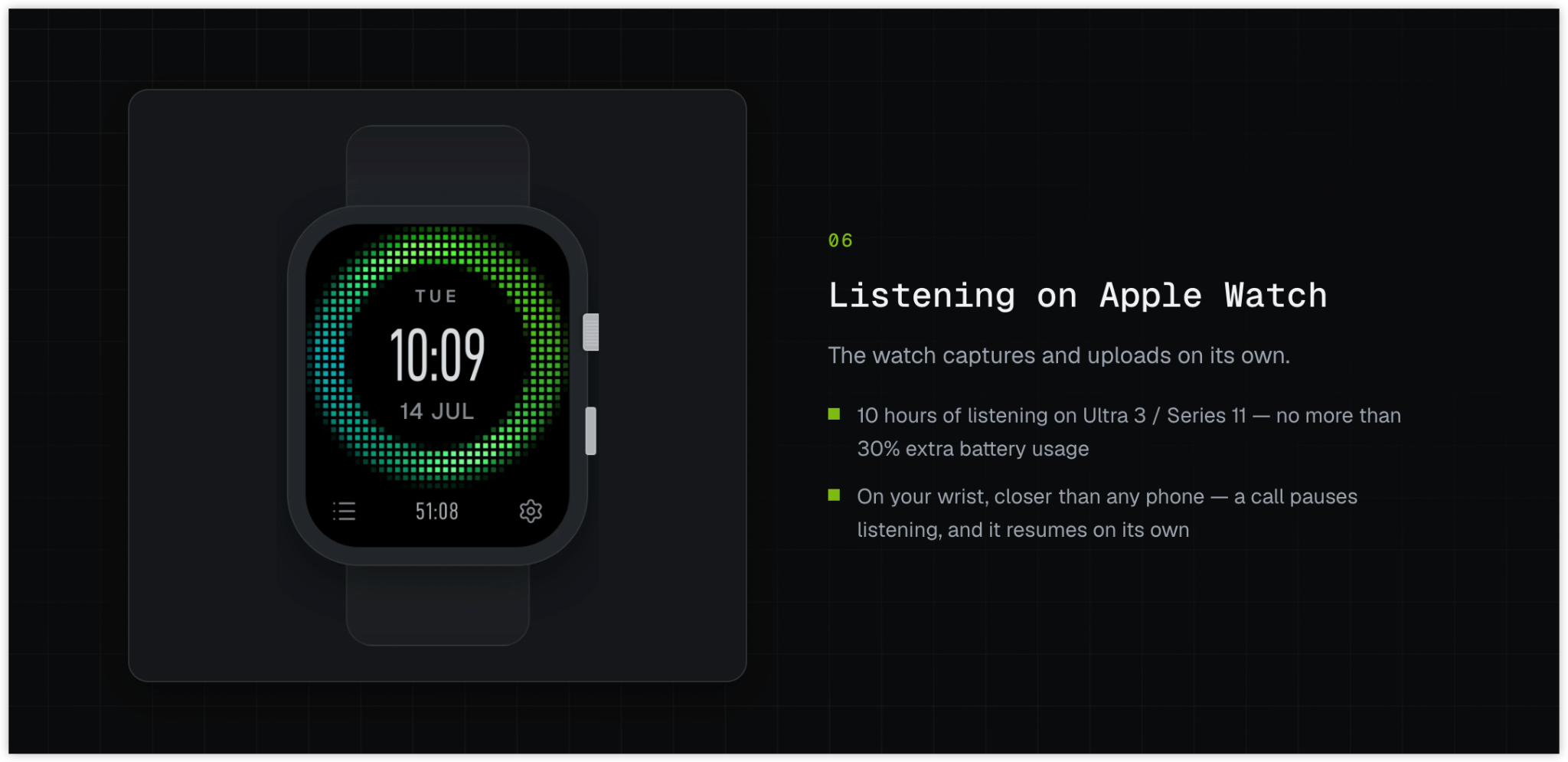
Hemory listening interface shown on Apple Watch.
When you’re finished, stop listening. Hemory’s feature description says each listening session becomes a record, but it doesn’t give an upload-time estimate. Don’t assume the transcript will appear immediately.
Find and review the session record
After the Watch session has uploaded, look for its resulting record in Hemory. The published feature information does not identify the exact screen or confirm whether the transcript can be opened on Apple Watch, iPhone, or both. It does confirm that transcript lines can be played back on the device that captured them. For a session captured on Apple Watch, that means line playback is available on the Watch; the documented feature description does not confirm playback on another device.
The transcript is timestamped and includes Speaker labels, with AI cleanup. Treat the labels and transcript as a useful record, not a guarantee of perfect transcription or speaker identification.
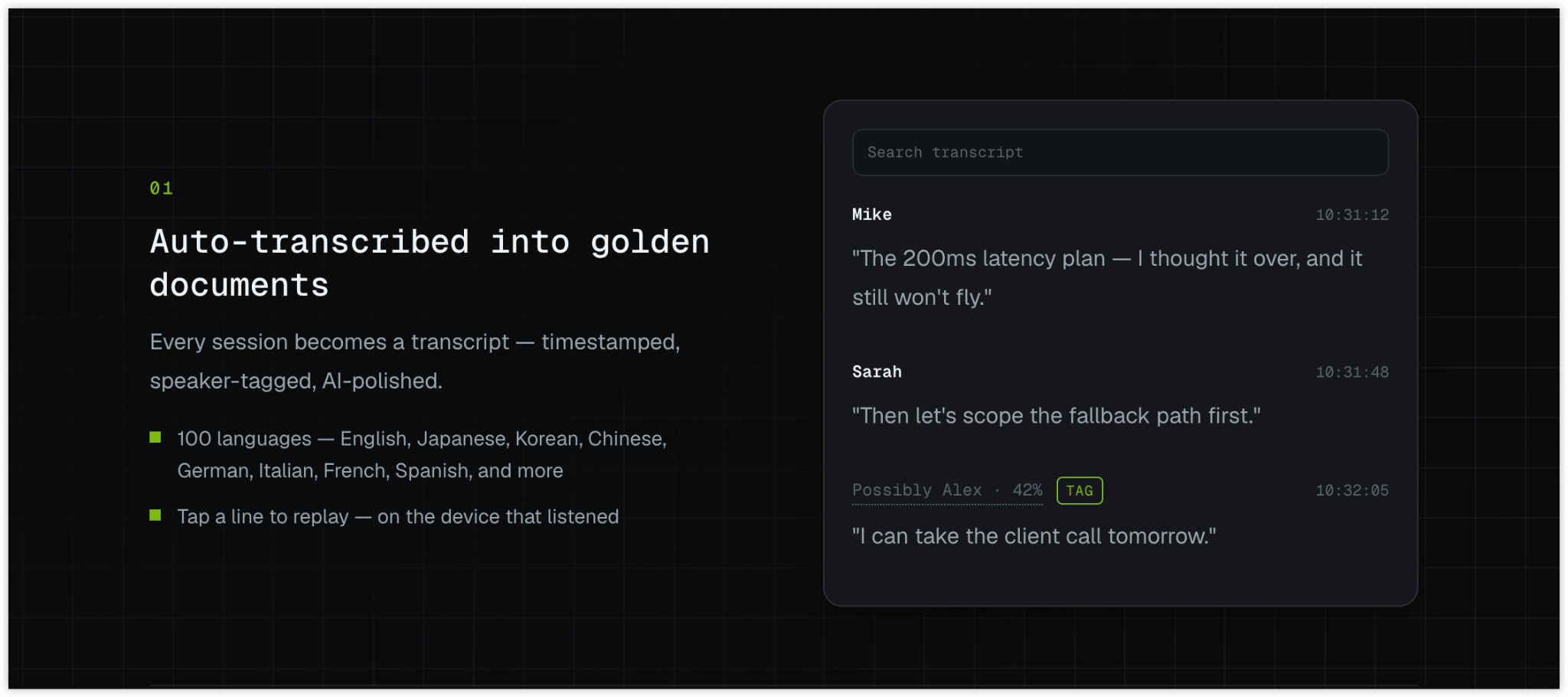
Find individual statements in a searchable transcript.
Hemory also classifies the day’s activities into types such as Meeting, Work, Meal, Social, Learning, and Chit-chat. The summary depends on the classification: meetings may receive structured notes covering an agenda, decisions, and action items, while lighter activities receive a lighter summary. You don’t need to select the activity type manually.
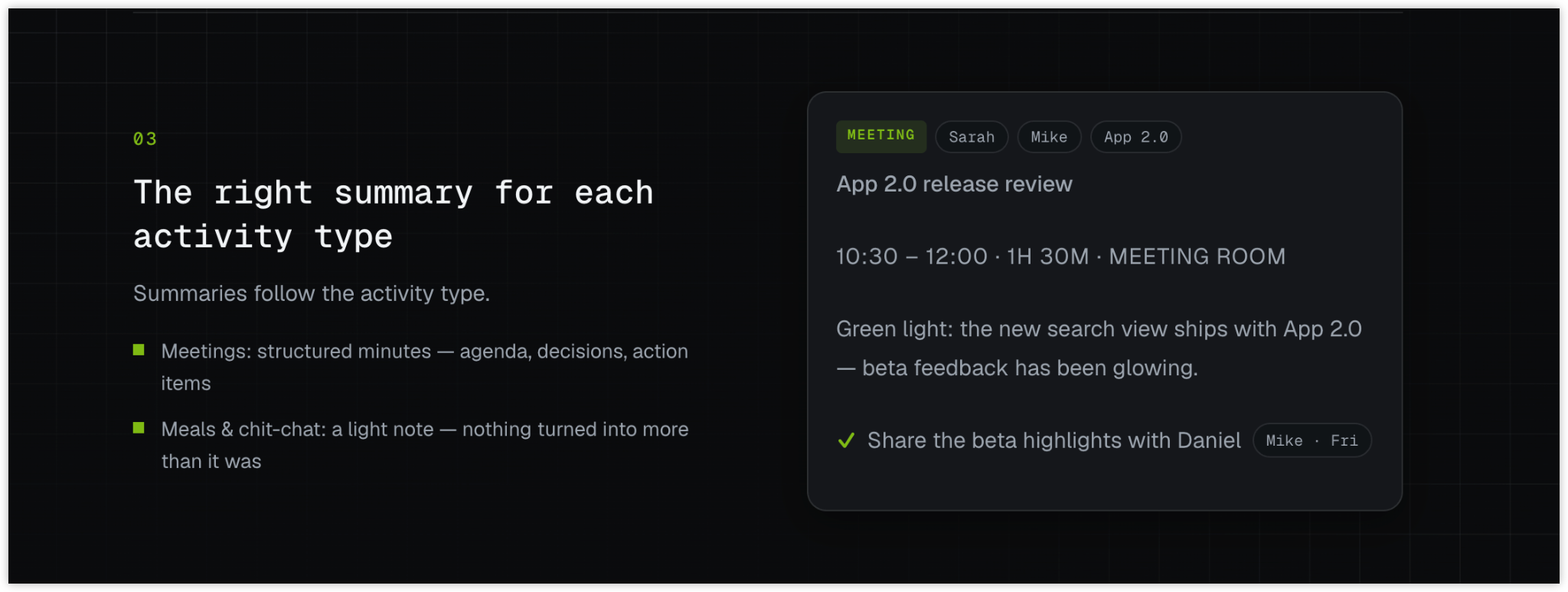
See how a meeting summary highlights decisions and follow-ups.
If you can’t find the transcript
The published feature description doesn’t state how long upload takes or name a specific transcript screen. First, make sure you stopped the session and check the current Hemory interface for the captured session’s record. If it still isn’t visible, the feature description alone can’t establish whether the upload is still processing or whether the session was not captured; consult the current product guidance for the available next step.
FAQ
Can I start and stop listening on Apple Watch?
Apple Watch is listed as a supported listening platform, and Hemory documents Manual Mode and Schedule Mode. The feature description does not specify which mode controls appear directly on the watch, so check the controls available in your current setup.
Can I play a transcript line on my iPhone?
The documented playback feature is on the device that captured the transcript. The published details do not confirm playback on a different device.
Will the transcript appear as soon as I stop listening?
Hemory’s feature description does not specify upload or processing time. It confirms that Apple Watch can upload listening content independently, but does not promise when the transcript will be ready.
For a first session, try a short listening period, stop it, and then look for its record in Hemory. You’ll know what to expect from the transcript and activity summary without needing to take down every detail while you listen.