

 Hemory Team
On this page
After a meeting, it can be hard to separate a real commitment from an idea, request, or passing mention. If the conversation was captured in Hemory and is accessible through a connected AI agent, you can ask the agent to find explicitly stated action items and flag details that were never settled. You still decide which items count as commitments and what needs follow-up.
TL;DR
- Ask the agent to retrieve the specific captured meeting and report only actions explicitly stated in the conversation.
- For each item, separate the action from its owner, expected outcome, and deadline. Mark each detail as stated, unstated, or unclear.
- A speaker’s name or a suggested date is not automatically an accepted owner or deadline. Don’t let the agent fill gaps by inference.
- Review the results before carrying them into your team’s workflow. Retrieval may not find every relevant detail, and a historical action item does not establish that it is complete now.
1. Identify the meeting and give the agent a bounded task
Start with a meeting clue the agent can use: for example, the project, approximate date, meeting name, or a participant you remember. You do not need to write a complete summary first. A clue helps narrow the search; it does not need to be an exact title or a full list of attendees.
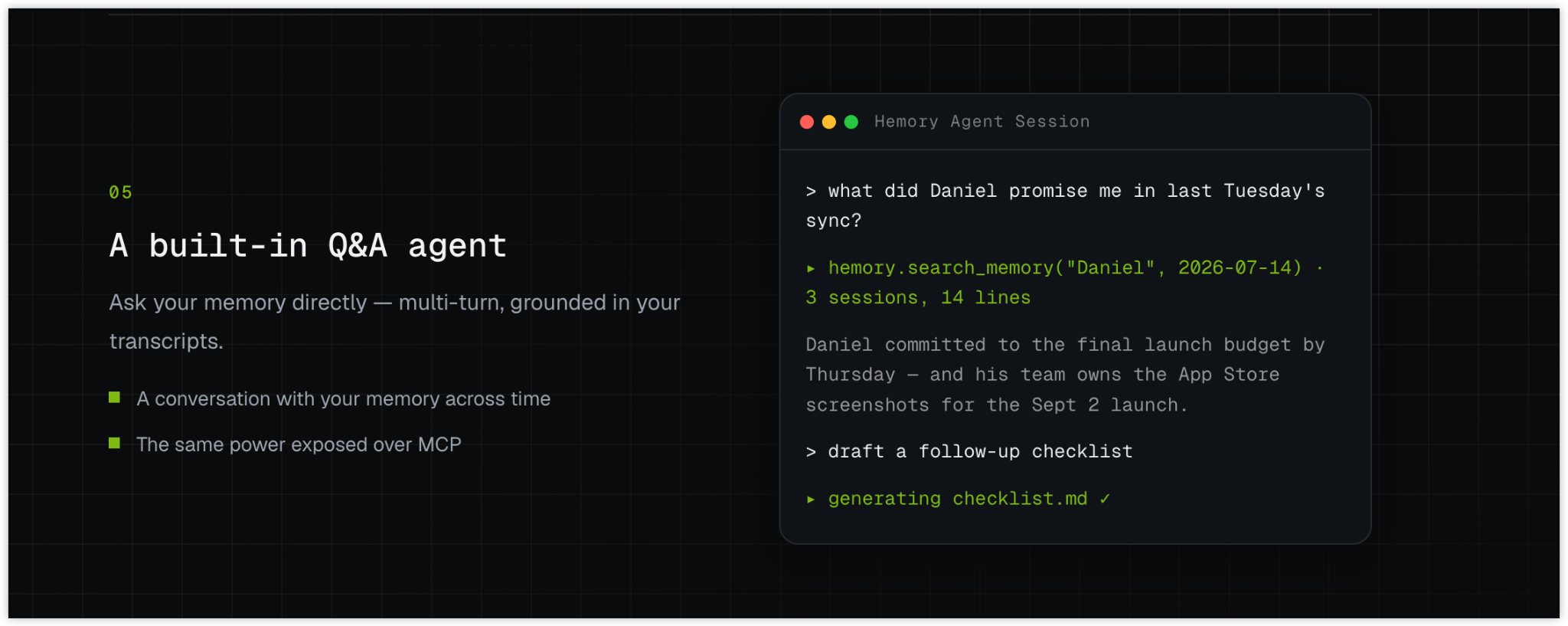
Retrieve past commitments and draft follow-up tasks.
This workflow applies when the meeting was previously captured in Hemory and the connected agent can access it. Hemory provides conversation capture and Memory retrieval; the connected agent does the analysis and drafting. A Hemory connection does not give an agent access to uncaptured discussions, and its available scope depends on the connection. Hemory describes meeting records with structured notes for topics, decisions, and action items, and offers Memory access through MCP; these product descriptions do not guarantee that an external agent will retrieve every relevant item. See the Hemory Features page.
For example, you could ask:
Find the captured project check-in from last week about the customer handoff. Identify every action item explicitly stated in that meeting. For each one, report the action, the person explicitly assigned or volunteering, the expected outcome or deliverable, and any stated deadline. Mark the owner, outcome, and deadline separately as stated, not stated, or unclear. Distinguish commitments from proposals, requests, and general discussion. Do not infer missing details. Include supporting wording or a transcript reference when available. Do not send messages or update any project system.
If you remember only part of the meeting’s name or timing, say so. The agent can use the clue to look for accessible context; it should not pretend the clue identifies a result with certainty. If several meetings could match, ask which one it used or provide another clue before treating the list as complete.
2. Separate action items from discussion
A useful review keeps the kind of statement clear. A request, proposal, accepted decision, and commitment are not interchangeable. A person being mentioned does not by itself make them the owner. Likewise, someone saying they can attend does not establish confirmed attendance, and a suggestion of a date does not establish an agreed deadline.
Ask the agent to report the action and its evidence separately. For example, “Mina will send the revised onboarding guide” states an action and names an owner. If no timing appears in the accessible meeting record, the deadline should be “Not stated,” not a guessed date. If the conversation says “someone should send the guide” without assigning a person, list the action as unassigned.
Use a table like this to make gaps visible:
| Explicitly stated action | Owner | Expected outcome or deliverable | Deadline | What needs review |
|---|---|---|---|---|
| Send the revised onboarding guide | Mina — stated | Revised guide — stated | Not stated | Confirm whether a deadline is needed |
| Share the access checklist | Unassigned | Checklist — stated | Friday — stated | Ask who will own the handoff |
| Follow up on the customer’s open question | Unclear | The question is not specified | Not stated | Clarify the question and owner |
Treat “Unclear” differently from “Not stated.” Use “Not stated” when the accessible record contains no such detail. Use “Unclear” when something is mentioned but the wording does not establish what it means—for example, when several people discuss sending a document but no one clearly takes responsibility.
The table is a review aid, not proof that each item was accepted or remains open. If a statement was conditional, preserve the condition. If the meeting establishes a commitment but no deadline, keep the commitment and mark only the deadline as unstated.
3. Review evidence and resolve consequential gaps
Check the supporting wording for items that could create confusion or affect a handoff. Pay particular attention to the action, who accepted it, any condition, and the difference between a stated deadline and a date someone merely suggested. If a transcript reference or wording is available, use it to review the item; you do not need to reconstruct the whole meeting or replay every recording.
Then separate what the meeting established from what you need to know now. The historical discussion may show that someone agreed to provide a file, but it does not show whether they have done so since. If current status matters, check an appropriate current record or ask the owner. Don’t change “no deadline was stated” to “the deadline was missed.”
If an item is unclear, ask a focused follow-up question, such as “Who owns sending the checklist?” or “What result should the revised guide include?” If the agent cannot find the meeting, try another relevant clue or consult another available record. A failed retrieval does not prove that no action was discussed. If a detail has no usable record, clarify it with someone who can confirm it rather than asking the agent to guess.
4. Carry forward a reviewed list
Once you have checked the material items, carry the list into the team’s existing follow-up process. Keep the source and current status distinct: a captured meeting can support what was said, while a current project record or direct confirmation may be needed to establish what happened afterward.
This workflow produces a list for review; it does not send messages or update a project system. Copy or adapt the confirmed items yourself, and resolve missing owners or outcomes with the relevant people. That way, the agent reduces the work of searching and rebuilding the discussion, while you retain control over which statements count as commitments and what happens next.
FAQ
Does an AI agent find every action item from the meeting?
Not necessarily. It can work only with the captured conversation and context accessible through its connection, and retrieval may miss relevant details. Review important items against available evidence, and treat a missing result as a reason to investigate—not proof that nothing was discussed.
Should I ask the agent to assign an owner when the meeting did not name one?
No. Ask it to mark the item unassigned or unclear. You or the team can decide who should take it on; that later decision is not evidence that the person was assigned during the meeting.
Does an action item without a deadline mean it is overdue?
No. “Not stated” means the accessible meeting record did not establish a deadline. Check a current source or ask the relevant person before describing the item as overdue.
Can the agent update my task tracker after reviewing the meeting?
This workflow does not assume that it can. Hemory retrieval provides context for the connected agent; it does not establish permission or capability to update an external system. Review the list and carry confirmed items into your team’s workflow yourself.