

 Hemory Team
On this page
When you switch between Cursor and VS Code, project files may still be available in both environments, but that does not mean their editor settings, AI chat histories, or other client-specific state have transferred. Hemory offers a separate route: a supported AI client can retrieve relevant context from conversations that were captured and are accessible through its Hemory connection.
That can help you bring earlier discussion into a coding task without retelling it from memory. It does not guarantee that both editors receive the same context or have the same access. Here is how to distinguish the two kinds of context and what to check before relying on either setup.
TL;DR
- Hemory’s MCP connection can provide an AI client access to relevant, previously captured conversation Memory. It does not automatically transfer editor settings, workspace state, or private AI chat history.
- Cursor and VS Code are publicly listed as MCP clients, but that listing does not establish identical setup steps, tools, permissions, or retrieval scope.
- Confirm each client’s connection and accessible Hemory context separately. Give the agent today’s task and review the context it uses before relying on it.
What “memory across editors” can mean
The phrase can describe two different things:
| Context | What it refers to | What to expect when changing editors |
|---|---|---|
| Editor or project context | Workspace files, project instructions, settings, and an editor’s own AI conversations | These depend on the editor, project, and configuration. Do not assume they are shared just because you open the same project in both editors. |
| Hemory conversation Memory | Previously captured discussions that Hemory organizes and makes available through supported retrieval routes | A connected client may retrieve relevant accessible material. This does not make every conversation, chat, or project detail automatically available. |
MCP is the connection route that lets a supported client use tools exposed by a service such as Hemory. It is not a universal sync mechanism between Cursor and VS Code. Each editor has its own connection configuration and may expose tools differently.
What Hemory can contribute
Hemory’s built-in Q&A supports multi-turn questions grounded in transcripts and can retrieve across conversation sessions. Hemory also provides MCP access to Memory retrieval. A coding agent connected through a supported route can use accessible captured conversations as background for a task—for example, a prior discussion of a requirement or a design constraint.
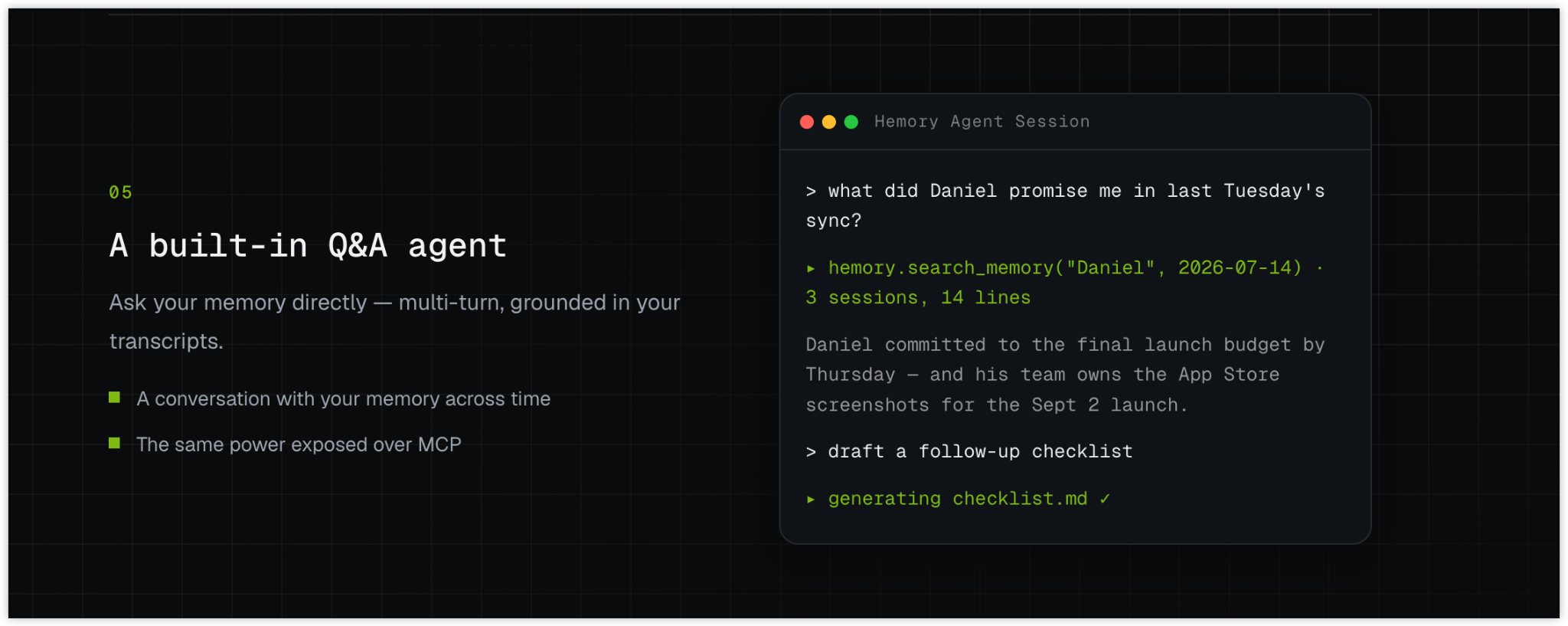
Retrieve past commitments and draft follow-up tasks.
The distinction matters: Hemory preserves and organizes captured conversations and supplies retrieval access; the connected agent does its own reasoning and drafting. You still need to state the current goal, add new information that was never discussed, and judge whether the result fits the project.
The source must already exist in Hemory and be accessible through the route in use. Hemory cannot reconstruct an uncaptured conversation. And the built-in Q&A’s documented cross-session behavior does not by itself prove that every external client has the same retrieval scope.
What does not automatically carry over
A Hemory connection does not, by itself, mean that:
- Cursor’s AI chat history becomes available in VS Code, or vice versa.
- Editor-specific rules, settings, or workspace state are copied between clients.
- Hemory can read every file in the project or every conversation held in either editor.
- Both clients use the same Hemory Vault, tools, permissions, or retrieval behavior.
- Every relevant captured detail will be found for every request.
Hemory publicly lists both Cursor and VS Code among MCP clients. That is useful evidence that both are intended connection options, but it is not a client-by-client setup guide or proof of matching capabilities. Check current Hemory and editor documentation for each configuration and its permissions before depending on a particular behavior.
What to check before switching editors
For each editor, confirm the connection is configured and available to the agent you intend to use. Then check which Hemory Vault and retrieval tools that connection can access, and whether the permissions are appropriate for your work. Do this separately in Cursor and VS Code rather than inferring one client’s setup from the other.
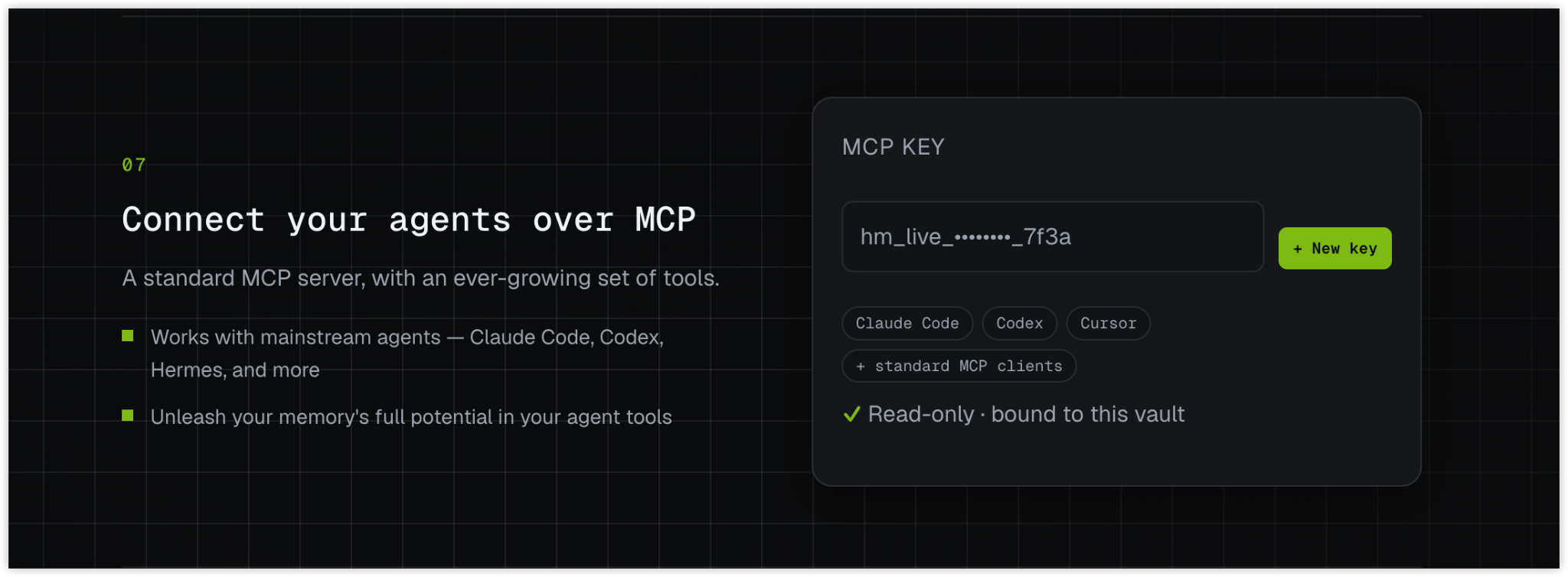
Review MCP connection options and access settings.
For a task that depends on earlier discussion, give the agent a clear request, such as: “Use relevant Hemory conversations about the project’s authentication design to summarize the constraints I should consider before changing this flow. Separate recorded decisions from open questions.” Add current requirements that were not discussed. Review the returned material for relevance, scope, and conditions before using it in code or a design decision.
If the agent cannot access a necessary detail, use another available source or ask a focused clarification. A missing result does not establish that the conversation was never captured; access, connection setup, or retrieval scope may also matter.
The practical distinction
Think of Hemory as a source of captured conversation context that a supported AI client may retrieve—not as a shared editor profile. Cursor and VS Code can each be connected to Hemory, but whether their accessible context and behavior match must be checked in the actual configurations.
Before relying on cross-editor context, confirm both connections, identify the Memory available to each, and review what the agent retrieves for a real project task. This helps you reuse relevant discussion without assuming editor state or chat history has followed you.