

 Hemory Team
On this page
Gemini is a family of products and clients, and MCP setup can depend on which one you use. Hemory lists Gemini as an integration, but that does not establish one universal setup path or prove that every Gemini client exposes the same Hemory tools and permissions. This guide shows what to identify and verify before you rely on the connection, without borrowing setup steps from other clients.
TL;DR
- First identify the specific Gemini client and confirm in its current documentation that it supports MCP connections.
- Hemory provides MCP access to Memory, but the exact tools and permissions available through a Gemini connection are not established here. Check the current details for both products before proceeding.
- A connection can only provide context that was previously captured in Hemory and is accessible through that connection. Gemini does its own reasoning and drafting; you provide the task and review its output.
Start with the Gemini client you actually use
“Gemini” may refer to different products or client environments. Before following a setup guide, write down the specific client, its version or plan if relevant, and the account where you intend to use it. Then check that client’s current official documentation for MCP support and its own connection entry point.
Do not assume that instructions for Claude Code, Cursor, VS Code, or another MCP client apply. MCP is a shared protocol, but clients can differ in how they configure a server, expose available tools, and handle access or approval. If the Gemini client you use does not document MCP connections, this Hemory MCP route is not confirmed for that client.
Confirm what Hemory and this connection can provide
Hemory publicly describes an MCP server and lists Gemini among its integrations. Its product information also describes Memory retrieval through MCP. Those statements establish a general integration path, not the exact configuration fields, commands, or set of tools available in every Gemini client.
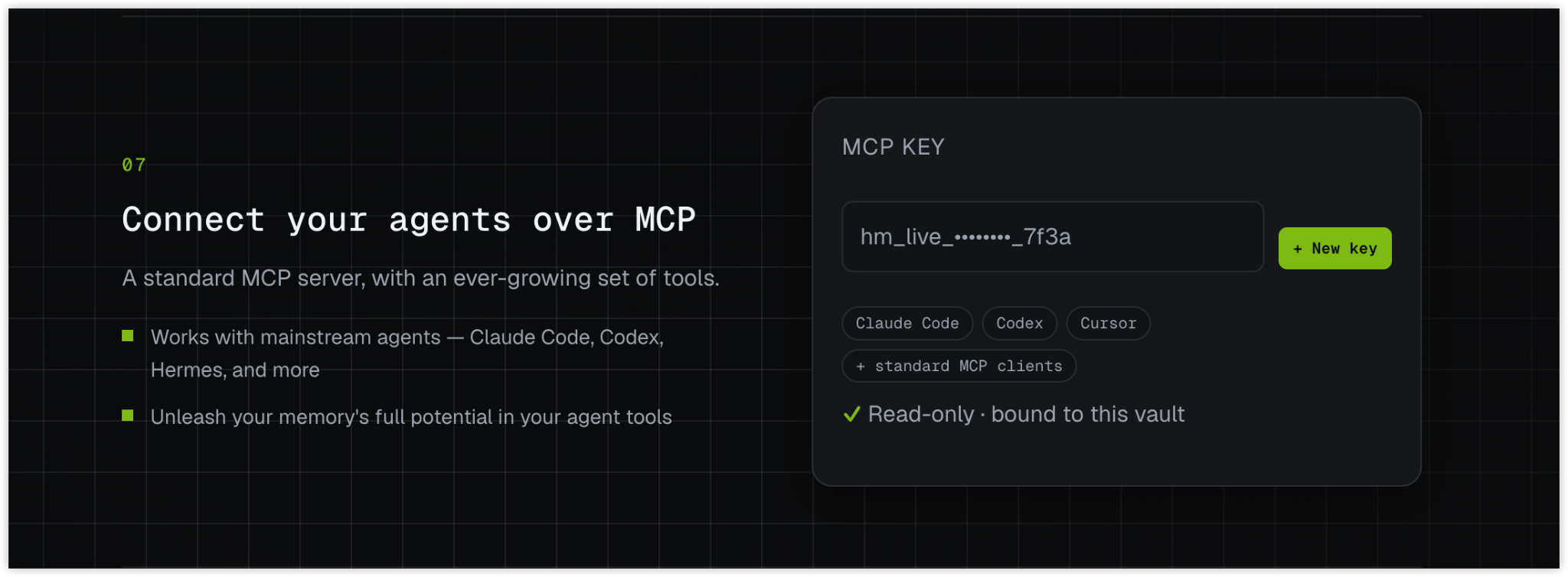
Review MCP connection options and access settings.
Before relying on the connection, check current Hemory MCP documentation for the connection details and available tools, and check the Gemini client’s documentation for how it connects to MCP servers. Confirm what data the client can access and what actions its available tools can perform. Do not assume that every client receives identical permissions, that access extends to all Vaults or records, or that a connection is entirely read-only. Hemory documents Speaker management through MCP; this does not establish permission to change other Memory or perform actions in external systems.
If the current documentation does not answer a material question—such as which Hemory retrieval tools Gemini can call—treat that as unresolved rather than filling in a configuration from another client.
Set up only through the documented Gemini entry point
Once you have confirmed that your specific Gemini client supports MCP and located its current setup instructions, follow that client’s documented route and Hemory’s current connection guidance. Do not paste commands, server fields, or configuration examples meant for another client into Gemini unless both products’ documentation says they apply.
After setup, use the client’s own connection or tool-discovery view, if documented, to confirm that the Hemory connection is available and identify what it exposes. Do not infer access from a successful connection indicator alone: the client may connect without exposing every Hemory capability you expect. If you cannot confirm the available tools or scope, pause before using the connection for work that depends on that access.
Use the connection for a task grounded in captured conversations
A connection can help Gemini use relevant real-world context when the underlying conversations were previously captured in Hemory and are accessible through the configured connection. Hemory provides capture, organization, and retrieval; Gemini performs its own reasoning and drafting. Neither MCP nor the product listing means Gemini can reach an uncaptured conversation or will automatically start work without a request.
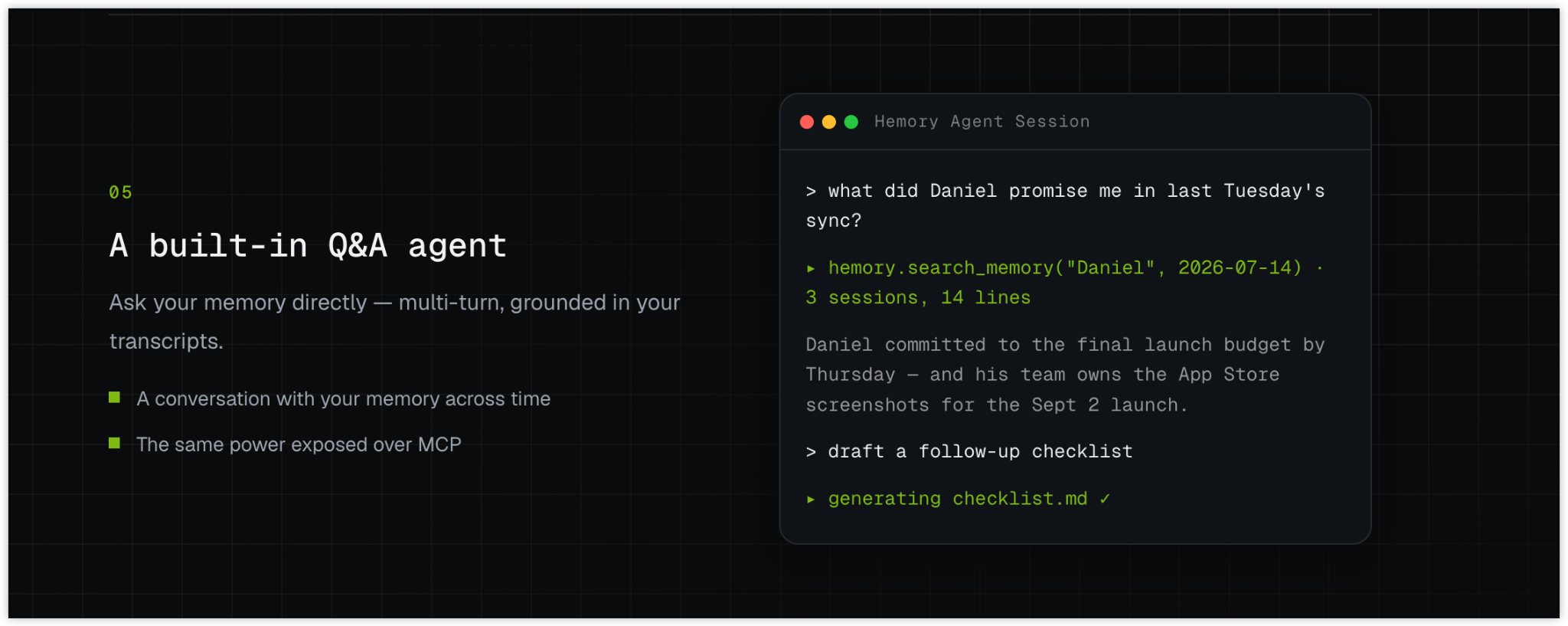
Retrieve past commitments and draft follow-up tasks.
For a first practical check, give Gemini a bounded task and a useful clue, such as the subject or project, then ask it to use accessible Hemory context. Supply any current facts that were not part of those conversations. Review whether the response reflects the right scope and conditions before using it. Hemory’s built-in Q&A can retrieve across conversation sessions, but that alone does not prove that a particular Gemini client has the same scope through MCP.
If the connection does not return a detail you need, do not conclude that the conversation was never captured. Check the available connection scope and, where appropriate, consult another accessible record or ask a focused follow-up.
Before relying on the connection
- Client: Have you confirmed the exact Gemini client and its current MCP support?
- Setup: Are the connection instructions from that client and Hemory, rather than adapted from another tool?
- Access: Do you know which Hemory tools and data this specific connection exposes?
- Source: Was the relevant conversation captured in Hemory and made accessible through the connection?
- Review: Have you checked the result for missing context, changed conditions, and unsupported assumptions?
FAQ
Can I use the same MCP setup instructions as Claude Code or Cursor?
Not unless the current Gemini client and Hemory documentation explicitly confirms they apply. Client setup paths and permissions can differ even when they use MCP.
Does connecting Gemini give it access to every Hemory conversation?
That is not established for every Gemini client. Access depends on the tools and scope exposed by the specific connection, and the relevant conversations must already be captured and accessible.
Will Hemory write or take actions for Gemini?
Hemory provides conversation capture, organization, retrieval, and context access. Gemini performs its own reasoning and drafting. A documented Speaker-management capability exists in MCP, but that does not imply arbitrary Memory changes or actions in other systems.
What should I do if I cannot find Gemini-specific setup details?
Check the current official documentation for the exact Gemini client and Hemory’s MCP guidance. If either does not confirm the connection details or access you need, treat that point as unresolved rather than applying another client’s instructions.
To try the workflow, first confirm MCP support for your exact Gemini client and the Hemory tools it can access. Then test the connection with a small task based on a conversation already captured in Hemory, and review the result before relying on it.