

 Hemory Team
On this page
A connected MCP client may show tools for a service without making it obvious what each tool can read or change. A listing alone does not tell you how a particular client handles approval, so check the connection before giving it a real task.
TL;DR
- Confirm the connection points to the Hemory Vault you intend to use.
- Inspect the tools exposed by that client; do not assume every client offers the same tools or permissions.
- Test retrieval with a harmless search for a detail from a conversation already captured in that Vault.
- Before running a change-capable tool, understand its target and the client’s approval behavior. If either is unclear, stop there.
1. Confirm which Vault the client is connected to
Start in the client’s MCP connection settings or connection details. Confirm that the Hemory connection is active and identify the Vault it is bound to. Do this before searching: results from the wrong Vault cannot tell you whether the intended connection works.
If the client does not make the Vault or connection target clear, do not treat a successful response as confirmation that you tested the right one. Resolve the connection details first.
2. List the tools this client actually exposes
Ask the client to display the tools available through its Hemory MCP connection, without running them. For example:
List the tools currently exposed by the connected Hemory MCP server. For each one, give its exact name and stated purpose, and say whether its description indicates that it reads or changes anything. Do not execute a tool.
Treat the response as an inventory to inspect, not as independent proof of permissions. Where the client provides a tool list, connection panel, or descriptions, compare the response with what that interface actually shows. Record the exact tool names and descriptions for this connection; do not assume that a name or public integration listing establishes the behavior of your installed client.
Hemory’s documented MCP scope includes Memory retrieval and Speaker labeling and management. That means it is not accurate to assume the entire connection is read-only. It does not establish that arbitrary Memory, transcripts, or other data can be edited, or that the connection can take actions in outside systems. Check what this client exposes rather than inferring broader access.
3. Try one harmless read
Choose a detail you know was captured in the intended Vault, such as a distinctive phrase from a previous discussion. Ask the client to search for it without requesting a change. A simple request might be:
Search the connected Hemory Memory for the conversation where we discussed [distinctive topic]. Do not change anything. Tell me what you found and which Vault you searched.
Use a real clue, but avoid sensitive details for this first check. Confirm that the response relates to the expected conversation and connection. A search result shows that this read worked for this request; it does not prove that every relevant conversation is accessible or that retrieval will always be complete.
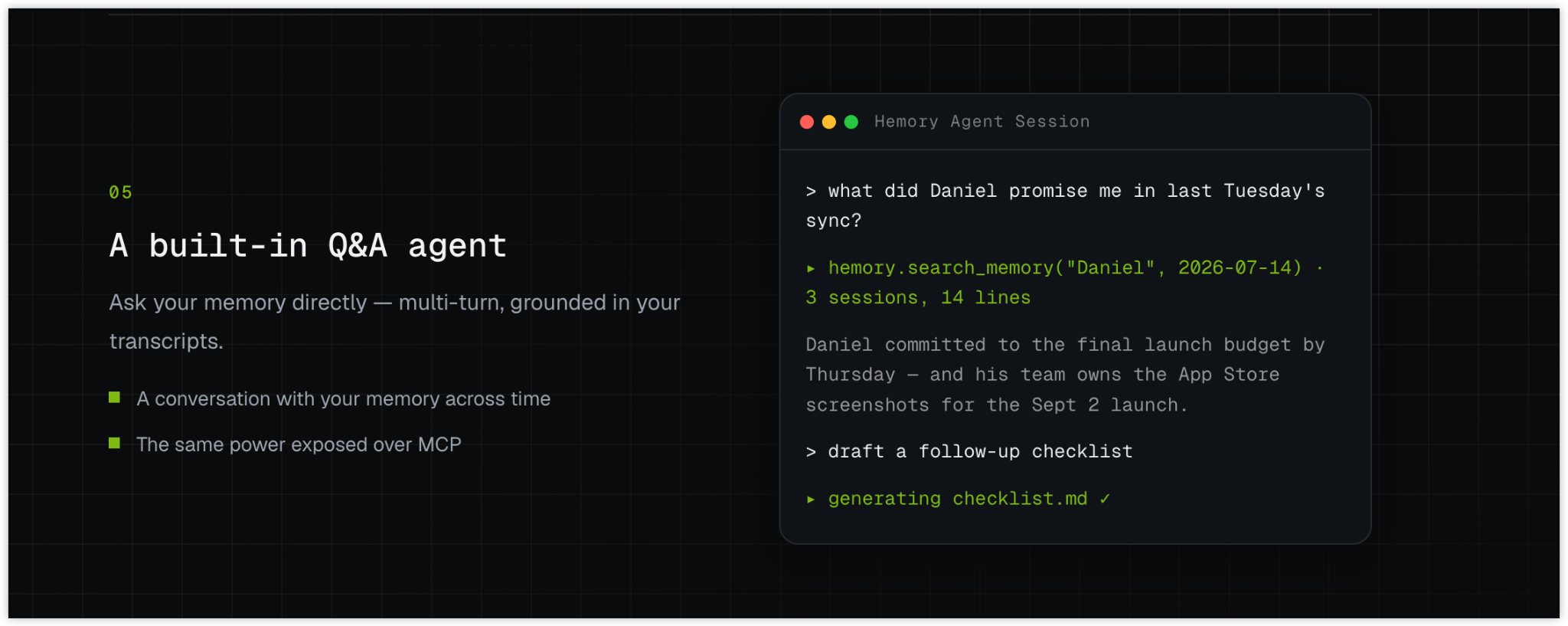
Retrieve past commitments and draft follow-up tasks.
If nothing appears, do not conclude that the conversation was never captured. Recheck the Vault and the clue you used. If the result remains unclear, stop and investigate the connection rather than moving on to a write test.
4. Understand change tools and approval before using them
Return to the tool descriptions and identify anything that could change data. For each such tool, establish what it would change and which record or speaker it would affect. Then inspect how this client indicates and handles approval for that action. Approval behavior is client-specific; do not assume a confirmation prompt will appear, or that a prompt by itself explains the full scope of a change.
Do not test a change on real Memory just to find out what happens. If the tool’s effect, target, or approval flow is unclear, leave it unused and consult the client’s available documentation or administrator. Only consider a test when you have a suitable, disposable test record and understand the possible effect. A successful read test does not establish what any write-capable tool can do.
5. Record what you observed
Keep a short note tied to the client and connection you checked. Include the Vault, the tools and descriptions shown, the harmless search you ran, the result, and what you observed about approval for any change-capable tool. Mark anything you could not determine as unknown. These observations describe this connection at the time you checked it; they are not a guarantee that another client behaves the same way or that a public integration listing independently verifies its technical behavior.
FAQ
Is a Hemory MCP connection read-only?
Do not assume that it is. Hemory documents Memory retrieval as well as Speaker labeling and management through MCP. That does not establish arbitrary edit access; inspect the tools exposed by your client and their stated scope.
Does a tool list prove what the client can do?
No. It tells you what the client reports as available, but not necessarily how each tool behaves or what approval controls apply. Compare the listing with the client’s connection details and treat unclear behavior as unresolved.
What if the harmless search finds nothing?
A failed search does not prove the conversation was never captured. Confirm the intended Vault and try a clearer clue. If you still cannot establish what happened, do not use that result as evidence that the connection is ready for a real task.
Before you rely on the connection
Use the same cautious sequence whenever you connect a different client: confirm the Vault, inspect that client’s tool list, run a read that makes no changes, and understand the scope and approval behavior before using any change-capable tool. Hemory provides captured Memory and documented MCP capabilities; the client determines how it exposes and handles tools, and you remain responsible for reviewing what you authorize.